

What is R1Soft?
R1Soft is a backup tool made by another company. Its server program is called Server Backup Manager. It takes copies of a server's data again and again during the day. Each copy is called a recovery point. Think of a recovery point as a photo of your files at one moment in time.
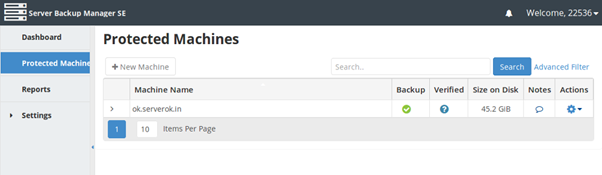
Hostvento may or may not use R1Soft on your plan. Ask Hostvento support if you are not sure.
Before you start
- Know what you lost. It could be one file, a folder, or a database (a store where your site keeps its content).
- Know roughly when it was last working. This helps you choose the right recovery point.
- A restore can replace newer files with older ones. Copy your current files somewhere safe first.
Steps
- Log in to the client area at https://secure.hostvento.com/clientarea.php.
- Look in your service details and welcome email for a backup or restore link. Not every plan has one.
- If you have no link, open a support ticket at https://secure.hostvento.com/submitticket.php. Ask for an R1Soft restore.
- In the ticket, write your domain name. Write the exact file or folder path you want back.
- Add the date and time when the data was last good.
- If you can use the backup screen yourself, choose your server or account in the list.
- Pick a recovery point from before the problem began.
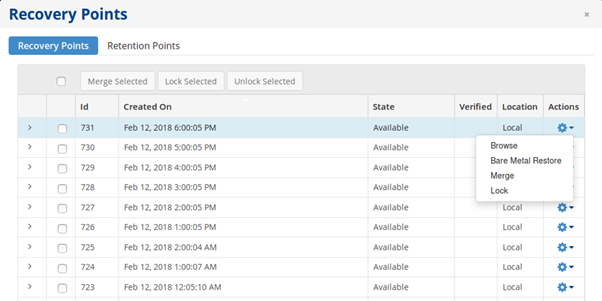
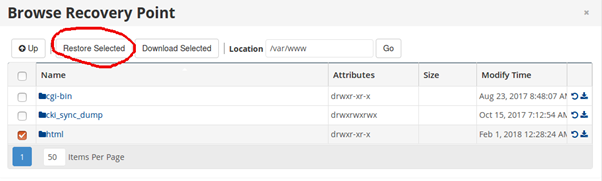
- Browse the files in that recovery point. Tick only what you need.
- Choose where to put the files. Restoring to a new folder is the safest choice. You can then copy files back by hand.
- Start the restore and wait until it says it is finished.
- Open your website and check that it works.
Tip: Screen names differ between versions and between hosts. If a button name here does not match what you see, look for words like Restore, Recovery Point or Browse. Do not guess. Ask support.
Two kinds of restore
- File restore: brings back single files or folders. This is the most common type.
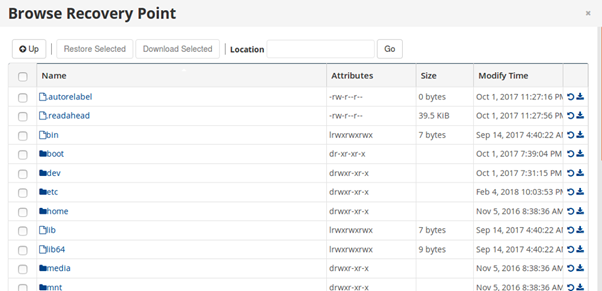
- Full server restore: brings back a whole machine. This is a big job. Support usually does it for you.
If something goes wrong
If the restore fails or the files look wrong, stop. Do not run it again and again. Send Hostvento support the time you ran it and any message you saw.
Quick recap
- R1Soft saves many recovery points of your data.
- Ask Hostvento support if it is on your plan.
- Pick a recovery point from before the problem.
- Restore to a new folder first, and keep a copy of your current files.
- Open a support ticket if you cannot find the restore screen.