

Why does this matter?
Imagine you want to color a drawing. If you ruin it, it is gone. If you photocopy it first, you can start again. Files on your website work the same way. One wrong letter in a file like .htaccess or wp-config.php can stop your whole site.
Method 1: Copy the file in File Manager
File Manager is a tool in your control panel. It lets you see and change your files, like the file explorer on a computer.
- Log in to your control panel (cPanel or similar).
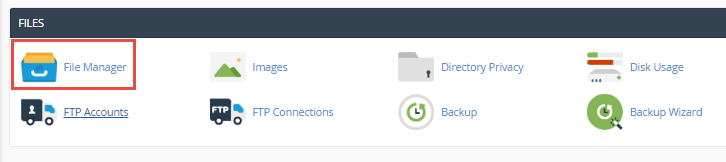
- Open File Manager.
- Go to the folder with your file, such as
public_html. - Click the file once to select it.
- Click Copy in the top bar.
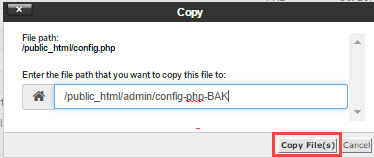
- Type a new name and path. Add the date in the name, for example
wp-config-backup-2026-01-10.php. Click Copy File(s).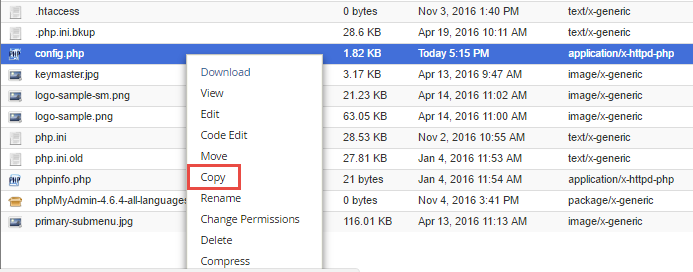

- Now you have two files. Edit the original and keep the copy untouched.
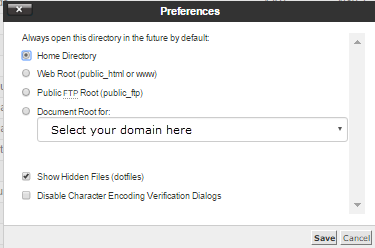
Tip: Hidden files like
.htaccess may not show. Click Settings in File Manager and tick Show Hidden Files (dotfiles).Method 2: Download the file to your computer
- In File Manager, select the file.
- Click Download.
- Save it in a safe folder on your computer.
This copy is safe even if the server has trouble.
How to undo a mistake
- Delete the broken file, or rename it to something like
file-broken.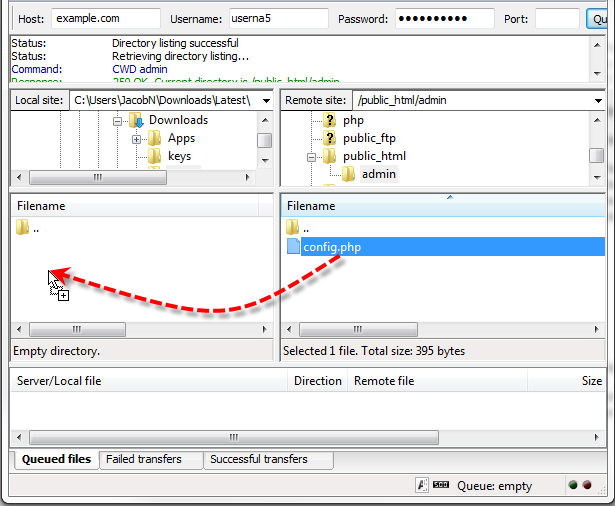
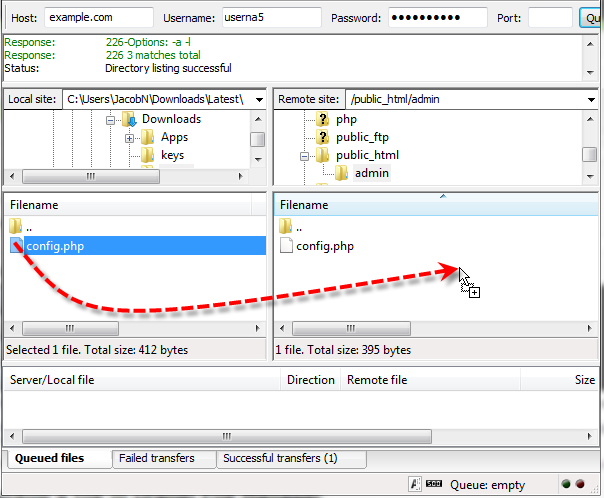
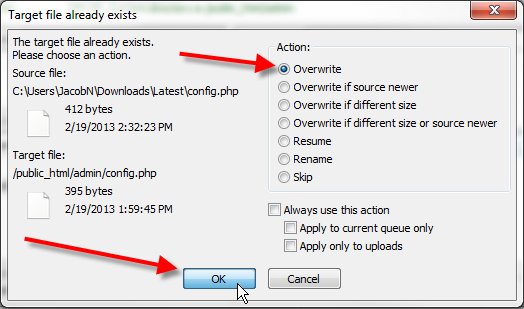
- Copy your backup and give it the original name.
- Refresh your website.
If you are unsure at any step, stop and ask for help. You can open a support ticket with Hostvento.
Quick recap
- Always copy a file before you edit it.
- Use Copy in File Manager and add the date to the name.
- Also download a copy to your computer.
- To undo, put the backup back under the original name.