

What is a restore?
A restore means putting saved copies back where they belong. It is like taking a book from a spare shelf and putting it back on your main shelf.
Dropmysite is a cloud backup service made by another company. Hostvento may or may not offer it on your plan. Ask Hostvento support if you are not sure.
Before you start
- Decide what you need back: some files, a database or email.
- Remember the date when things last worked.
- A restore can replace newer data with older data. Copy your current files to a safe place first.
Steps
- Log in to the client area at https://secure.hostvento.com/clientarea.php.
- Open your hosting service and go to cPanel.
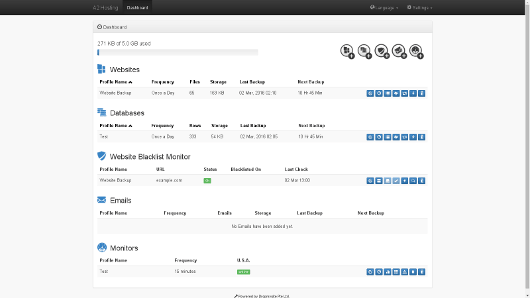
- Type Dropmysite in the cPanel search box and open the tool.
- Look for a part called Restore, Browse or Backups. The exact name may differ.
- Choose the date of the backup you want. Pick one from before the problem.
- Browse the list. You may see website files, databases and email in separate parts.
- Tick only the items you need. A small restore is faster and safer.
- If you can pick a destination, choose a new folder first. Then check the files before you move them to the live site.
- Start the restore. Do not close the page until it finishes, unless the tool says it can run in the background.
- Open your website and test it. Check pages, images and forms.
- For a database restore, make sure your site still connects to it.
Tip: If you cannot find the restore option, it may not be set up. Open a ticket at https://secure.hostvento.com/submitticket.php and tell us what you want back and from which date.
Warning
Restoring over your live database can erase new posts, orders and users made since the backup. If you are not sure, ask support before you start.
Quick recap
- A restore puts saved copies back.
- Find Dropmysite using the cPanel search box.
- Pick a backup date from before the problem.
- Choose only what you need and restore to a new folder first.
- Test your site afterwards and contact Hostvento support if anything looks wrong.