

What is a backup restore?
A backup is a saved copy of your website at one moment in time. Restoring means copying that saved version back. Think of it like finding an old photo in an album and putting it back on the wall.
cPanel is the control panel where you manage your hosting. Some hosting plans have backup tools inside it. Ask Hostvento support which backup tools and which dates are available on your plan.
Before you start
- Restoring puts old files over new ones with the same name.
- Warning: You may lose changes you made after the backup date. Download a copy of your current files first.
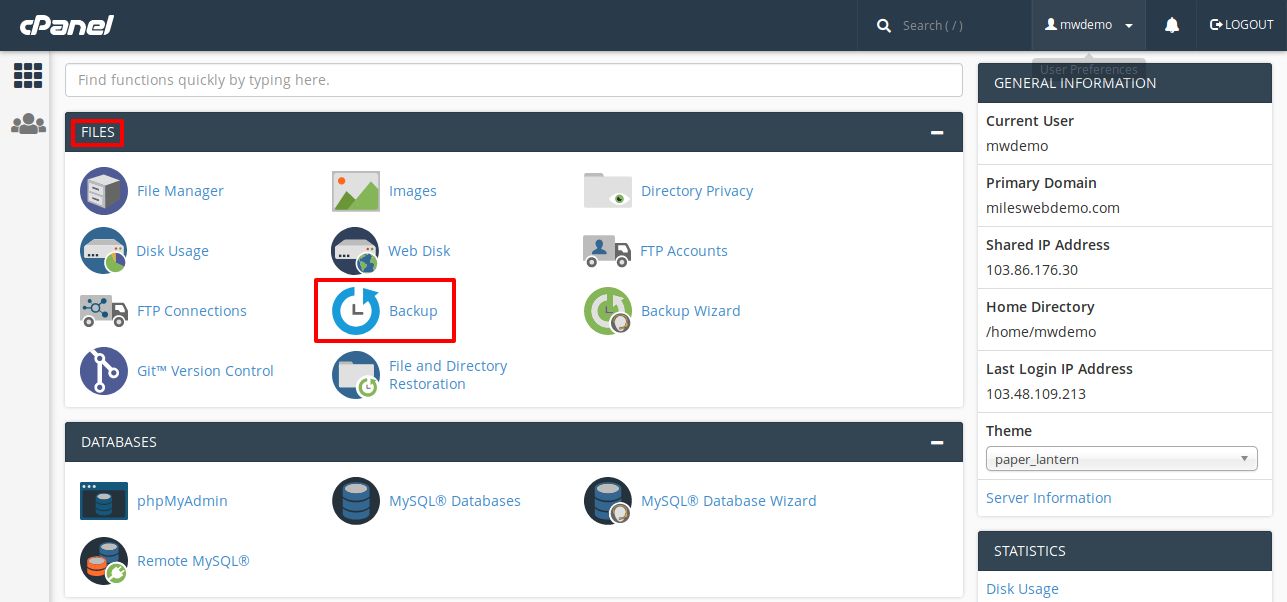
Steps
- Log in to cPanel. Your login details are in your welcome email.
- Find the Files section.
- Click Backup or Backup Wizard. If your plan has a tool such as JetBackup, look for JetBackup instead.
- Click Restore.
- Choose Home Directory to restore files, or choose a database or email option if you need those.
- If the tool shows a list of dates, pick the date before the problem happened.
- For a single file, open the file list and tick the file or folder you need.
- Click Restore and wait for the success message.
- Open File Manager and check that your file is back.
When the tool asks for an upload
The cPanel Backup tool may also ask you to upload a backup file from your own computer.
- Click Choose File under the restore section.
- Select the backup file. It usually ends in
.tar.gz. - Click Upload.
This kind of upload often restores a whole area, such as the home directory. It may not restore a single file. For one file, extract the backup on your computer first and upload just that file with File Manager.
If you cannot find a backup
- Check the date. Old backups are removed after some time.
- Ask Hostvento support to look for a copy. Open a ticket at the support ticket page.
Tip: Check the Trash first. Files you delete in File Manager may sit in a folder called .trash. You can often move them back without any restore.
Quick recap
- A restore copies a saved version back to your account.
- Open the backup tool in cPanel and click Restore.
- Pick the right date and the file or folder.
- Download current files first, because a restore can overwrite them.
- Ask Hostvento support if no backup shows up.