

Step 1: Download and install XAMPP
XAMPP bundles the tools Drupal needs:
- Apache. The web server that serves your Drupal site.
- MySQL (MariaDB). The database that stores your Drupal data.
- PHP. The language that Drupal is written in.
Download XAMPP from the Apache Friends website, run the installer and keep the default folder C:\xampp.
Step 2: Download Drupal
Go to drupal.org and download the latest release as a zip file.
Step 3: Extract the files
Extract the zip file to C:\xampp\htdocs. Rename the folder to something short, such as drupal.
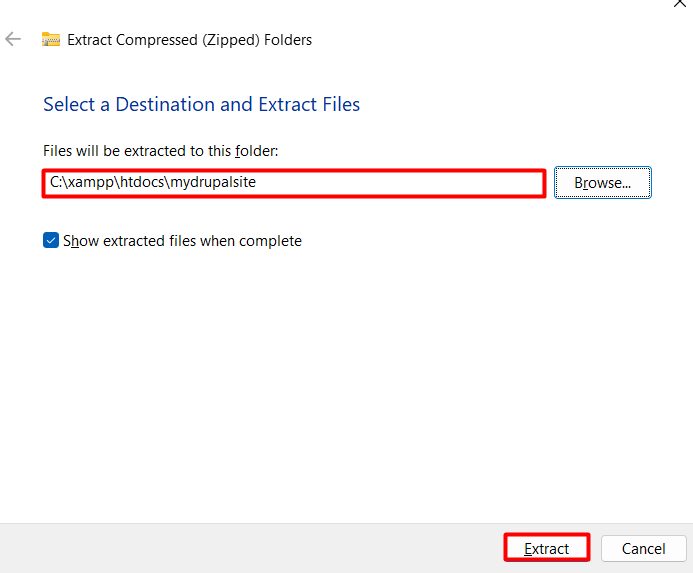
Step 4: Create the database
- Open the XAMPP Control Panel and start Apache and MySQL.

- Click Admin next to MySQL to open phpMyAdmin (or go to
http://localhost/phpmyadmin). - Click New, type a database name such as
drupal, chooseutf8mb4_general_ciand click Create.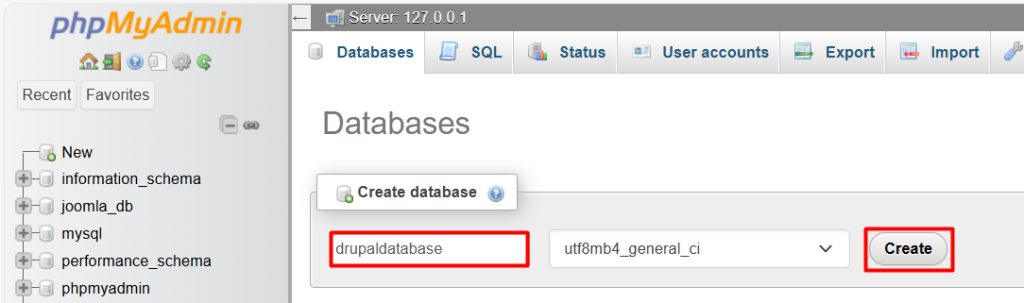
Step 5: Start the Drupal installation
Open http://localhost/drupal in your browser.
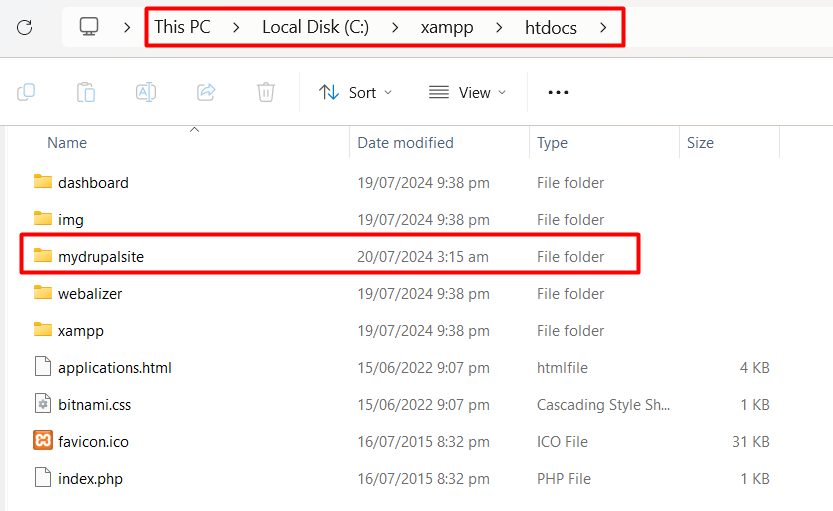
If you see errors, check that you extracted the Drupal files directly into the htdocs folder (not into a folder inside a folder), and that Apache and MySQL run.
Choose your language and click Save and continue.
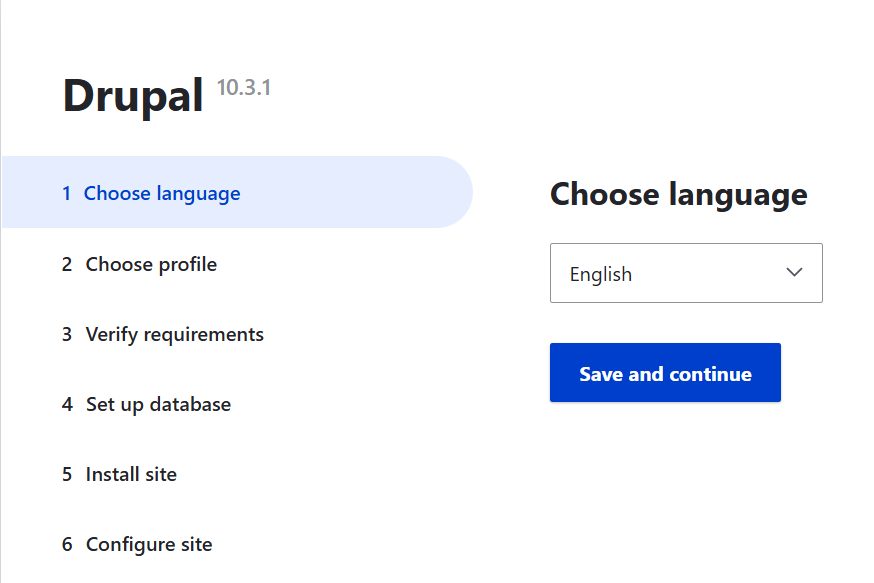
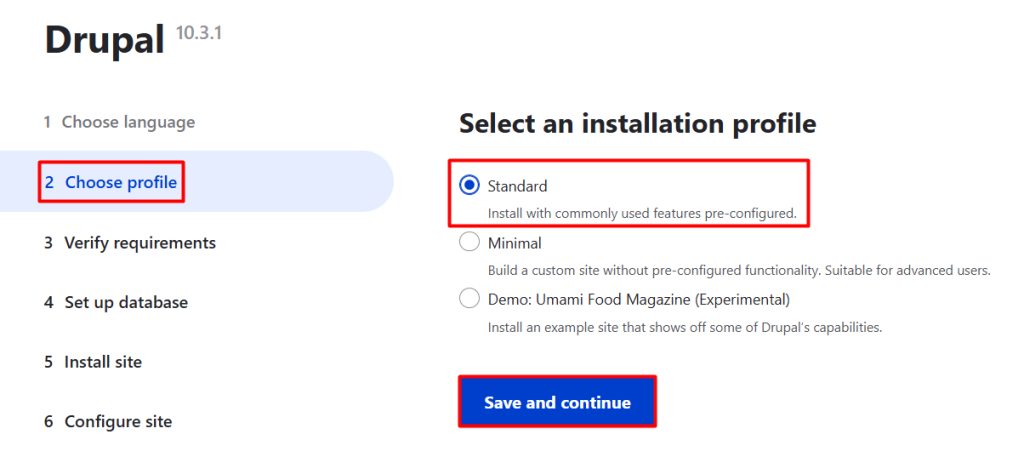
Step 6: Choose an installation profile
Select Standard and continue.
Step 7: Check the requirements
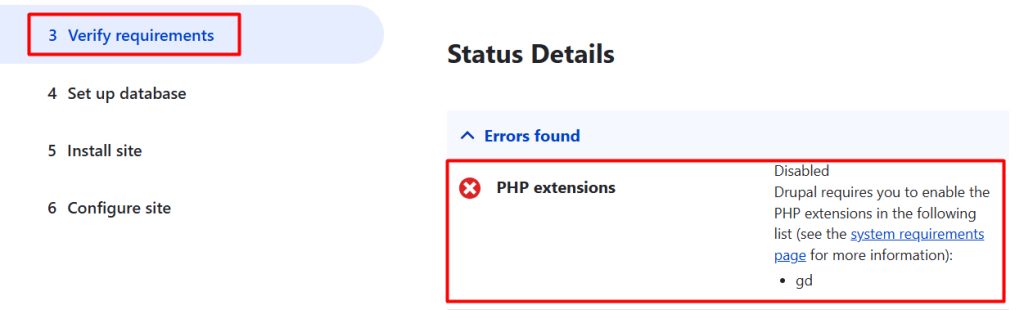
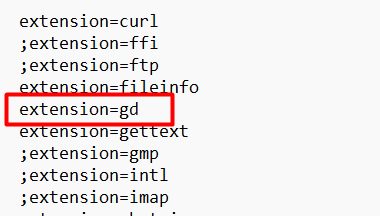
The installer checks the PHP settings. If it asks for changes (for example to enable an extension such as curl or ffi), do this:
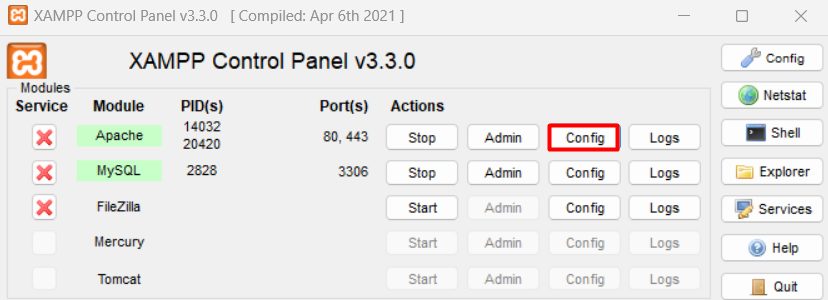
- In the XAMPP Control Panel, click Config next to Apache and open
php.ini. - Remove the
;before the extension that is missing. - Save the file and restart Apache.
Then reload the installer page.
Step 8: Set up the database and install
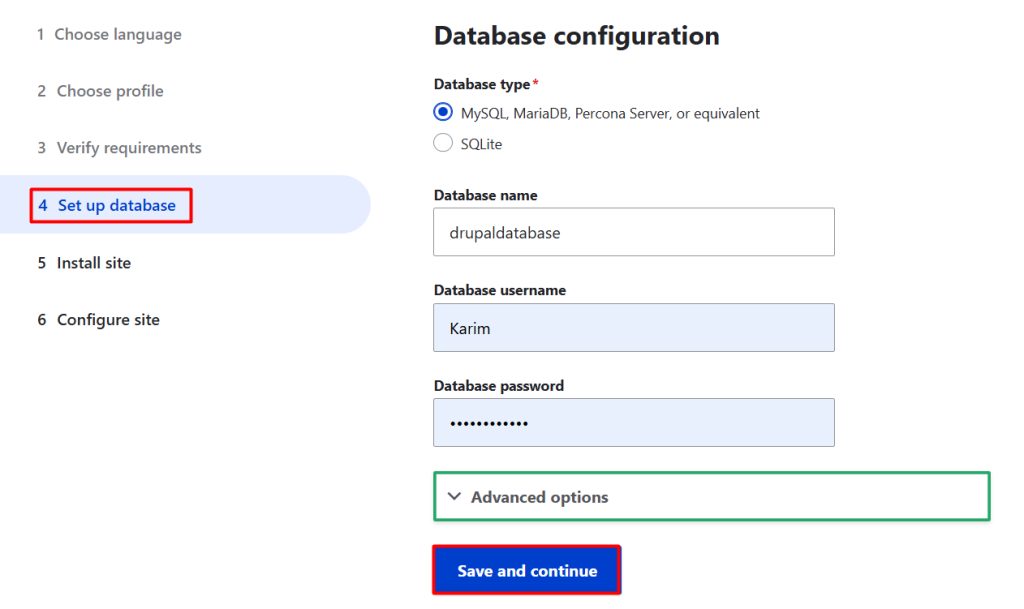
Enter the database details:
- Database type: MySQL, MariaDB or equivalent.
- Database name:
drupal. - Database username:
root. - Database password: leave it empty (the default in XAMPP).
- Open Advanced options if you need another host or port. The host is
localhost.
Click Save and continue.
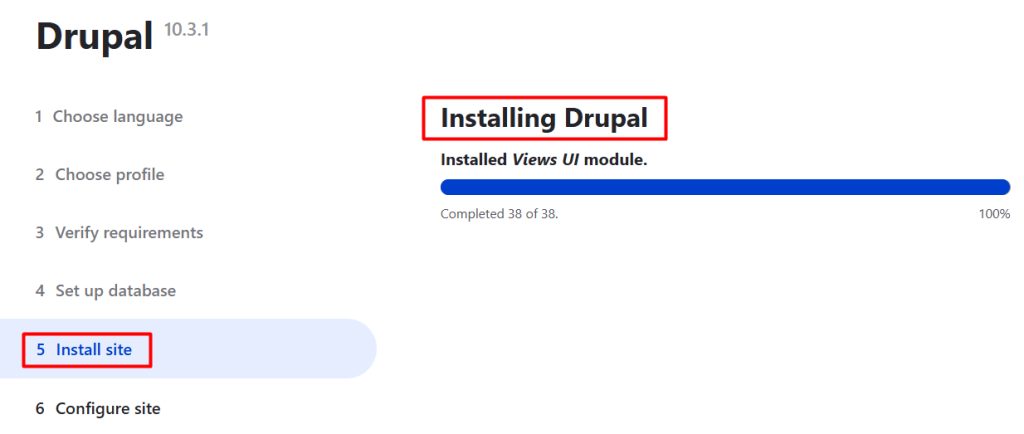
Drupal installs. This takes a few minutes.
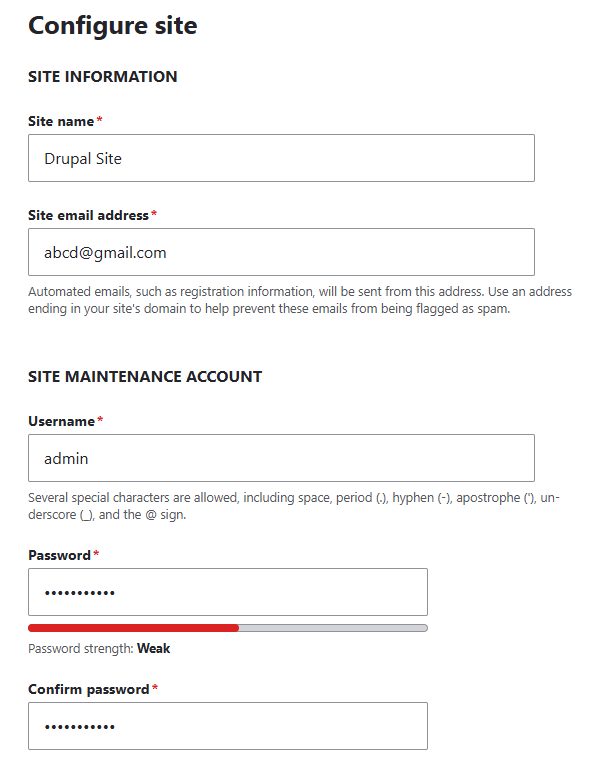
Step 9: Configure the site
Enter the site name, your email, and the user name and password for the admin. Click Save and continue.
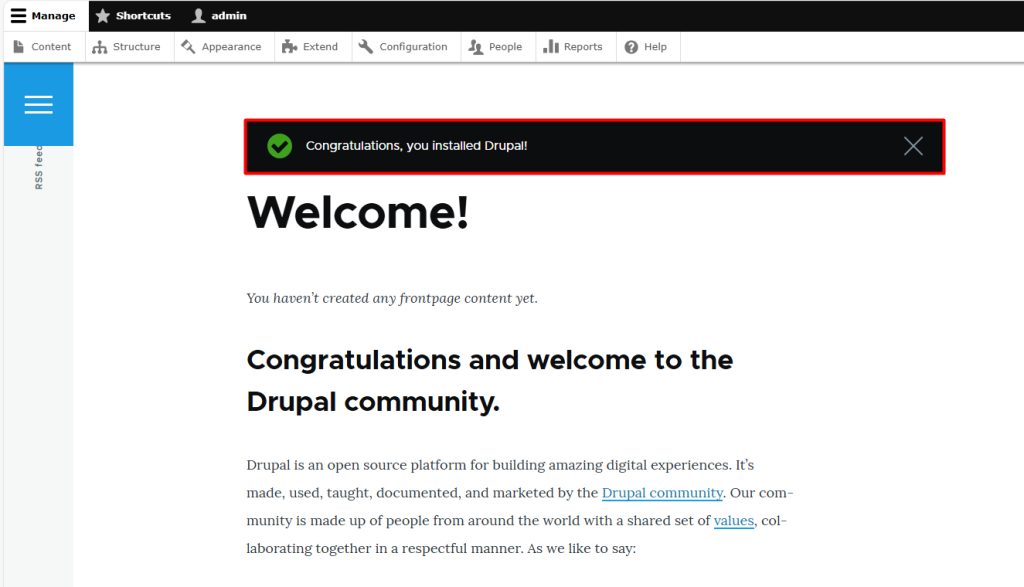
Drupal shows the welcome page.
Quick recap
- Install XAMPP, extract Drupal into
htdocsand create a database. - Run the web installer at
http://localhost/drupal. - Enable missing PHP extensions in
php.ini.