

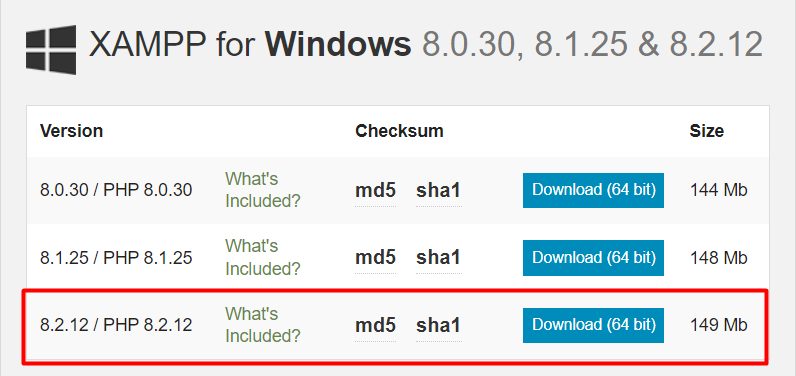
Step 1: Download XAMPP
Download the Windows installer from the Apache Friends website.
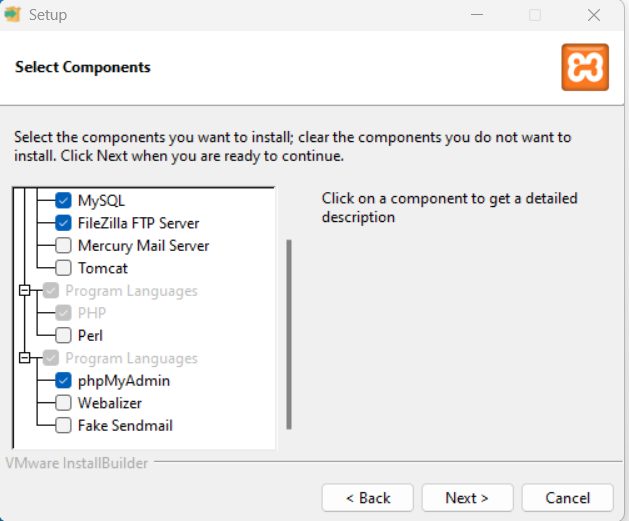
Step 2: Select the XAMPP components
During the setup, keep Apache, MySQL, PHP and phpMyAdmin ticked.
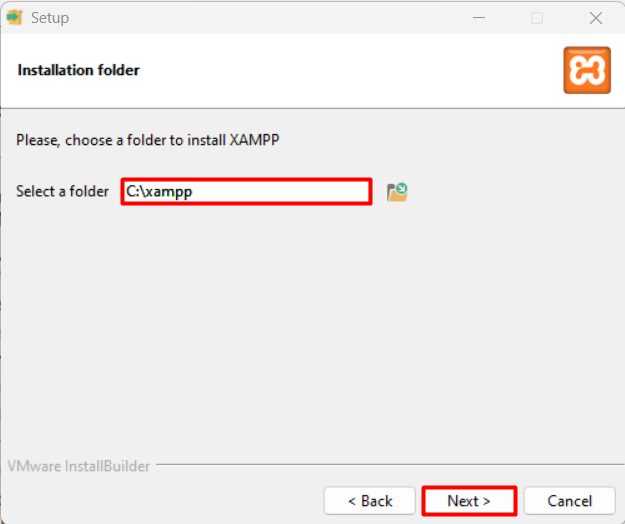
Step 3: Choose the install folder
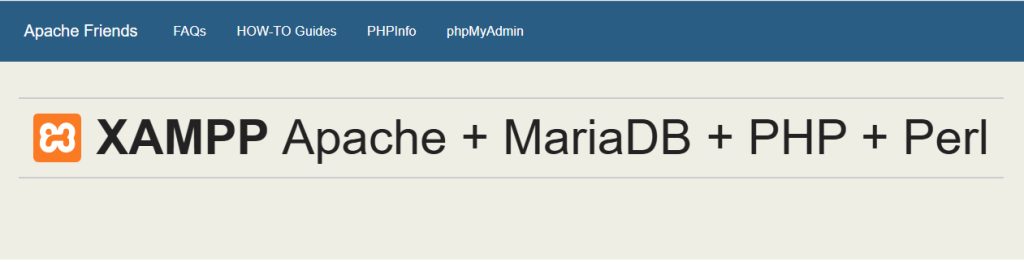
Keep the default C:\xampp. Finish the installer and start the XAMPP Control Panel.
Step 4: Download and extract Joomla
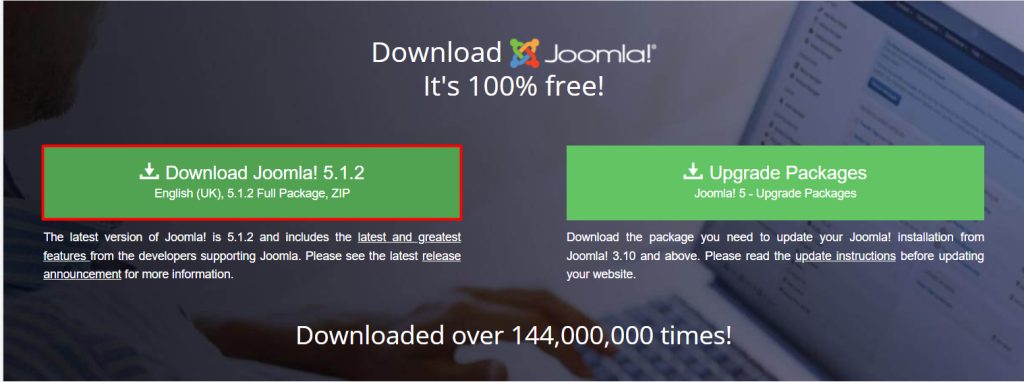
Download the Joomla full package (zip) from the Joomla website and extract it.
Step 5: Copy the files to htdocs
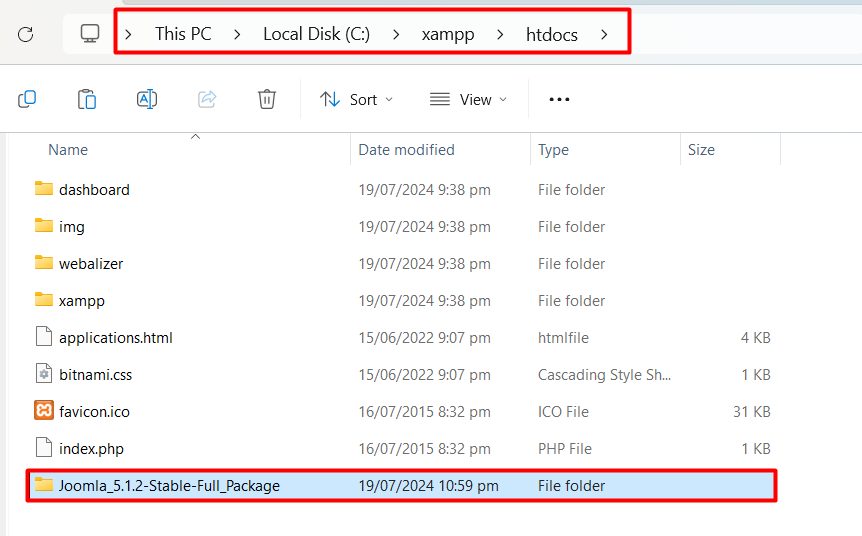
Copy the Joomla files to a new folder in C:\xampp\htdocs, for example C:\xampp\htdocs\joomla.
Step 6: Create the database
- In the XAMPP Control Panel, start Apache and MySQL.
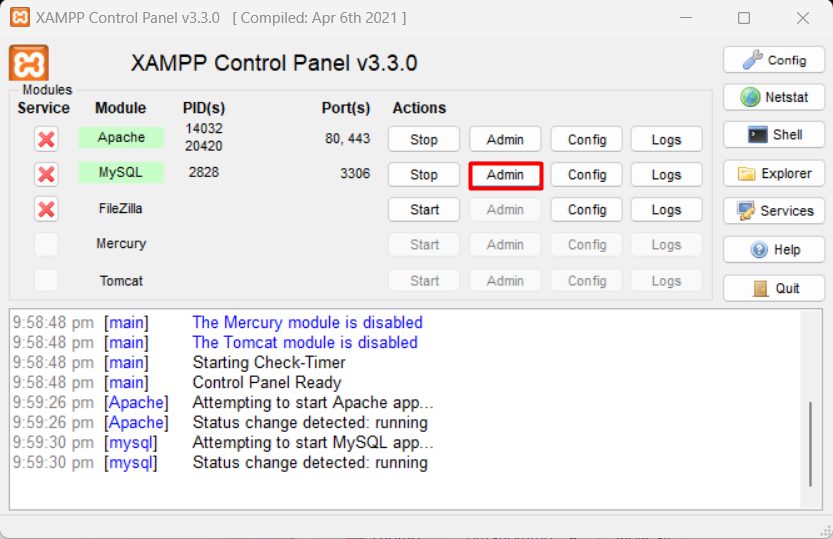
- Click Admin next to MySQL to open phpMyAdmin.
- Click New, enter a name such as
joomla, chooseutf8mb4_general_ciand click Create.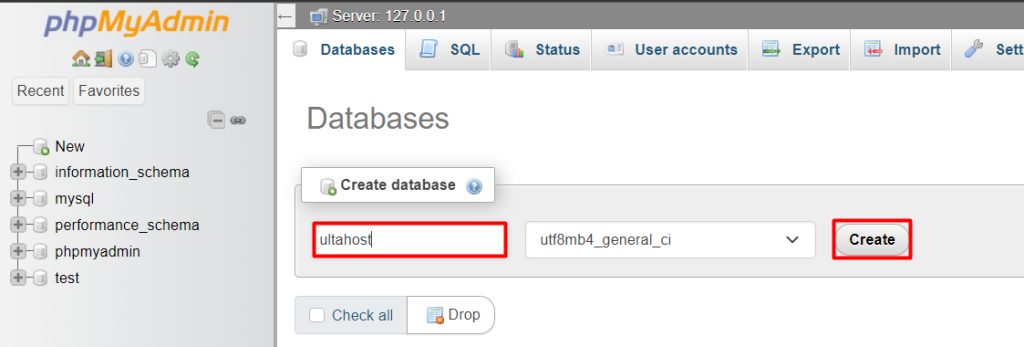
Step 7: Run the Joomla installer
Open http://localhost/joomla in your browser.
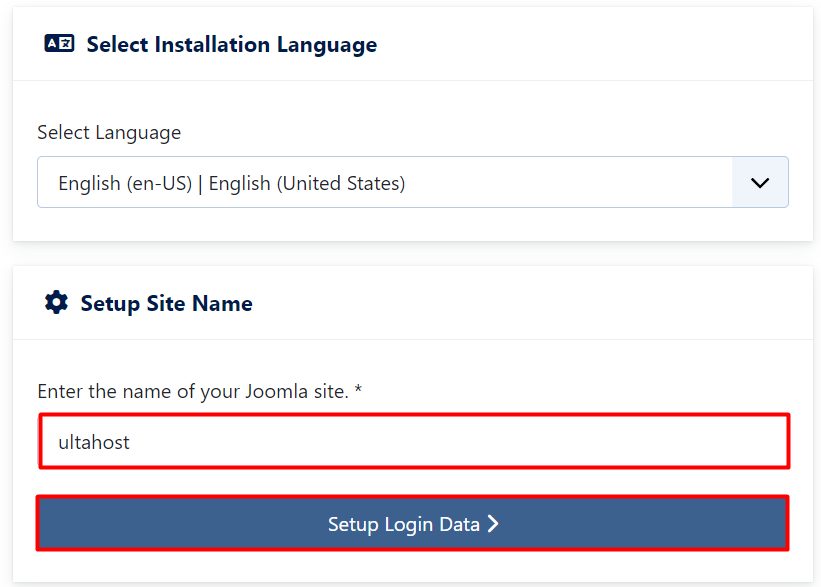
Language and site settings. Choose the language and enter the name of your site.
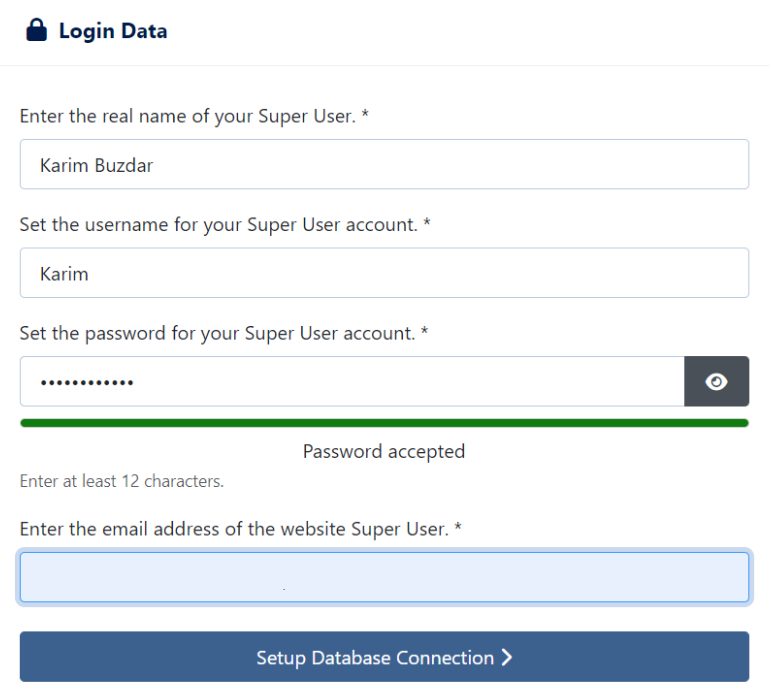
Login data. Enter the admin name, user name, password and email address.
Database configuration. Choose the database type MySQLi. Enter:
- Host name:
localhost - User name:
root - Password: empty (the default in XAMPP)
- Database name:
joomla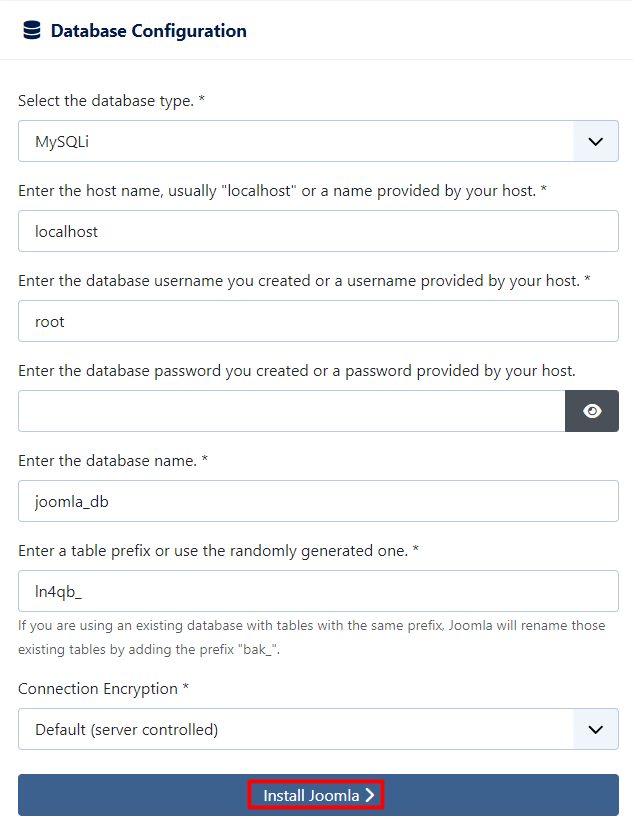
Click Install Joomla.
Step 8: Finish
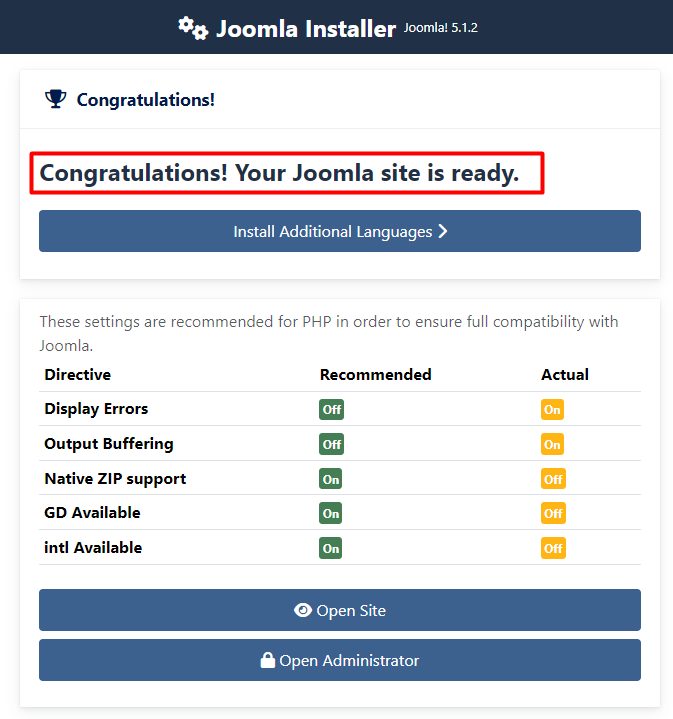
When it ends, Joomla shows that the installation is complete. Click Open Site or Open Administrator.
Quick recap
- Install XAMPP, extract Joomla into
htdocs. - Create a database in phpMyAdmin.
- Run the web installer at
http://localhost/joomla.