

What is Umbraco
Umbraco is an open-source content management system built on .NET. It is flexible and popular for business sites.
What you need
- The .NET SDK installed. Use the version Umbraco requires.
- Windows Server 2019 or 2022, or Windows 10 or 11.
- A supported database such as SQL Server, SQLite or MySQL. SQLite is fine for tests.
- IIS with ASP.NET features, if you want to host on IIS.
Step 1: Install the Umbraco templates
dotnet new install Umbraco.Templates::13.*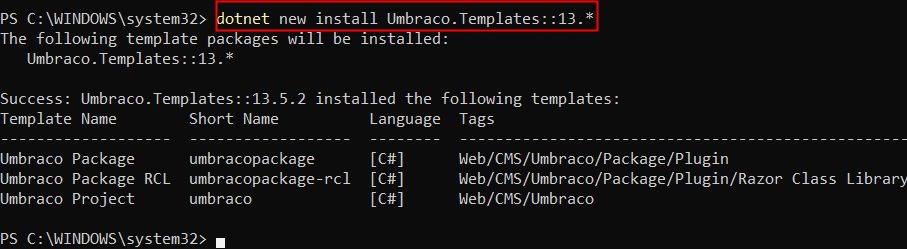
Step 2: Create a project
dotnet new umbraco --name MyProject
cd MyProject
Step 3: Run the site
dotnet run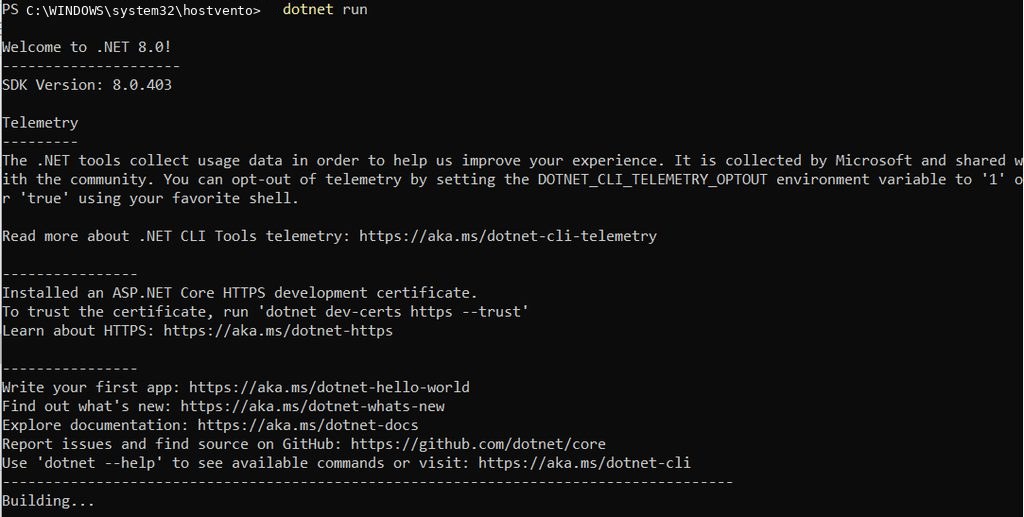
The output shows the local address, for example https://localhost:44300.
Step 4: Open Umbraco
Open the address in your browser.
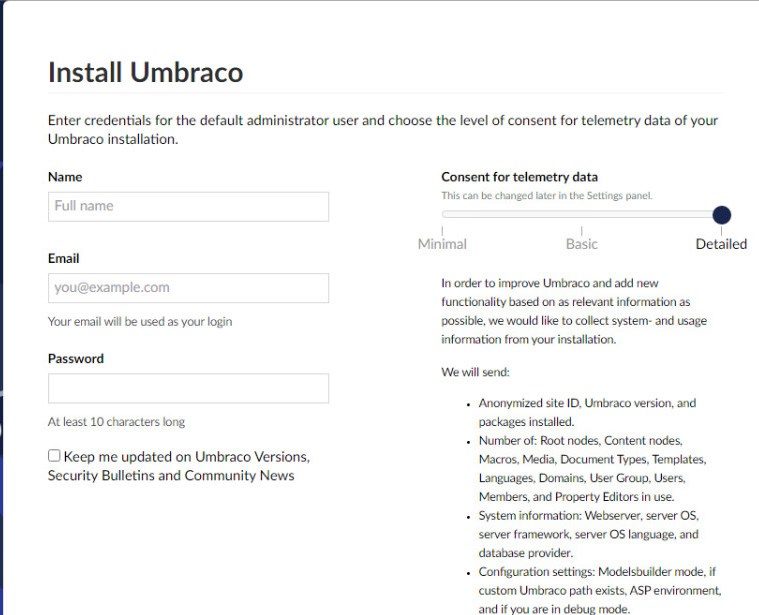
Step 5: Run the installer
Enter your name, email and a password for the admin account, then choose the database. Click Install.


Use the back office
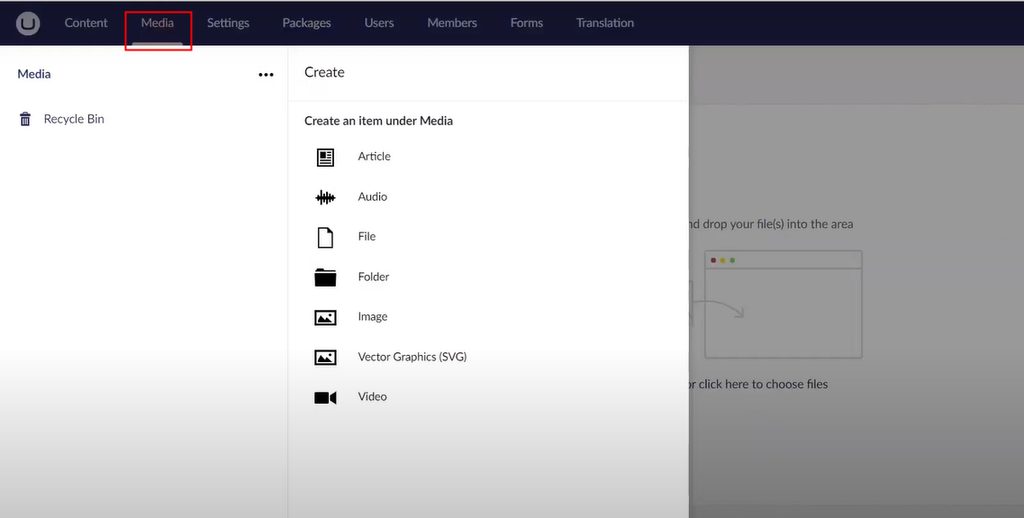
Log in at /umbraco. Here you create document types, templates and content.
Other ways to install
- .NET CLI, as shown above.
- Visual Studio, with the Umbraco template.
- IIS, to host the site for production.
- VS Code, to edit and run the project.
- Nightly builds, to test new versions.
Quick recap
- Install the templates, create a project and run
dotnet run. - Finish the web installer and log in at
/umbraco.