

What is PHP?
PHP is a programming language that many websites use, including WordPress. The server reads PHP files and builds your pages. PHP has versions, like 7.4 or 8.1. Newer versions are faster and safer. Old versions stop getting security fixes.
Some old plugins only work on old PHP. Some new plugins need new PHP. So you may need to switch.
Steps with MultiPHP Manager
- Log in to cPanel.
- In the search box, type
MultiPHP Manager. - Click MultiPHP Manager.
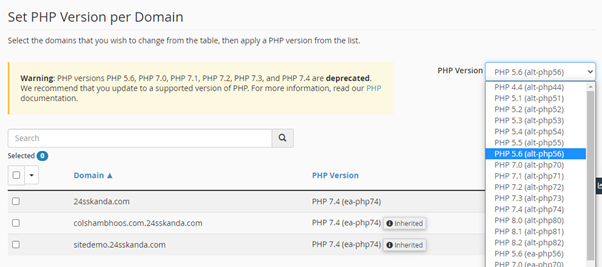
- You see a list of your domains. Tick the box next to the domain you want to change.
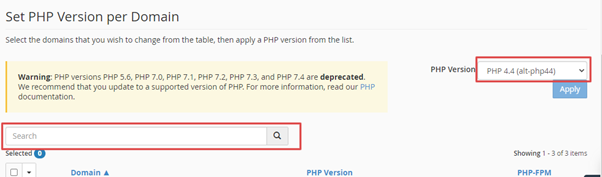
- Open the PHP Version drop-down list.
- Pick the version you want.
- Click Apply.
- Wait for the green success message.
- Open your website and check that it still works.
Steps with Select PHP Version
Some plans show a tool called Select PHP Version instead. Look for it under the Software section.
- Click Select PHP Version.
- Open the list next to Current PHP version.
- Pick a version.
- Click Set as current.
This tool also lets you turn PHP extensions on or off. An extension is an extra feature that PHP can load, such as image tools.
Which version should you pick?
- Pick a version that is still supported by the PHP team.
- Check what your WordPress theme and plugins need. Their pages list the PHP versions they support.
- Test on a staging copy first if your site makes money.
The versions you see depend on what Hostvento has installed. If a version you need is missing, ask support.
Check the current version
In WordPress, go to Tools, then Site Health, then Info, then Server. It lists the PHP version.
If your site shows errors
- Switch back to the earlier version at once.
- Update your plugins and theme, then try the new version again.
- Replace plugins that no longer get updates.
Quick recap
- PHP is the language that runs your website.
- Use MultiPHP Manager or Select PHP Version in cPanel.
- Back up first, then pick a version and click Apply.
- If the site breaks, go back to the old version.