

What is a cPanel style?
cPanel is the dashboard of your hosting account. A style, also called a theme, is its look. It changes the colours and the way icons are laid out. The tools inside stay the same. It is like changing the wallpaper on your phone.
Modern cPanel versions offer styles such as light and dark looks. Which styles you see depends on your server. If you cannot find a style option, ask Hostvento support.
Steps
- Log in to cPanel. Your welcome email has the details, or open your hosting service from the client area.
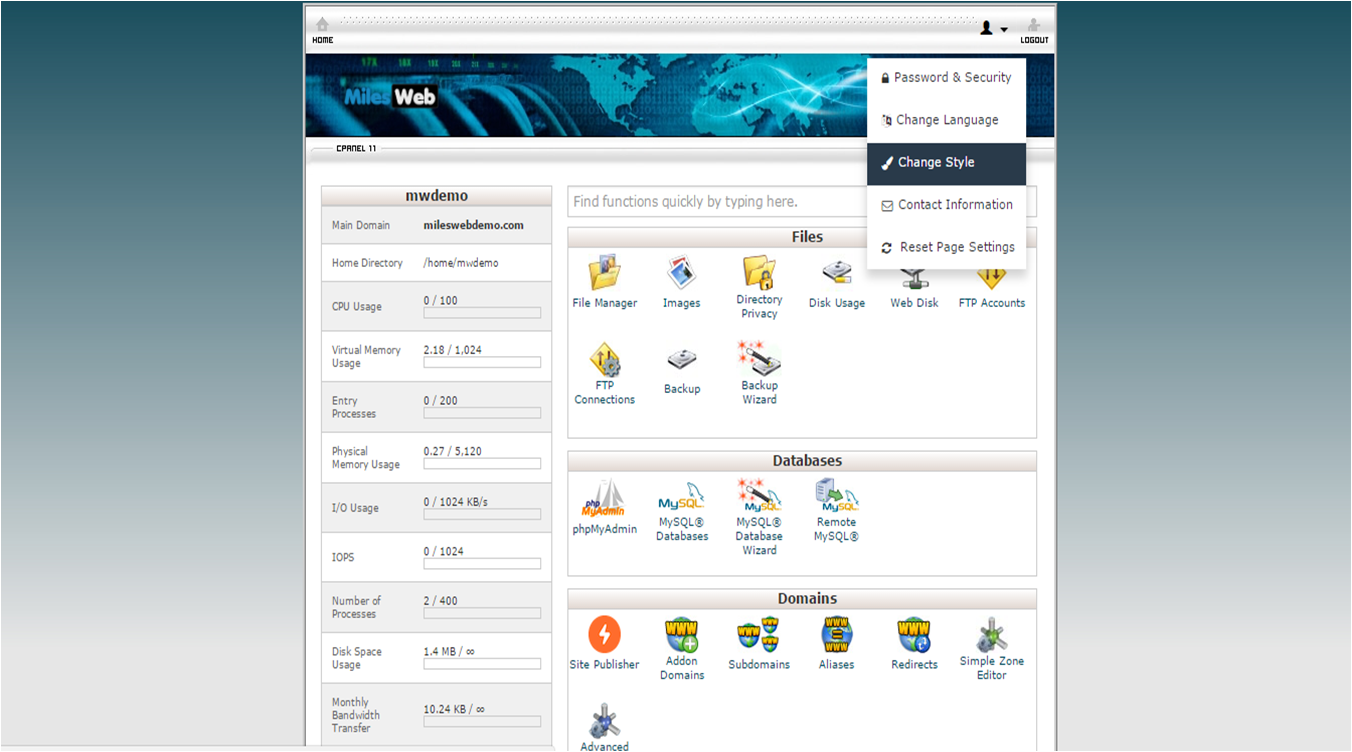
- Click the user icon or your username at the top right of the page.
- Click Change Style. If you do not see it, use the search box at the top and type
Style.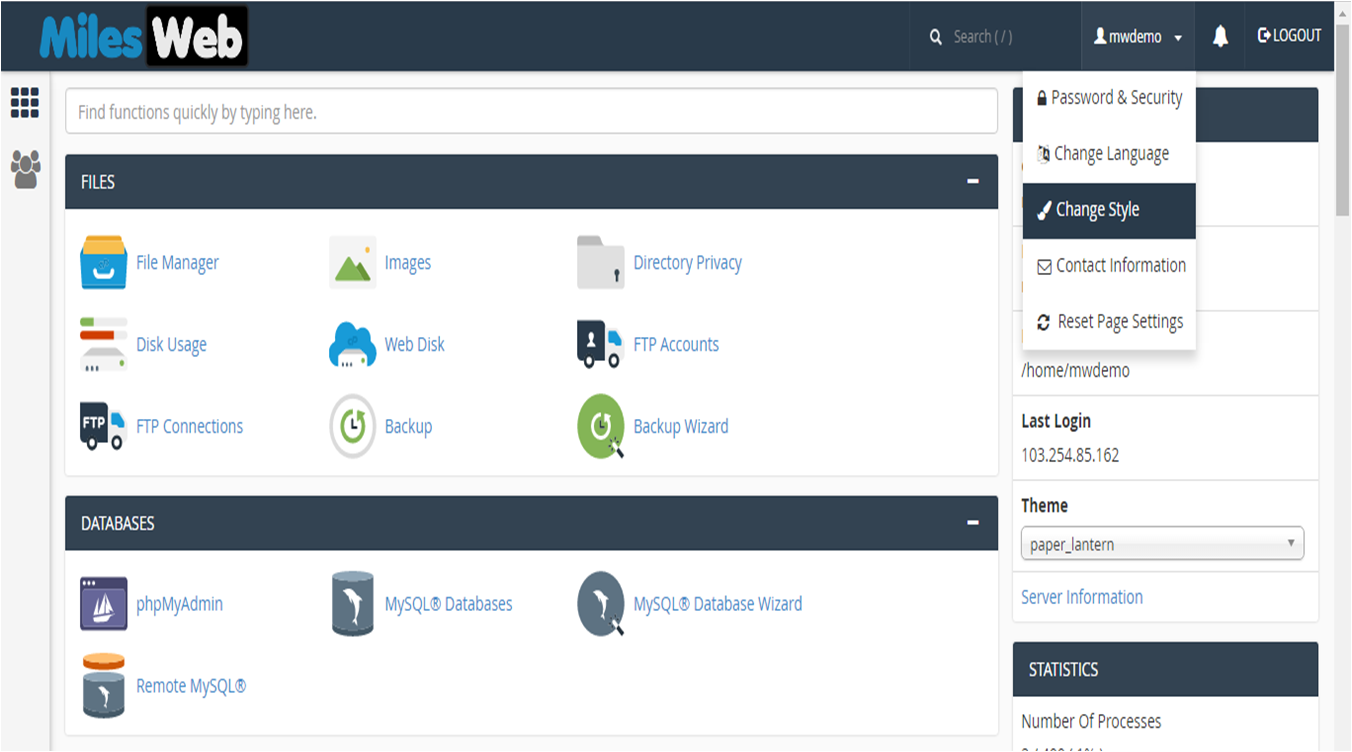
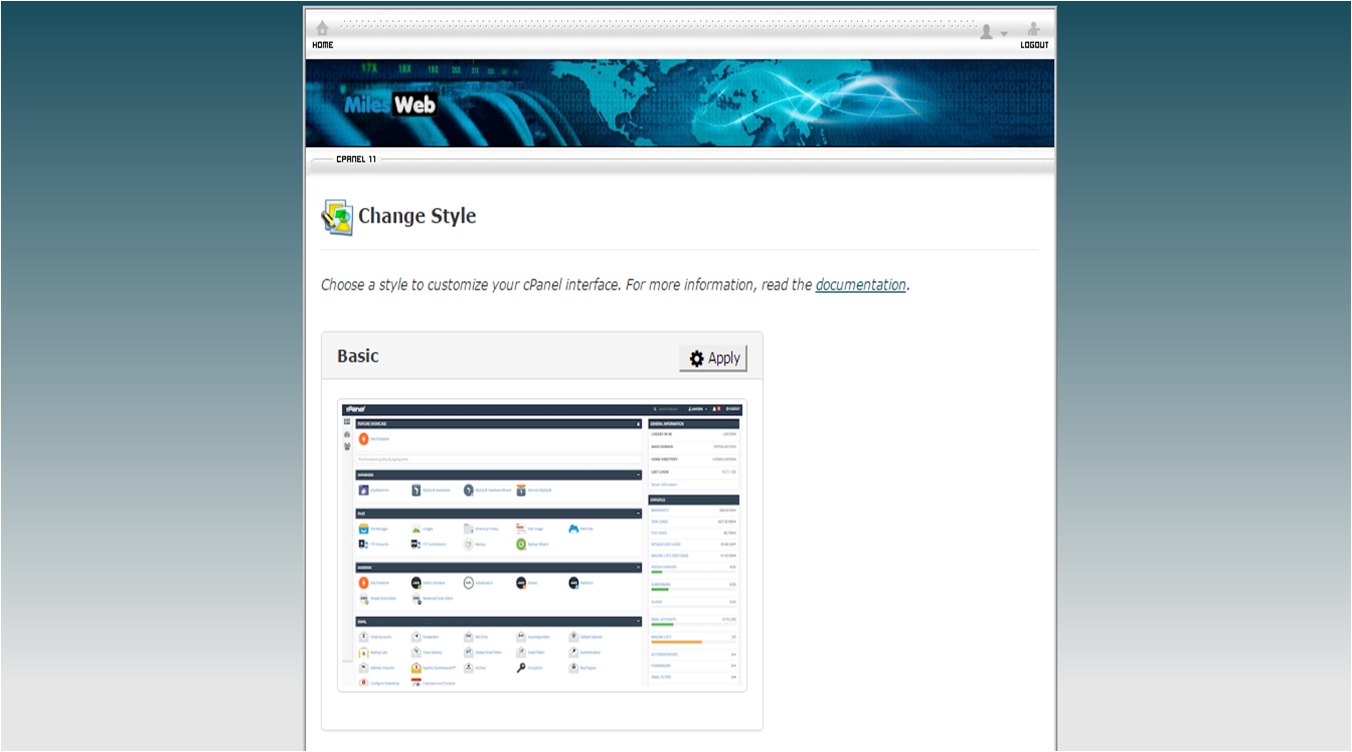
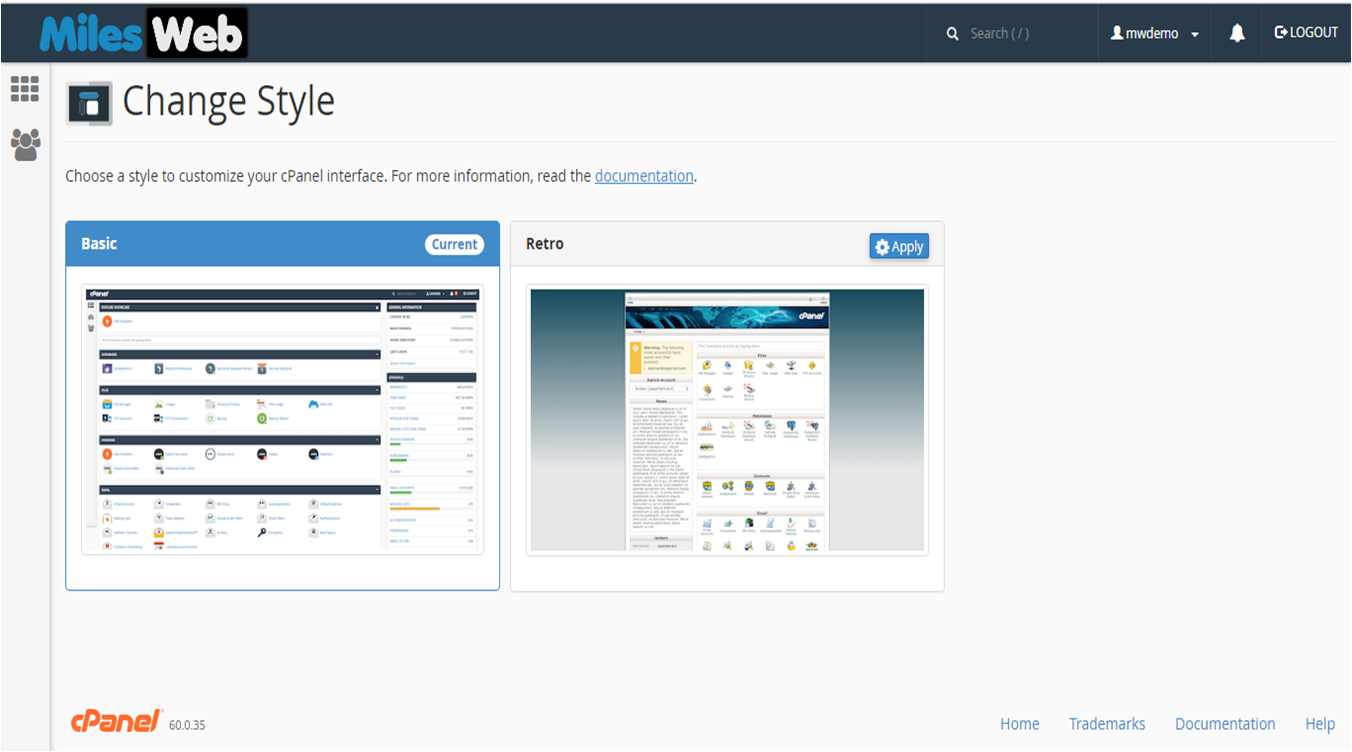
- You will see small previews of each style.
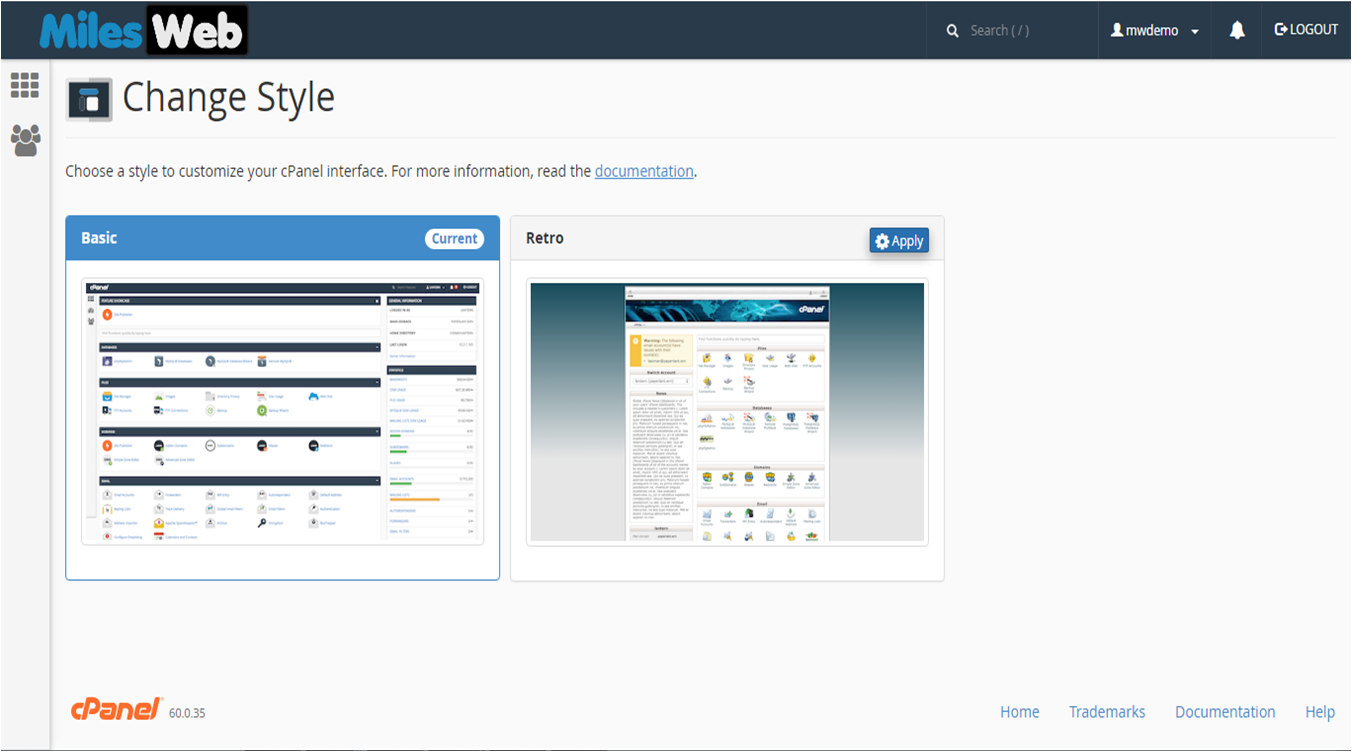
- Click the style you like.
- Click Apply or Change Style to save, if the page asks.
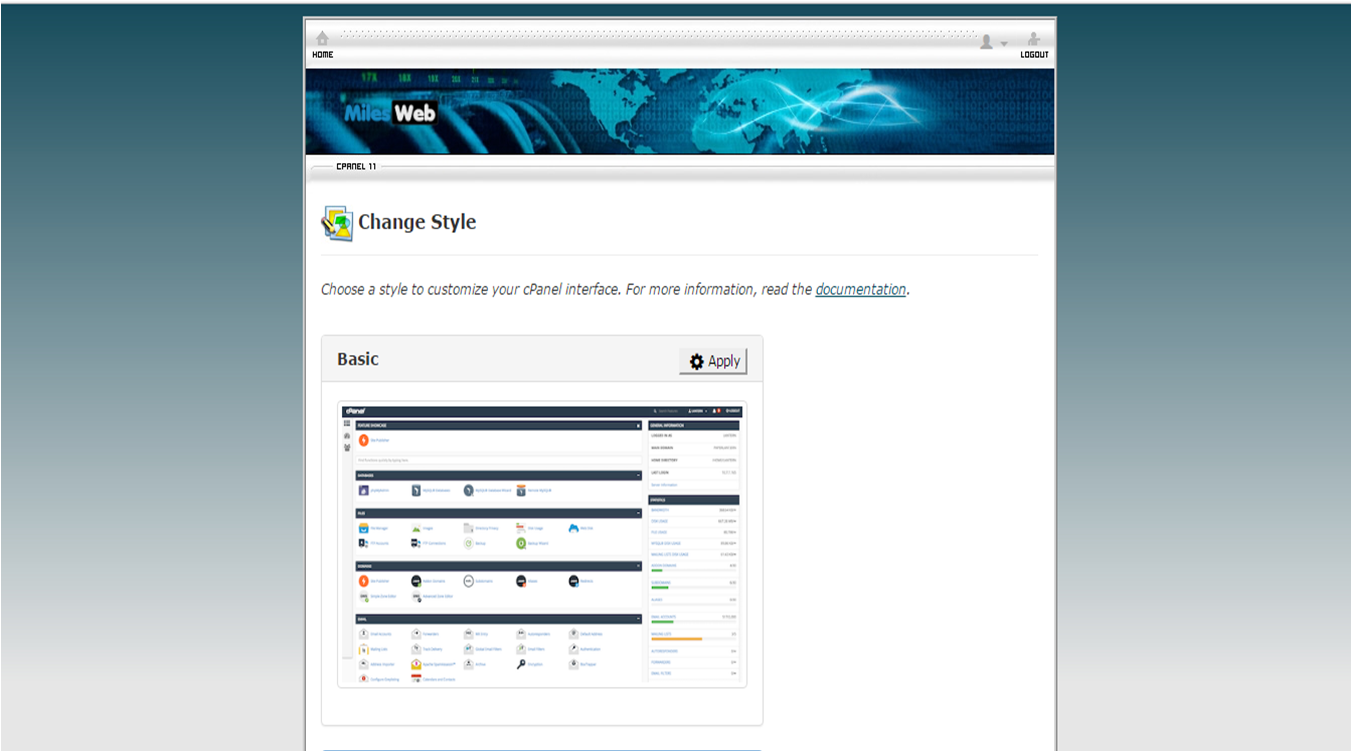
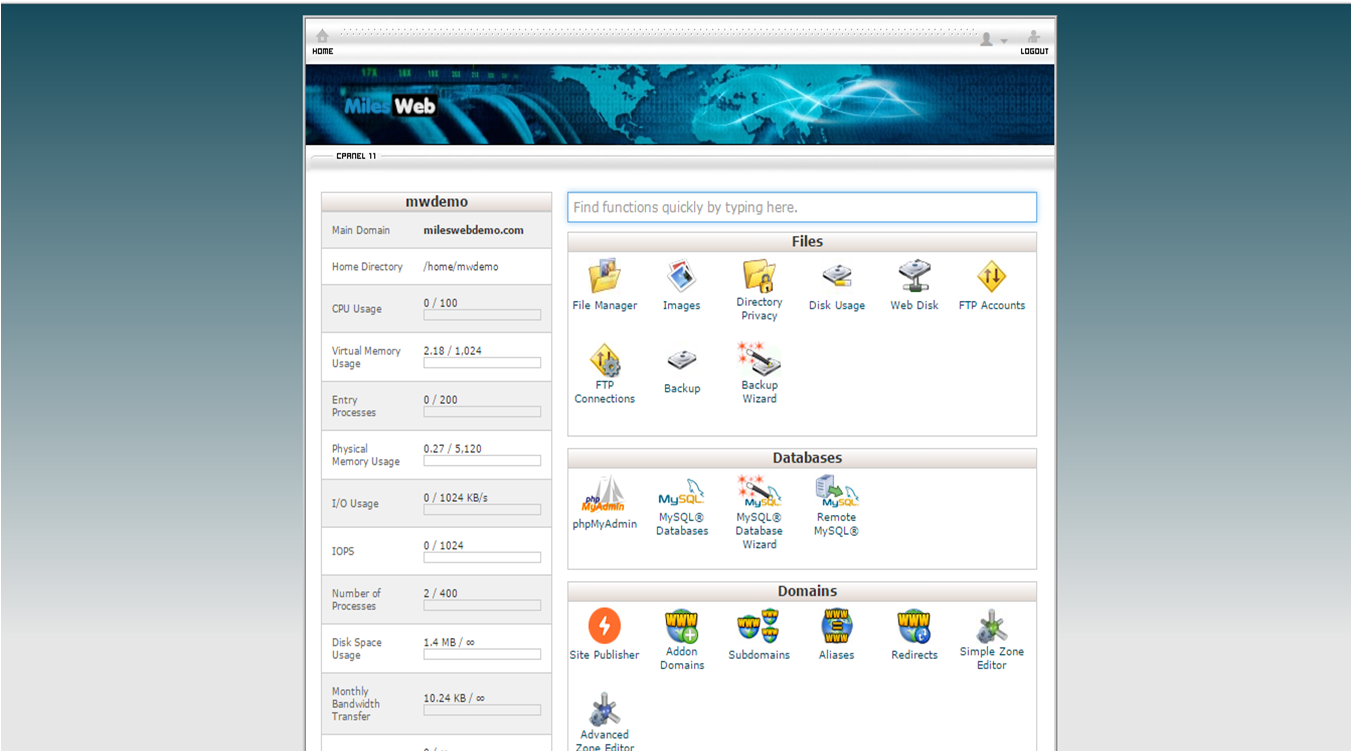
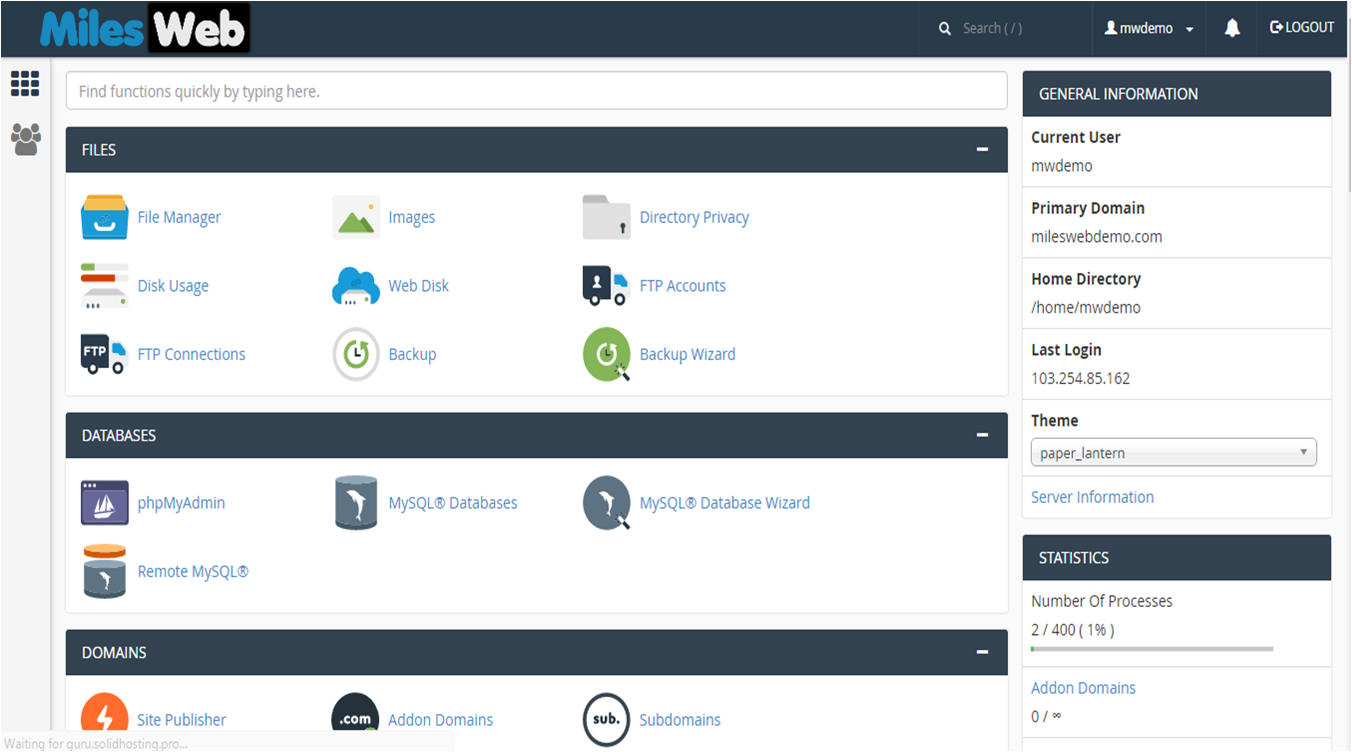
- The page reloads in the new look.
Other personal settings
You can open the same user menu to change other things.
- Password & Security changes your password.
- Change Language changes the language of cPanel.
- Reset Page Layout puts the icons back to the default places.
- Contact Information sets the email address where cPanel sends alerts.
Move icons around
- On the cPanel home page, find an icon group.
- Click and hold an icon with your mouse.
- Drag it to a new spot, or into a different group.
- Release the mouse button.
Many styles also let you hide groups you do not use.
If your change does not show
- Refresh the page.
- Clear your browser cache.
- Log out and log in again.
Tip: Changing the style does not affect your website or your files. It only changes how cPanel looks for you. You can switch back at any time.
Quick recap
- A style is the look of cPanel.
- Open the user menu at the top right and click Change Style.
- Pick a preview and save.
- It affects only cPanel, not your website.