

What is WHM?
WHM stands for WebHost Manager. It is the admin panel above cPanel. Server owners use it to create and manage many cPanel accounts. A cPanel username is the login name of one account. It is also the name of the home folder, such as /home/username.
This guide needs root access to the server. Ordinary shared hosting users cannot do it. Those users can open a support ticket instead.
Warning: Renaming an account changes its home folder and database names. Scripts or settings that use the old name may stop working. Take a full backup of the account first.
Before you start
- Pick a new username. It is usually up to 16 characters, with letters and numbers, starting with a letter.
- Make a backup of the account.
- Note any files in your site that mention the old path, such as
/home/oldname.
Steps
- Log in to WHM as root. The address is usually your server name or IP followed by
:2087. Your welcome email has the details.
- In the search box at the top left, type
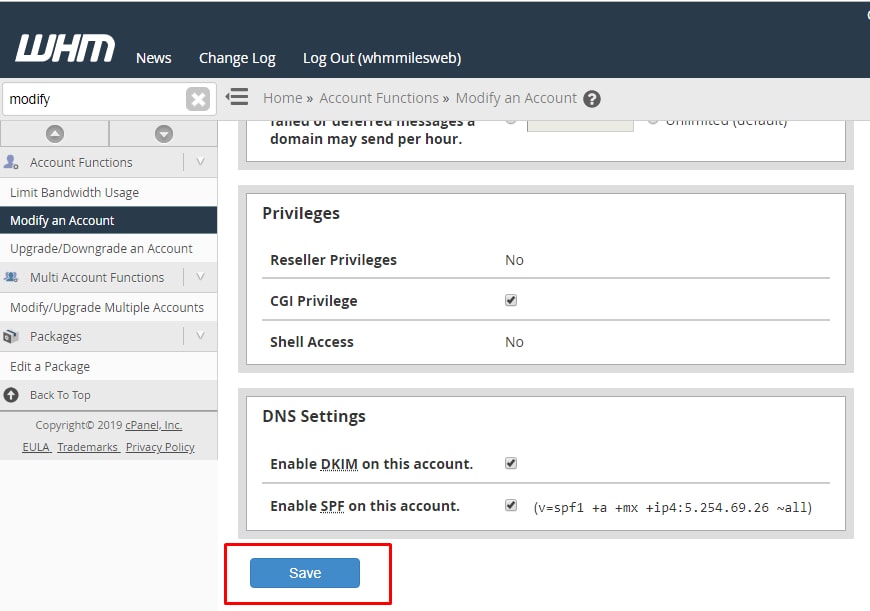
Modify an Account. - Click Modify an Account.
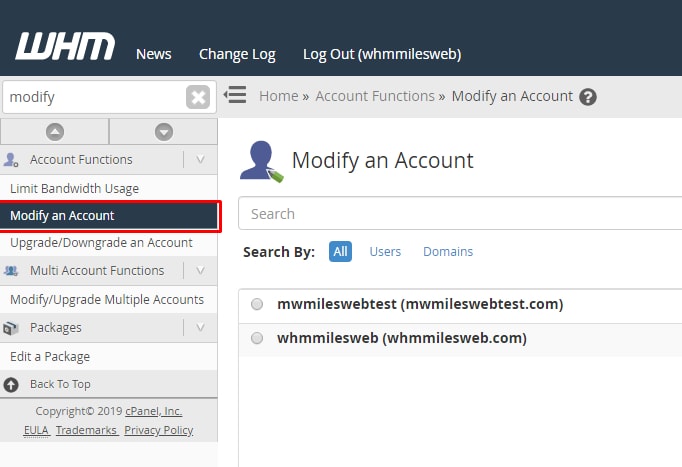
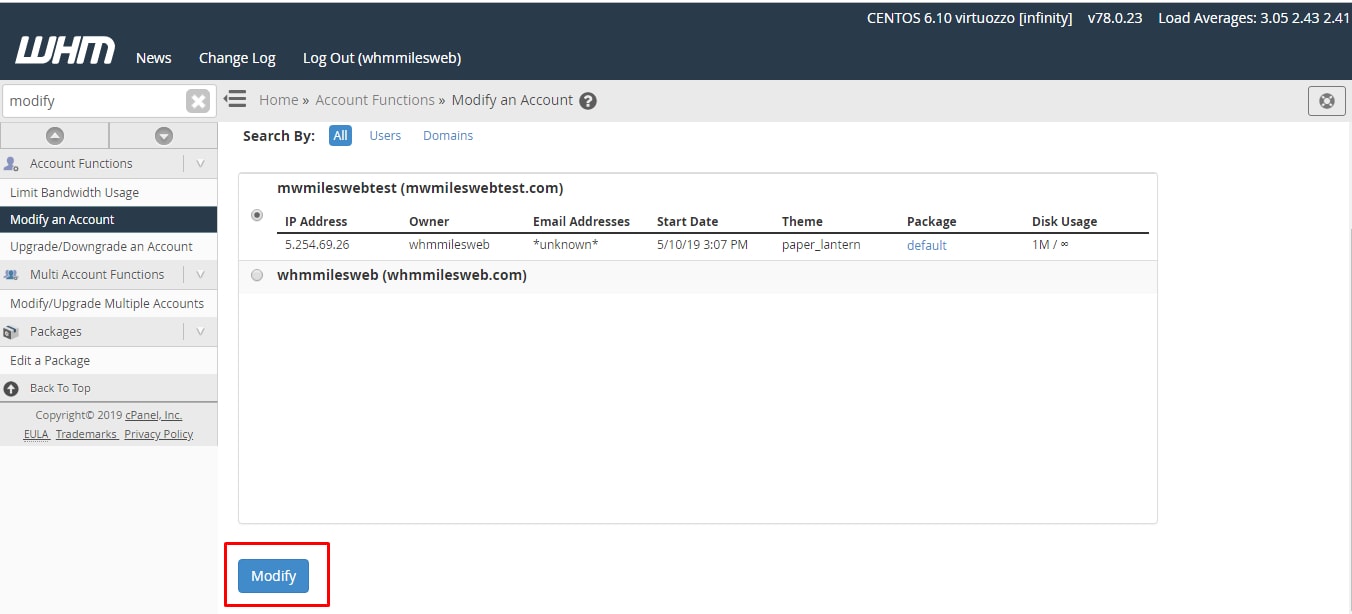
- Pick the account you want to change from the list.
- Click Modify.
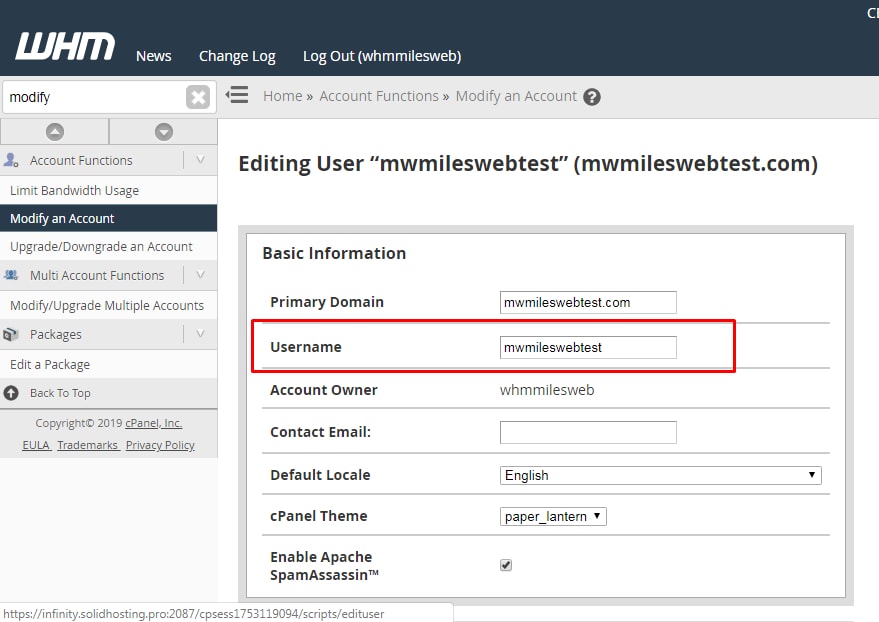
- Find the Username field under Basic Information.
- Delete the old name and type the new one.
- Scroll to the bottom and click Save.
- Wait for the confirmation message.
Check after the change
- Log in to cPanel with the new username and the same password.
- Open File Manager. The home folder should now use the new name.
- Open your website and check that it loads.
- Go to MySQL Databases. Database names and users that began with the old name are normally renamed. Look at them closely.
Fix things that still use the old name
- In
wp-config.php, update the database name and user if they changed. - Check cron jobs for paths with the old name.
- Check custom PHP settings such as
.user.inifor old paths.
Quick recap
- This task needs root access to WHM.
- Back up the account first.
- Use Modify an Account, change the Username and click Save.
- Log in again with the new name and fix any old paths.