

What is happening here?
When you move a website, you copy its files, databases and email to the new server. WHM has a tool that does the copying for you. WHM stands for WebHost Manager, the admin panel above cPanel. The tool is called Transfer Tool or Copy an Account From Another Server with the Account's Password. It logs in to the old account with its cPanel username and password. Then it brings everything across.
You need root access to the new server. Shared hosting users should open a support ticket and ask Hostvento to help with a move.
Warning: Take a backup of the old account before you start. The copy should not harm the old site, but a backup keeps you safe.
What you need
- Root login to the new server's WHM.
- The address (domain or IP) of the old server.
- The cPanel username and password of the account you want to copy.
- The old server must allow you to connect to it from the new one.
Steps
- Log in to WHM on the new server, usually at your server address followed by
:2087. - In the search box, type
Copy an Account.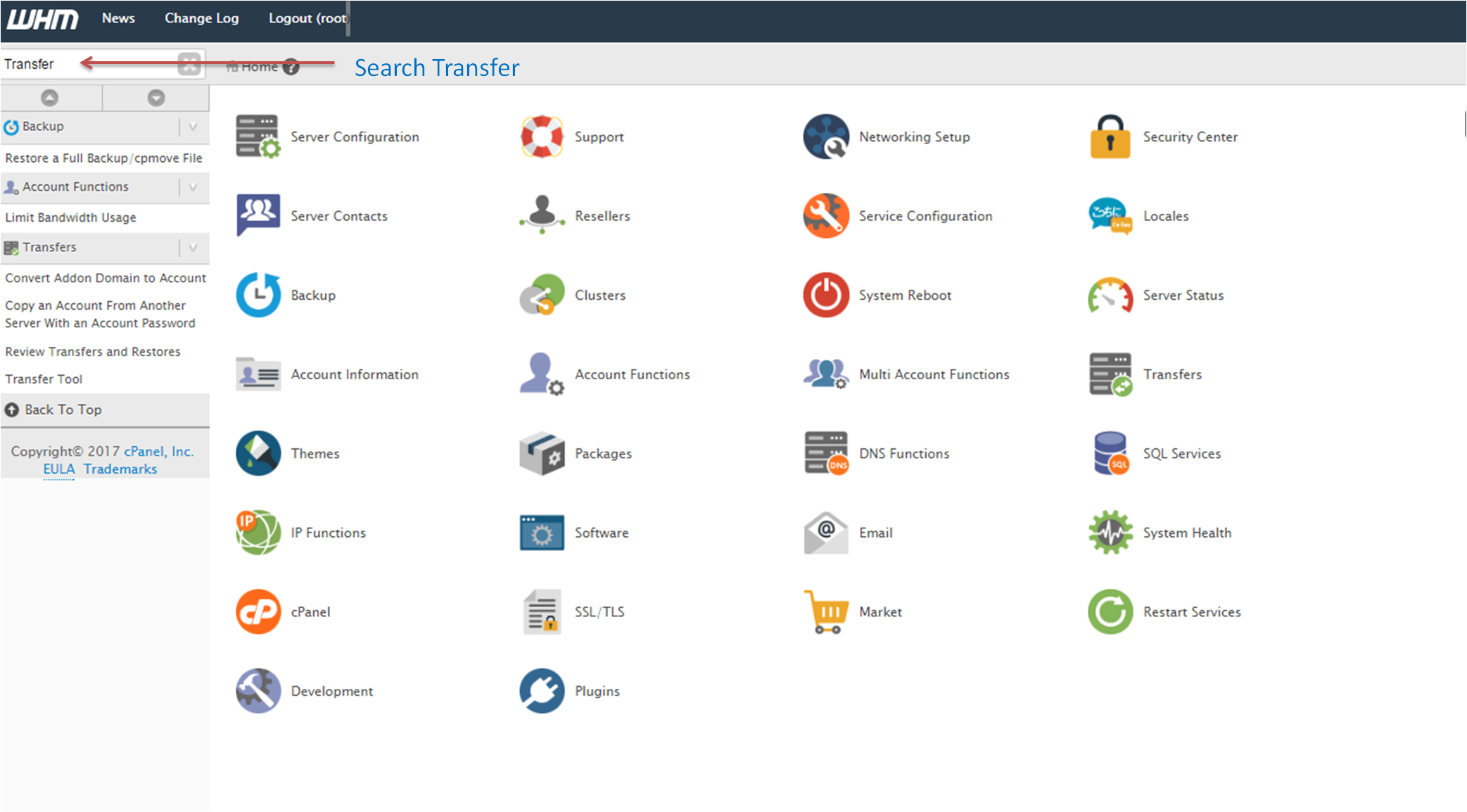
- Click Copy an Account From Another Server with the Account's Password. In some versions it is found in the Transfers section.
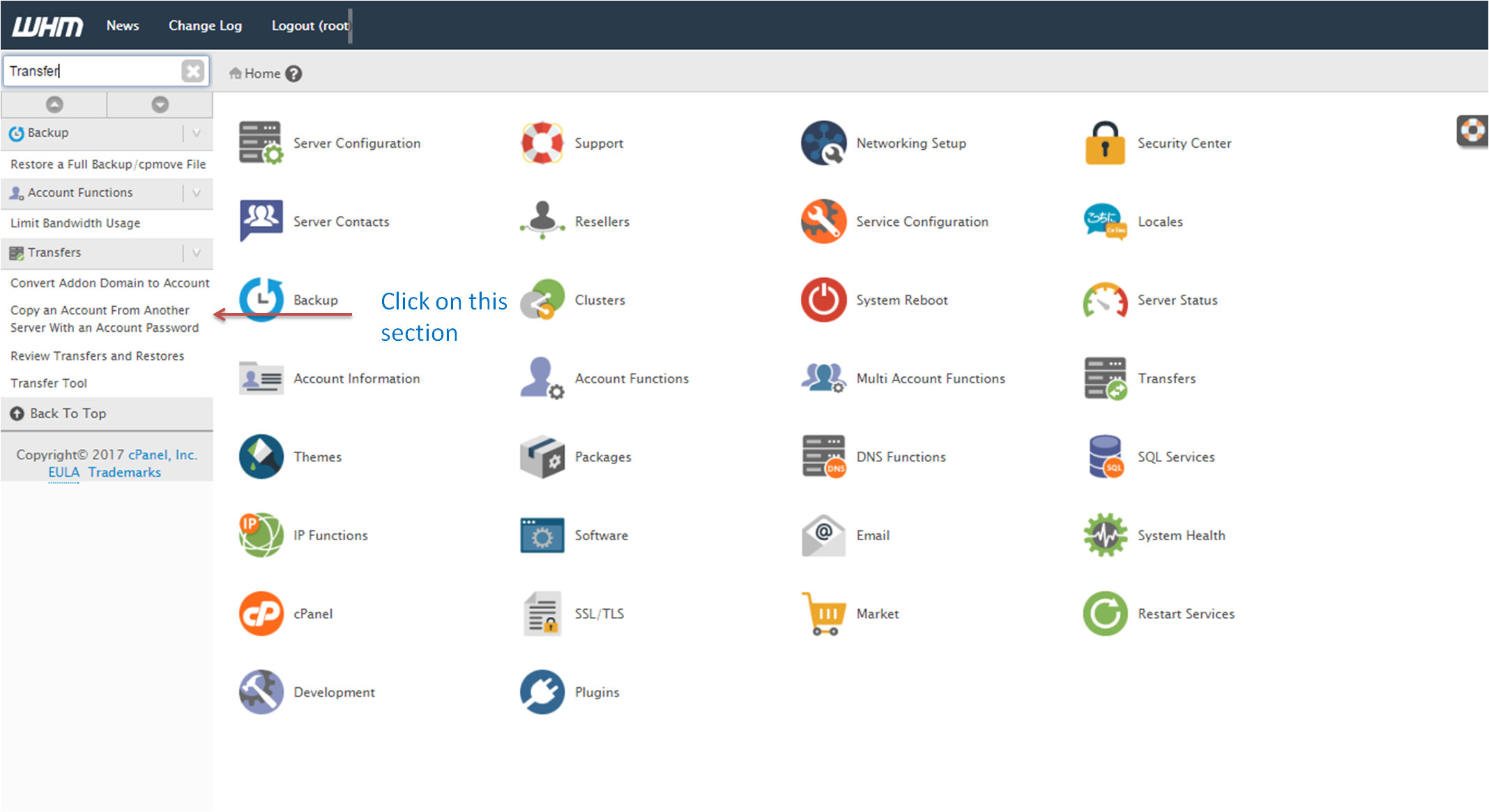
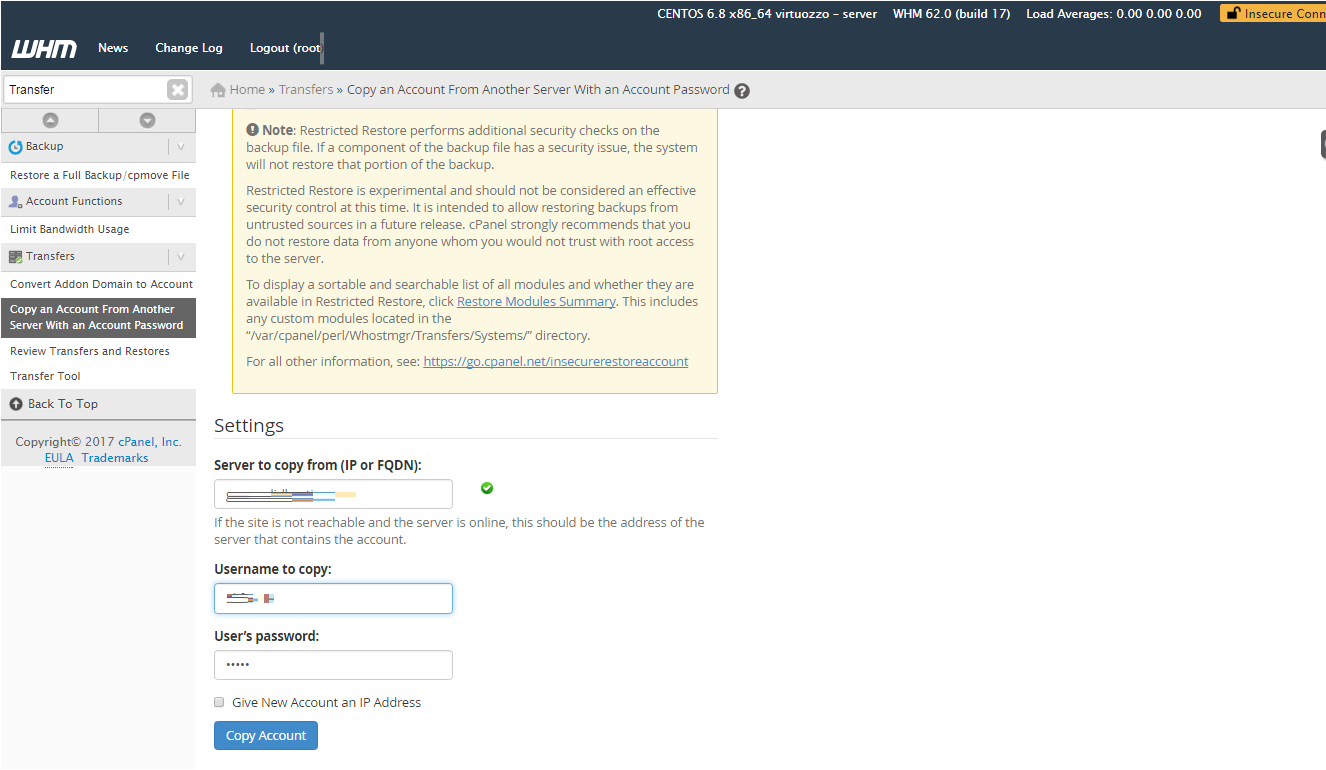
- Type the old server's address in Remote Server Address.
- Type the cPanel Username of the account to copy.
- Type that account's Password.
- Click Copy Account. The tool connects, and a log shows its progress.
- Wait for the finish message. Large sites can take a while.
After the copy
- Go to List Accounts in WHM and check that the account is listed.
- Test the site before changing DNS. You can edit your computer's hosts file to point the domain to the new server, or use a temporary URL. DNS is the phone book that tells browsers where your site lives.
- Check email, databases and any cron jobs.
- When all is fine, change your domain's DNS to the new server.
- Keep the old account for a few days, until the change has spread everywhere.
If the copy fails
- Check the username and password.
- Make sure a firewall is not blocking the connection.
- Check that the new server has enough disk space.
- Read the log for the exact error.
Quick recap
- The tool copies a full account using its cPanel login.
- You need root access to WHM on the new server.
- Enter the old server address, username and password, then click Copy Account.
- Test first, then switch DNS.