

What is FTP?
FTP stands for File Transfer Protocol. It is a way to move files between your computer and your web server. You use a small program called an FTP client, such as FileZilla, to do it. An FTP account is a login with its own username and password. You can give a web designer an FTP account without sharing your main cPanel password. Think of it as a spare key that opens only one room.
Steps
- Log in to cPanel. Your welcome email has the details, or use the client area.
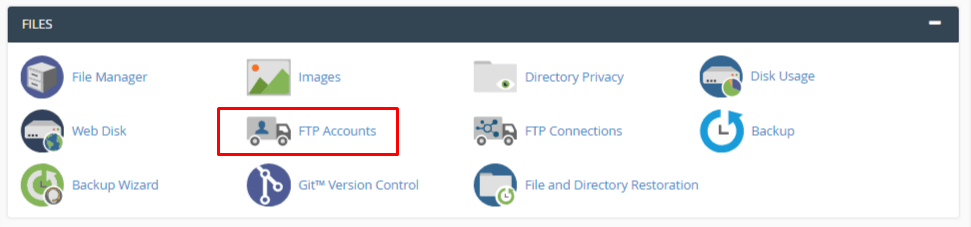
- Under the Files section, click FTP Accounts.
- Find the form called Add FTP Account.
- Type a name in Log In, for example
designer. If you have more than one domain, pick the right one from the drop-down list. - Type a password in Password. Click Generate if you want cPanel to make a strong one. Save it somewhere safe.
- Look at the Directory box. This is the folder the user can reach. For one site, it is often
public_html. For a limited user, give a folder inside it, such aspublic_html/blog. - Pick a Quota. This is how much space the user may fill. Choose a number, or Unlimited if you trust the user and your plan allows it.
- Click Create FTP Account.
Connect with the new account
- On the same page, scroll to FTP Accounts and find the new user.
- Click Configure FTP Client. It shows the host name, username and port to use.
- Open your FTP client, such as FileZilla.
- Enter the host, the full username, the password and the port.
- Click Quickconnect.
The full username includes your domain, like designer@yourdomain.com. Always use the full name.
Change a password or delete an account
- On the FTP Accounts page, find the account in the list.
- Click Change Password to set a new password.
- Click Delete to remove the account when the job is done.
Warning: Deleting an FTP account may offer to delete its files too. Choose carefully, and take a backup first.
Staying safe
- Use a strong, unique password.
- Give each person their own account.
- Limit the folder access.
- Prefer secure FTP (SFTP or FTPS) if your plan and client allow it.
- Delete accounts you no longer need.
Quick recap
- FTP moves files between your computer and your server.
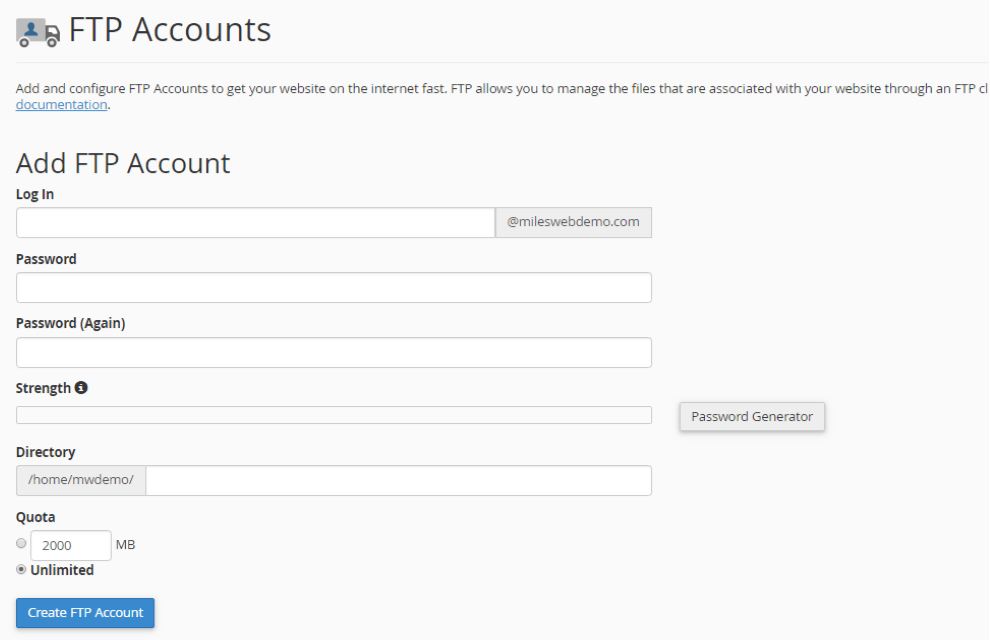
- Open FTP Accounts in cPanel and fill in the login, password, directory and quota.
- Use the full username to connect.
- Delete accounts when you no longer need them.