

What is branding?
Branding means your own logo, name and look. A shop puts its sign above the door. Branding does the same for your cPanel pages. Your customers see your logo when they log in.
The Branding Editor is a tool inside WHM. WHM is the Web Host Manager, the control room for a server. The editor changes how cPanel looks for the accounts you manage. If you are a normal website owner, you may not see this tool. Ask Hostvento support whether it is on your plan.
Before you start
- Get your logo ready as an image file. A PNG file is a good choice.
- Choose your main colours.
- Write down the name you want to show.
Steps
- Log in to WHM.
- In the search box on the left, type Branding.
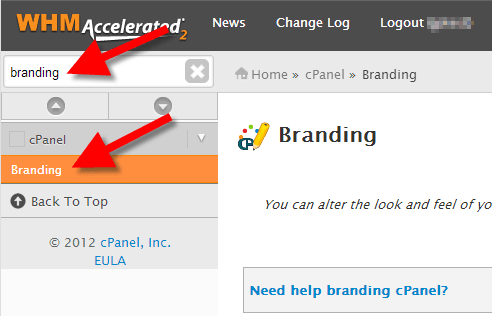
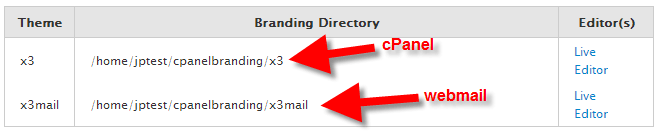
- Click Branding Editor. It may sit under the reseller or theme area, depending on your version.
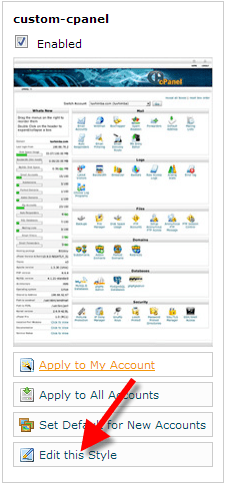
- Click Create a New Brand or Add. Give the brand a short name. Use letters only.
- Upload your logo in the logo section.
- Choose the colours you want for the header and buttons.
- Change any text you want, such as the name shown at the top.
- Click Save.
- Assign the brand to the accounts or packages you want. In the WHM package settings, you can pick the brand.
- Log in to a test cPanel account and refresh the page. Your new look should show up.
If nothing changes
- Clear your browser cache. The cache is a store of old page copies. Your browser may still show the old look.
- Check that the brand is assigned to the right account.
- Check that your logo file is not too large.
Tip: Test the brand on one account first. Then roll it out to everyone.
Menu names can differ between cPanel versions. If you cannot find an item, use the WHM search box.
Quick recap
- The Branding Editor is in WHM, not in normal cPanel.
- Upload your logo, set colours and save the brand.
- Assign the brand to accounts or packages.
- Clear your browser cache to see the change.
- Ask Hostvento support if the tool is missing on your plan.