

What is an error log?
An error log is a diary kept by your web server. Each time something goes wrong, the server writes a line. The line says what happened and when. It is like a teacher's note on a messy homework page.
Method 1: The Errors tool
- Log in to cPanel.
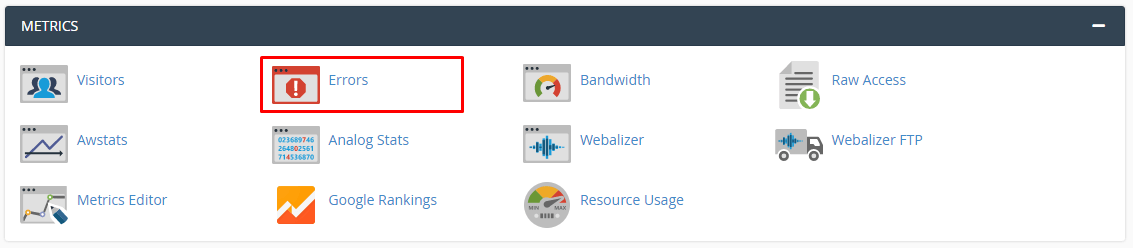
- Find the Metrics section.
- Click Errors.
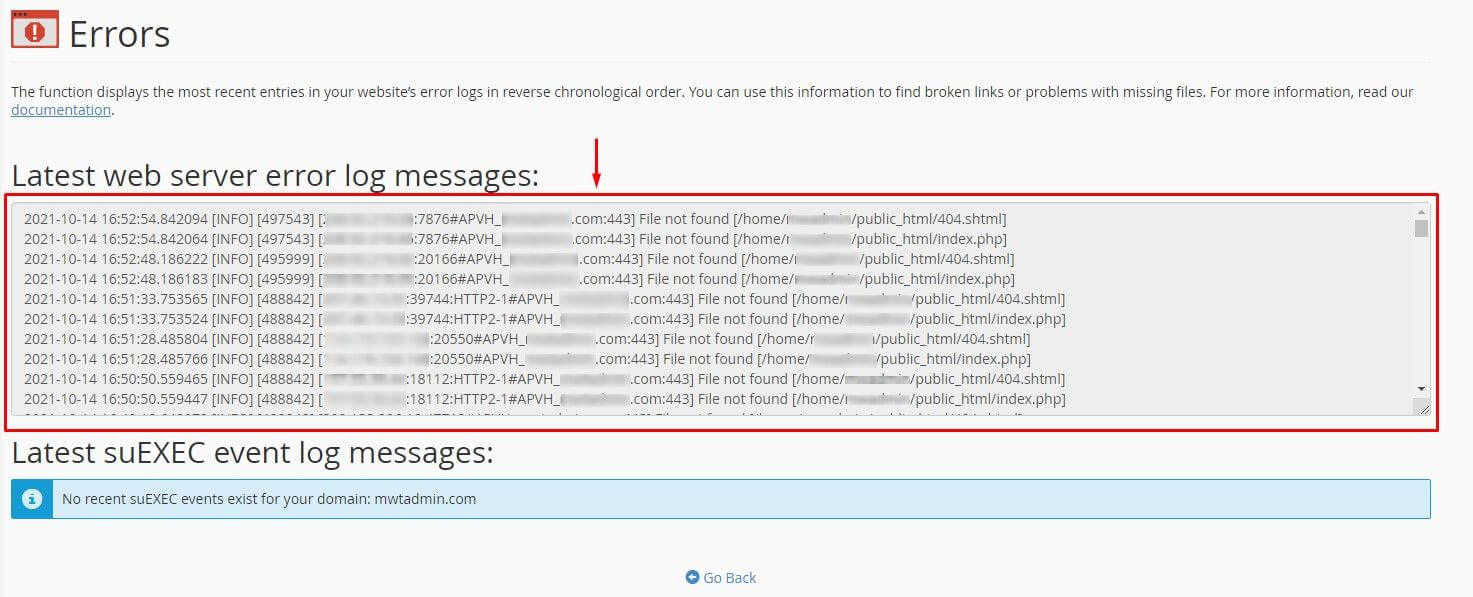
- Read the list. It shows the last errors from your site, newest first.
This view is quick. It only shows a short part of the log.
Method 2: The error_log file
Many scripts also write a file called error_log inside the folder where the problem happened.
- In cPanel, open File Manager.
- Go to the
public_htmlfolder. - Look for a file named
error_log. If you do not see it, click Settings at the top right and tick Show Hidden Files. - Right-click the file and choose View or Edit.
- Scroll to the bottom. The newest lines are there.
Check the sub-folders too. A plugin or theme folder may have its own error_log.
Method 3: Raw access and logs
- In cPanel, click Raw Access under Metrics.
- Download the log files for your domain.
- Open them in a text editor.
How to read a line
A typical line looks like this.
[08-Oct-2026 10:15:02 UTC] PHP Fatal error: Uncaught Error in /home/user/public_html/index.php on line 20- The first part is the date and time.
- PHP Fatal error is the type. Fatal means the page stopped.
- The path shows the file with the problem.
- The last part gives the line number.
What to do next
- Copy the error line.
- Search the file name. It often points to a plugin, a theme or a custom script.
- Turn off the plugin that is named. Take a backup first.
- If you cannot fix it, send the lines to Hostvento support in a ticket at https://secure.hostvento.com/submitticket.php.
Tip: An
error_log file can grow very big. Delete or rename it from time to time after you copy anything you need.Quick recap
- The error log records what goes wrong on your site.
- Use Errors in cPanel for a quick view.
- Look for an
error_logfile in your site folders. - Read the file name and line number to find the cause.