

What does this change?
cPanel is the control panel for your hosting. A control panel is a web page with buttons for managing your site. By default it shows English. You can pick another language from a list. This changes only the words you see in cPanel. It does not change your website.
Steps
- Log in to cPanel.
- Look at the top right corner of the page. You will see your username and a small menu icon.
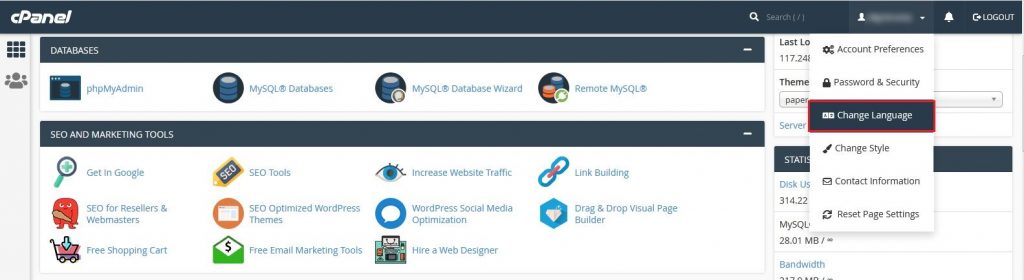
- Click it to open the user menu.
- Click Language. If you do not see it, scroll down the home page to the Preferences section and click Change Language.
- Choose a language from the list. Languages are shown in their own writing, so you can find yours.
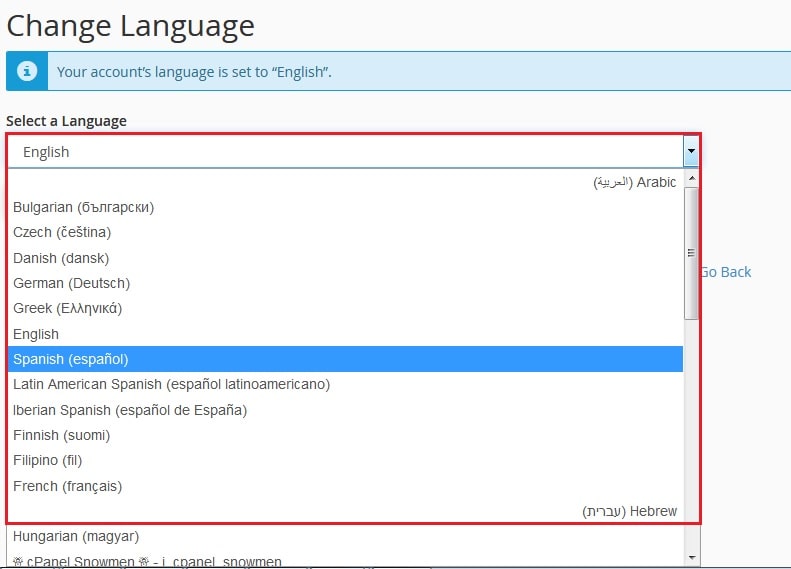
- Click Change or Save.
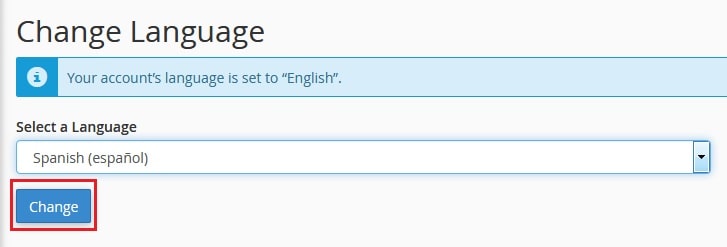
- The page reloads. The menus now use your new language.
Go back to English
- Open the same language page.
- Pick English from the list.
- Save the change.

If you cannot read the new language, look for the same menu spot. The icons stay in the same places. The language item is often marked with a small globe or a letter icon.
Good to know
- The language list depends on the server. Not every language is on every server.

- Some small parts of cPanel may stay in English. That is normal.
- Your choice is saved for your account. It stays the same the next time you log in.
- Webmail may have its own language setting. Open Webmail, then look in its settings.
If your language is missing
- Ask Hostvento support if the language can be added. Use a ticket at https://secure.hostvento.com/submitticket.php.
- Meanwhile, use a browser translate tool. It can translate the page for you.
Tip: Menu names can differ a little between cPanel versions. Use the search box at the top and type "language".
Quick recap
- Open the user menu at the top right of cPanel.
- Choose Language and pick your language.
- Save, and the page reloads in the new language.
- Switch back to English anytime.