

What is a 404 error?
A 404 error means a visitor asked for a page that does not exist. Maybe they typed the wrong address. Or you moved a page. The server shows a plain error page. A custom page can explain what happened and send people to your home page.
Method 1: The Error Pages tool
- Log in to cPanel.
- In the Advanced section, click Error Pages.

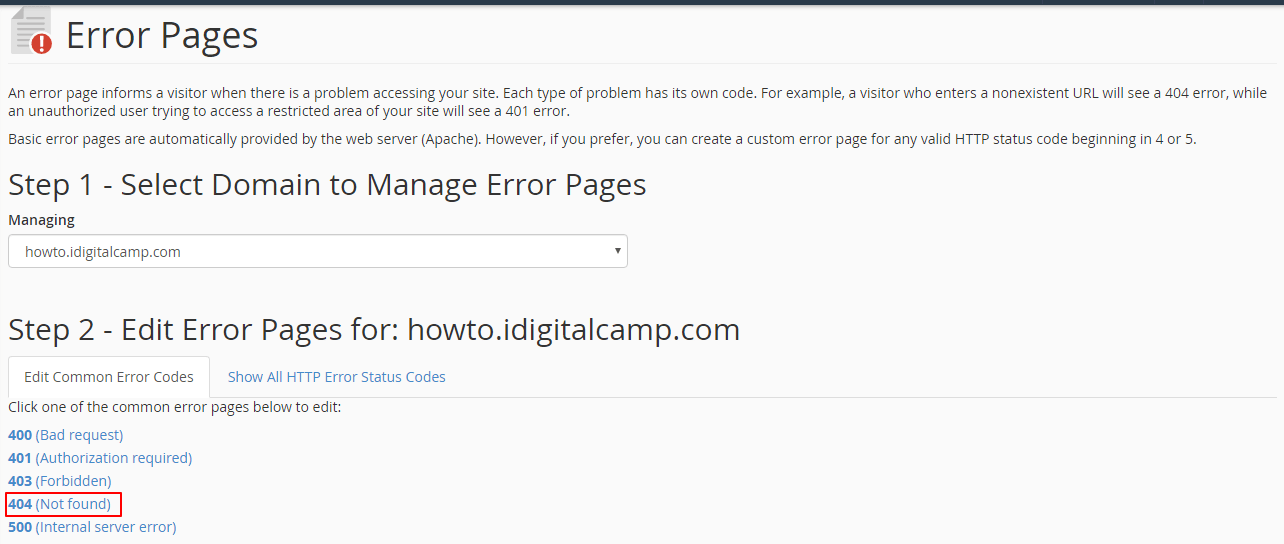
- If you have several domains, pick the one you want.
- Click 404 (Not Found).
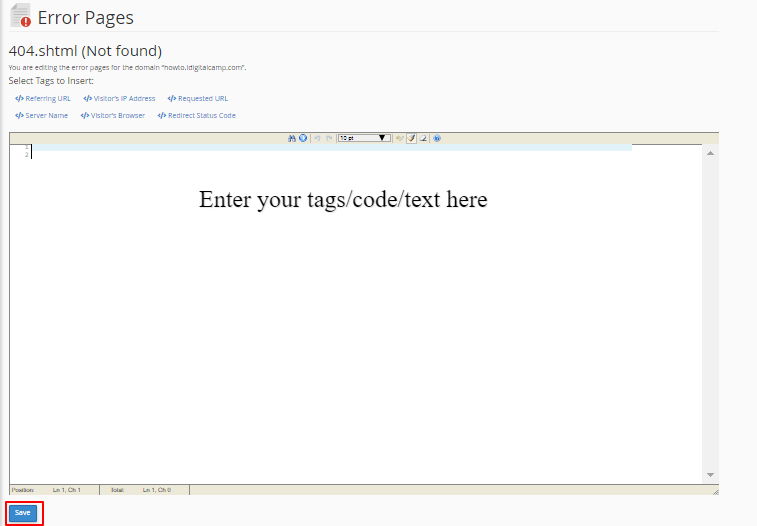
- In the big box, type your message in HTML. HTML is the language of web pages. Here is an example.
<h1>Oops! Page not found</h1> <p>We could not find that page.</p> <p><a href="/">Go to the home page</a></p> - Click Save.
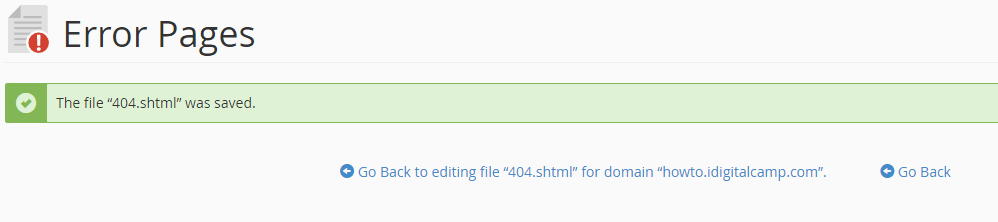
cPanel makes a file called 404.shtml in your public_html folder.
Method 2: Use the .htaccess file
The .htaccess file holds rules for the Apache web server. A mistake in it can break your site. Take a backup first.
- Make your own page, for example
notfound.html, inpublic_html. - Open File Manager. Turn on Show Hidden Files in Settings.
- Right-click
.htaccessinpublic_htmland choose Edit. - Add this line at the end.
This tells Apache to show your page for every 404 error.ErrorDocument 404 /notfound.html - Click Save Changes.
Test it
- Open your site with a wrong address, such as
yourdomain.com/this-page-is-not-here. - You should see your custom page.
Ideas for a good 404 page
- Keep the words short and kind.
- Add a link to the home page.
- Add links to your main sections.
- Do not load heavy images.
Tip: WordPress sites use their theme's 404 template. Edit that instead, or the rule above may not work.
Quick recap
- A 404 error means the page was not found.
- Use Error Pages in cPanel for the easy way.
- Or add an
ErrorDocument 404line to.htaccess. - Test with a wrong address.