

What is Node.js?
Node.js lets you run JavaScript on a server. JavaScript is the language of web pages. With Node.js, the same language can build the back end of a site too. An app is the program that answers visitors.
cPanel has a tool called Setup Node.js App. It uses a system called CloudLinux. The tool may not be on your plan. Ask Hostvento support if you cannot see it.
Before you start
- Have your app files ready. You need a start file, such as
app.js, and apackage.jsonfile. The second file lists the add-ons your app needs. - Make a backup of your project on your own computer.
Steps
- Log in to cPanel.
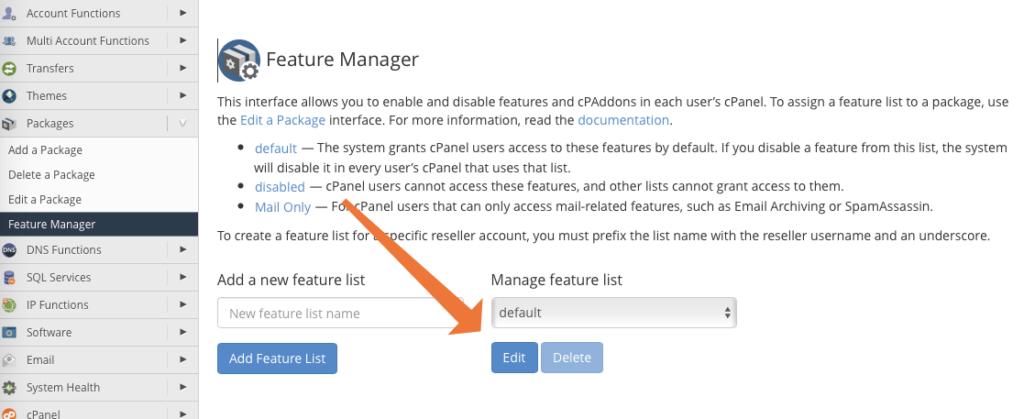
- In the Software section, click Setup Node.js App.
- Click Create Application.
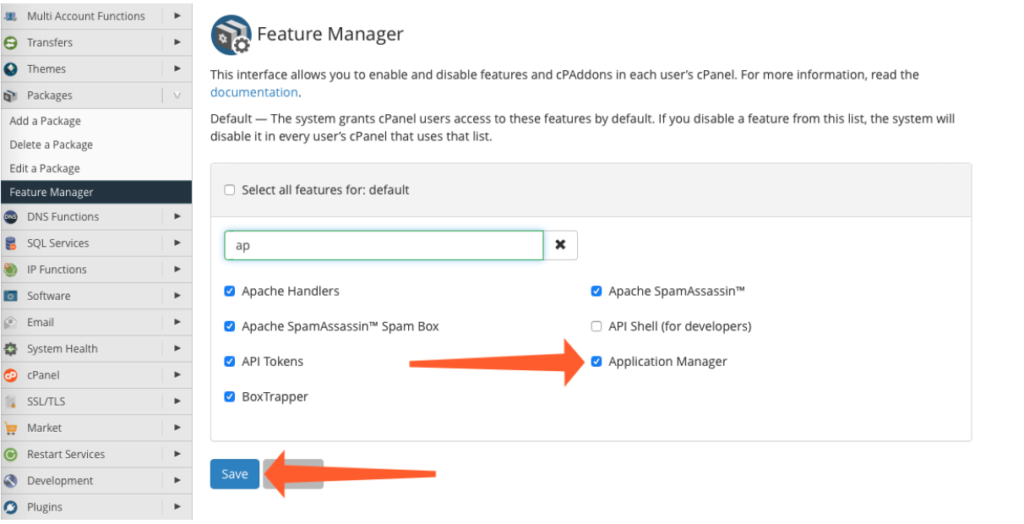
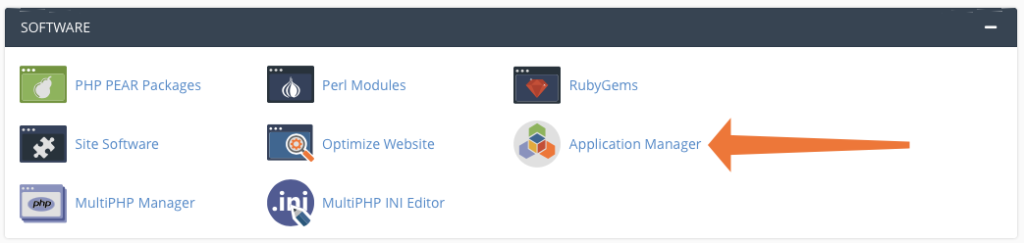
- Choose a Node.js version. Pick the one your app was built for.
- Set Application mode. Use Production for a live site.
- In Application root, type the folder for your app files, for example
myapp. This folder is made in your home folder. - In Application URL, pick the domain and an optional path.
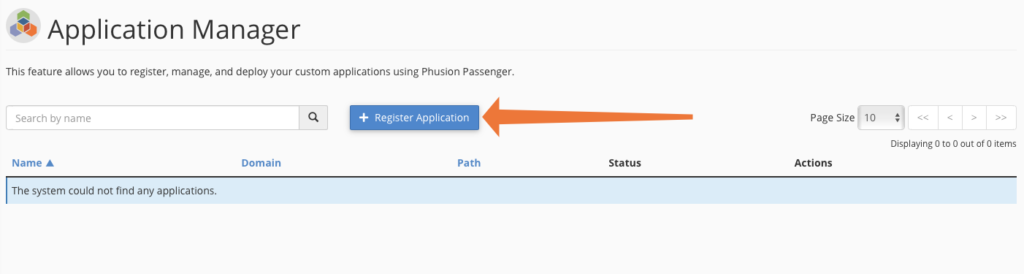
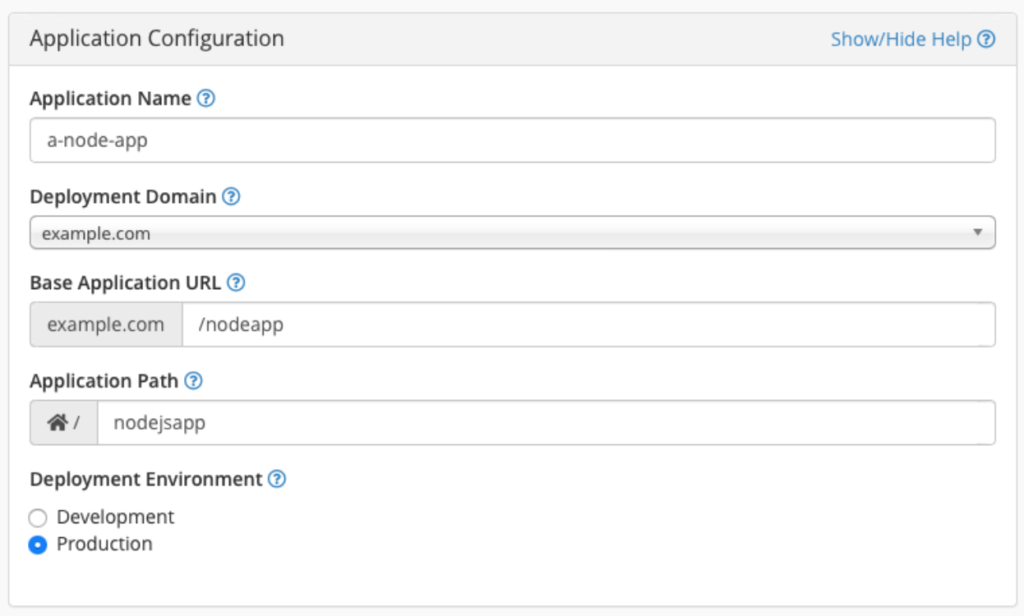
- In Application startup file, type
app.js, or your own start file name. - Click Create.
- Upload your files into the application root folder with File Manager. Skip the
node_modulesfolder.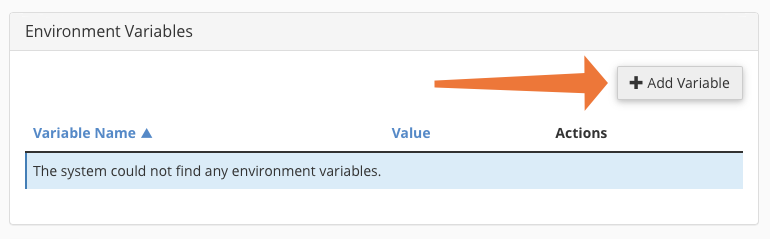
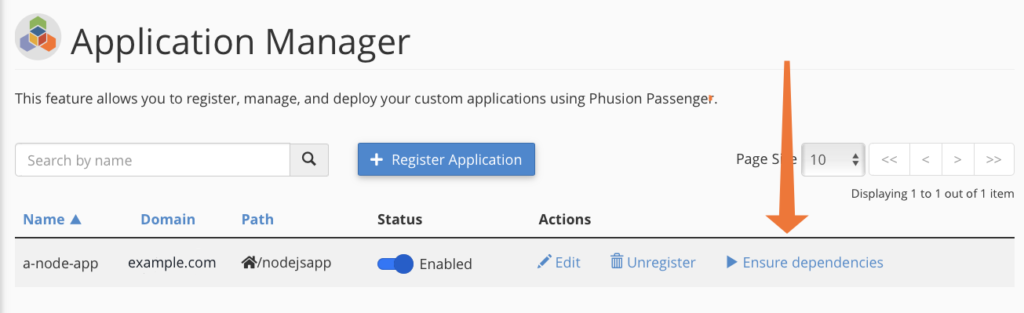
- Go back to Setup Node.js App and open your app.
- Click Run NPM Install. NPM is the tool that downloads your app's add-ons.
- Click Restart.
- Open your domain in a browser to check the app.
A small test app
If you want to test the tool, use this tiny file as app.js.
const http = require('http');
http.createServer((req, res) => {
  res.end('Hello from Node.js');
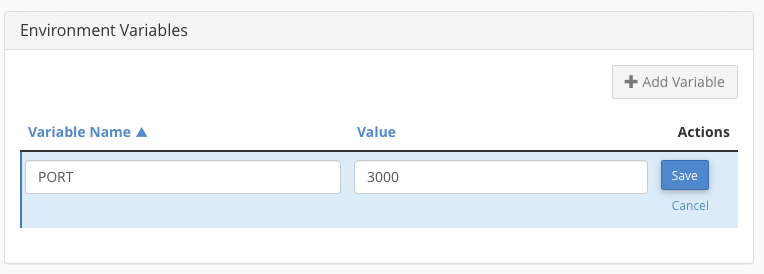
}).listen(process.env.PORT || 3000);
It answers every visit with a short message.
If something fails
- Check the startup file name.
- Look at the log in the app screen or in the
stderr.logfile. - Restart the app after every change to the files.
- Open a ticket at https://secure.hostvento.com/submitticket.php if the tool is missing.
Tip: On a VPS with root access you can also install Node.js yourself and run your app with a process manager.
Quick recap
- Use Setup Node.js App in cPanel.
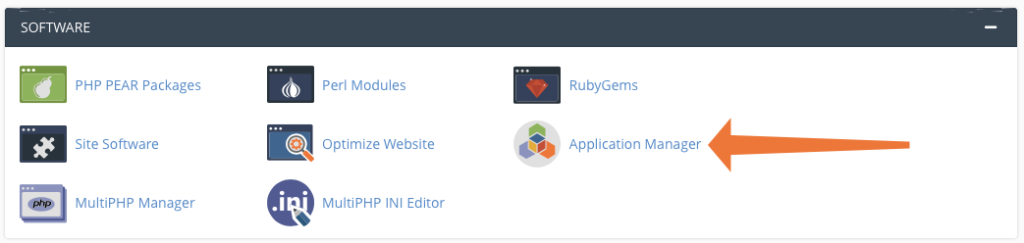
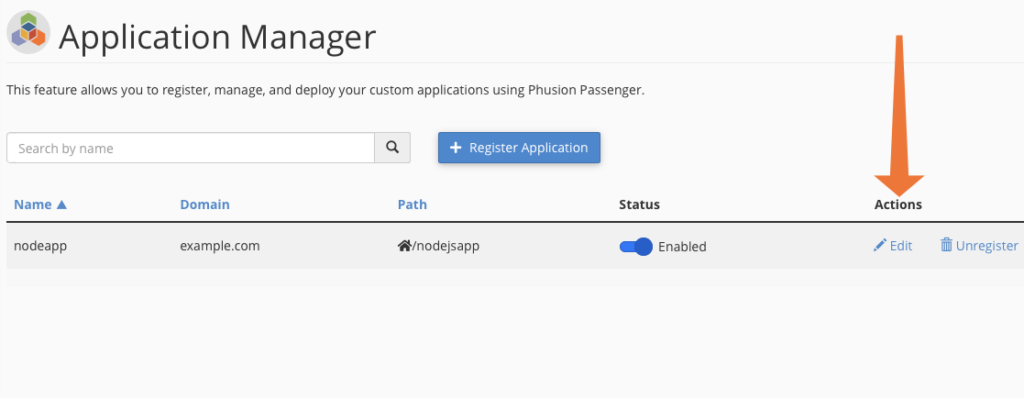
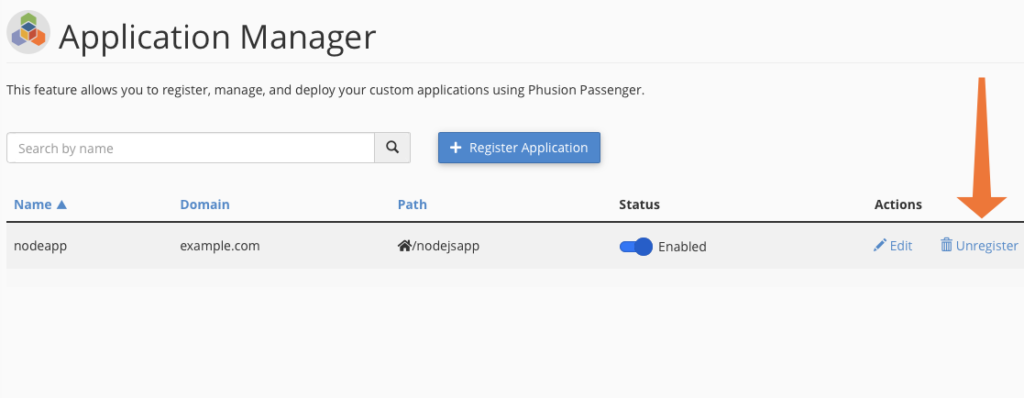
- Pick the version, folder, URL and start file.
- Upload files, run NPM Install and restart.
- Ask support if the tool is not on your plan.