

Why does this matter?
cPanel sends you messages. Some are about a full disk, a failed login or a password reset. If your contact email is old, you will miss them. Keep it current.
This is the contact for your cPanel account. It is separate from your Hostvento client area details. See the last section for that.
Update the contact email
- Log in to cPanel.
- In the Preferences section, click Contact Information. You can also click your username at the top right and choose Contact Information.

- Type your main email in the Email box. You can add a second address if the page offers it.
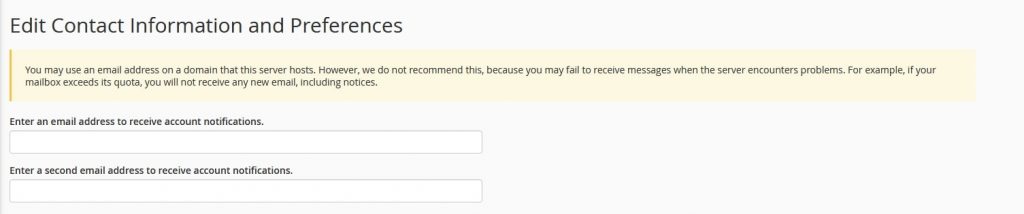

- Use an address that is not on the same domain as the hosting account. If the site goes down, mail to that domain would also fail.
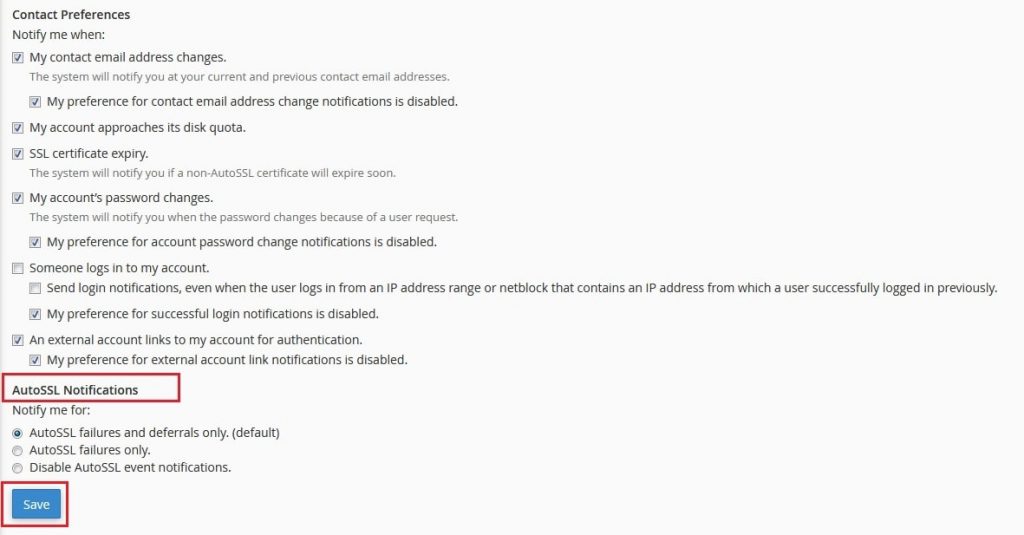
- Scroll down to the list of alert types.
- Tick the alerts you want to get. Untick the ones you do not need.
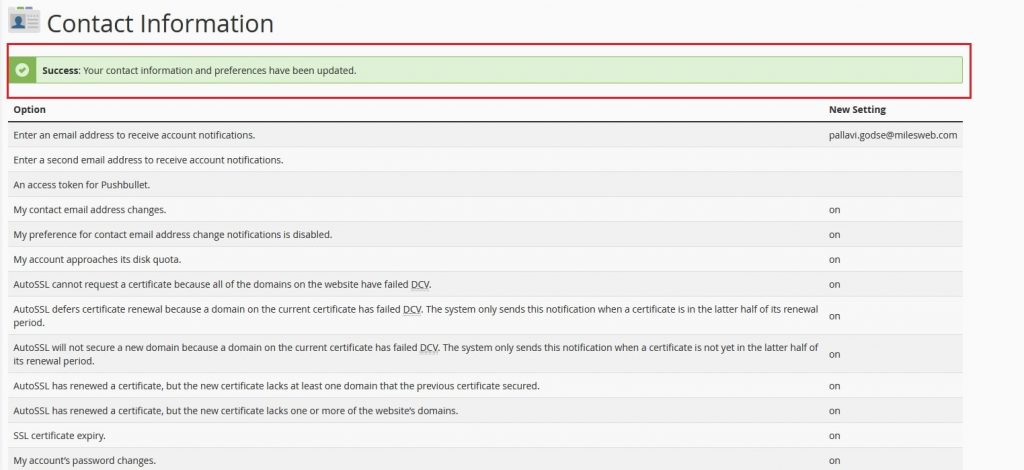
- Click Save.
Other preferences
You can change more settings on the same home page, in the Preferences section.
| Tool | What it does |
|---|---|
| Password & Security | Change your password and set up two-factor login. |
| Change Language | Show cPanel in another language. |
| Change Style | Change the colours and look. |
| User Manager | Add other logins for email or FTP. |
Tool names depend on your cPanel version. Use the search box at the top to find them.
Update your details in the client area
Your billing and account details live in the Hostvento client area, not in cPanel. Changing cPanel contact info does not change them.
- Log in at https://secure.hostvento.com/clientarea.php.
- Click your name at the top right.
- Choose Edit Account Details. The menu name may differ a little.
- Change your email, address or phone number.
- Click Save Changes.
Tip: Send yourself a test message after you change your email, to make sure the new address works.
Quick recap
- Open Contact Information in cPanel to change your alert email.
- Use an address outside your hosting domain.
- Pick which alerts you want and save.
- Billing details are changed in the Hostvento client area.