

What is a database backup?
A database is where a website keeps its information, such as posts, users and orders. A backup is a spare copy. If you break something, you can restore the copy and get your data back. Make a backup before you update plugins, change settings or move a site.
Method 1: Backup page
- Log in to cPanel.
- In the Files section, click Backup.

- Scroll to Download a MySQL Database Backup.
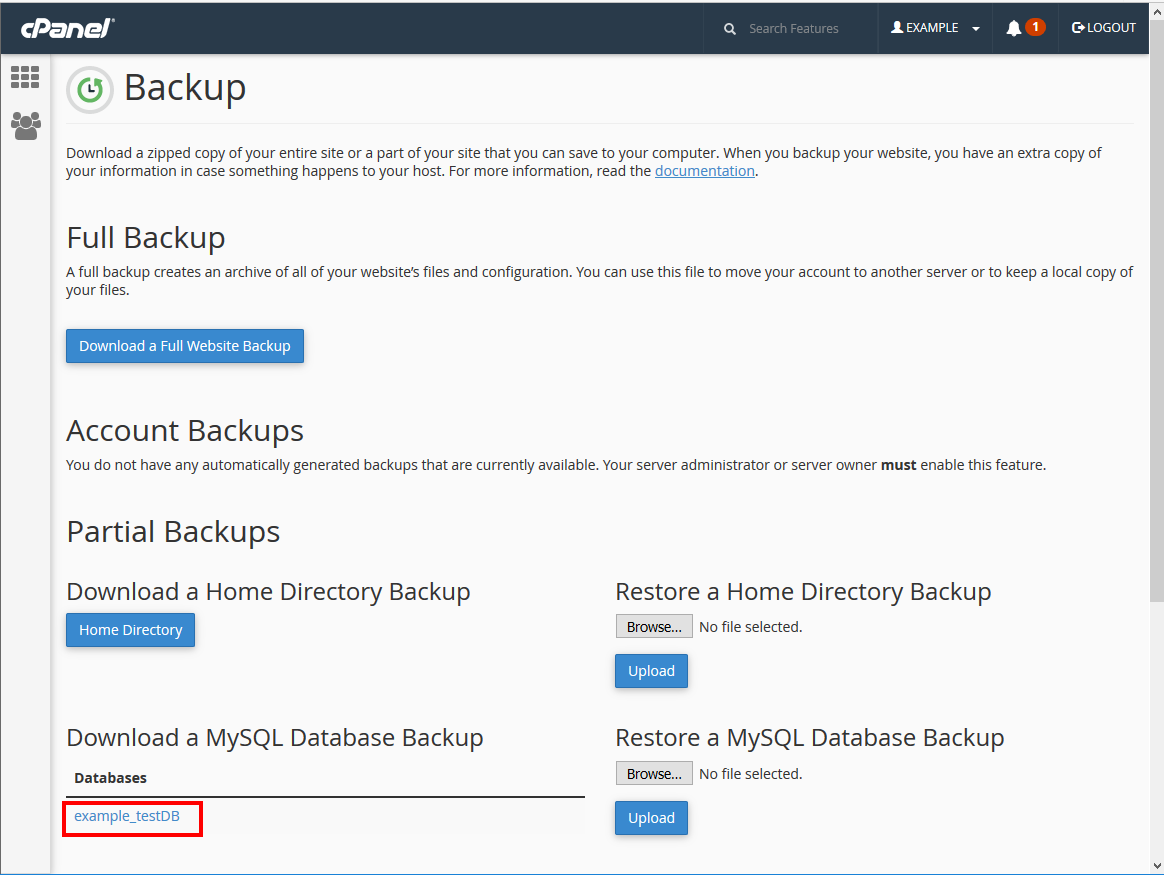
- Click the name of your database. A file ending in
.sql.gzdownloads to your computer. - Keep the file in a safe place.
If you do not know your database name, open MySQL Databases in cPanel. For WordPress, the name is also in the wp-config.php file.
Method 2: phpMyAdmin
phpMyAdmin is a web tool for looking inside databases.
- In cPanel, click phpMyAdmin.
- Click your database name on the left.
- Click the Export tab.
- Choose Quick and the format SQL.
- Click Export or Go.
- Save the file.
For a huge database, choose Custom and pick compression such as gzipped. This makes the file smaller.
How to restore a backup
Warning: Restoring can overwrite the data in the database now. Export a fresh backup first, so you can undo the change.
- Open Backup in cPanel.
- Scroll to Restore a MySQL Database Backup.
- Click Choose File and pick your
.sql.gzfile. - Click Upload.
Or use phpMyAdmin:
- Open phpMyAdmin and click your database.
- Click the Import tab.
- Click Choose File and pick your backup.
- Click Import.
phpMyAdmin has an upload size limit. For large files, ask Hostvento support for help at https://secure.hostvento.com/submitticket.php.
Good habits
- Back up before every big change.
- Store copies somewhere other than the server, such as your computer.
- Name files with the date, like
shop-2026-10-08.sql.gz. - Test restore on a spare site now and then.
Quick recap
- Use Backup in cPanel and click your database to download it.
- Or use the Export tab in phpMyAdmin.
- Restore with the upload box or the Import tab.
- Always take a fresh backup before you restore.