

What is File Manager?
Your website is made of files, like pictures, pages and folders. They live on a server, which is a computer that is always on. File Manager is a tool inside cPanel. It works like the folders on your own computer, but it shows the files on your hosting.
Where do website files go?
Your main website lives in a folder called public_html. Files in this folder can be seen on the internet. Files outside it are private.
Upload a file
- Log in to your client area at https://secure.hostvento.com/clientarea.php.
- Open your hosting service and log in to cPanel.
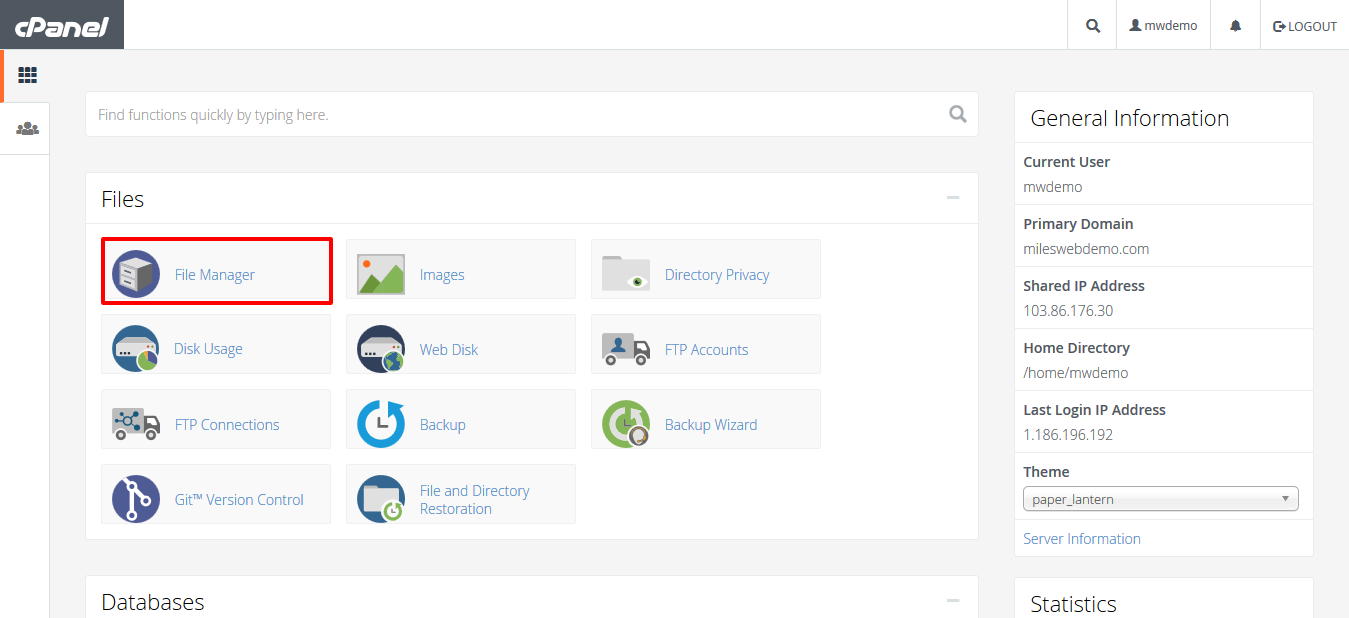
- In the Files section, click File Manager.
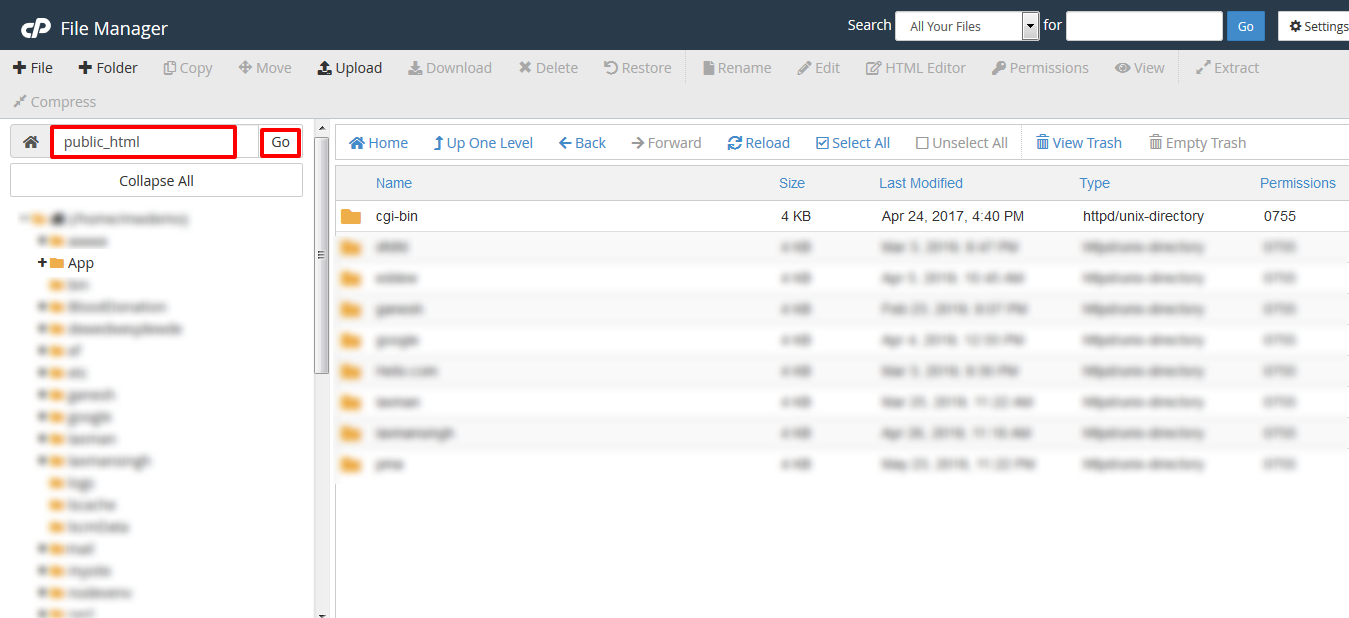
- On the left, click the folder you want, such as
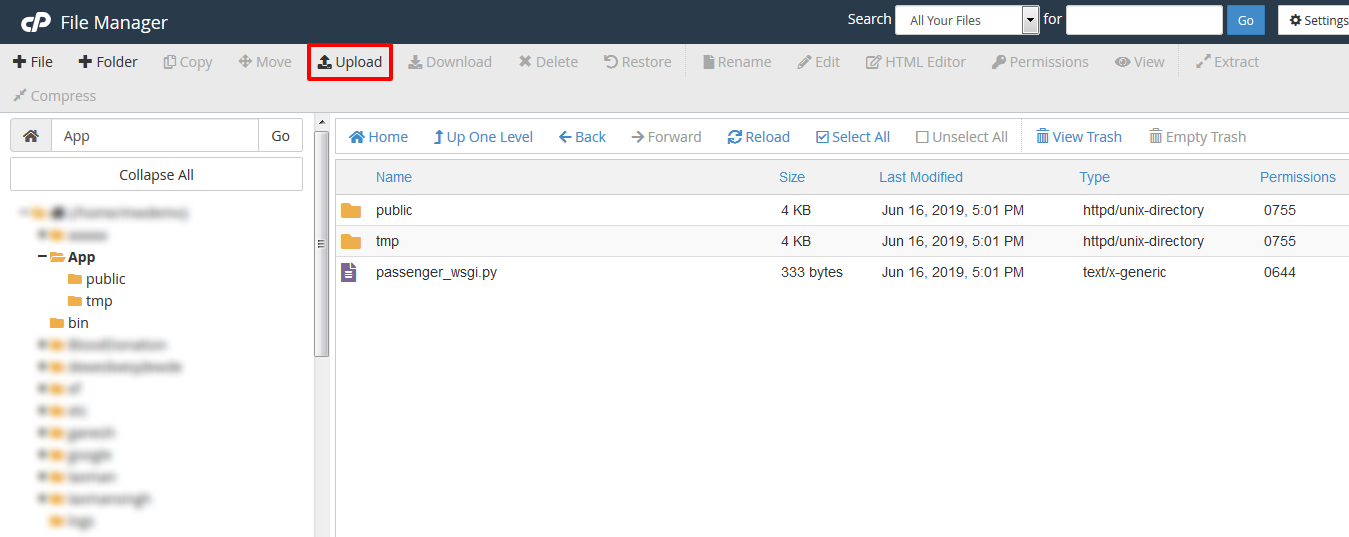
public_html. - Click Upload in the top bar. A new tab opens.
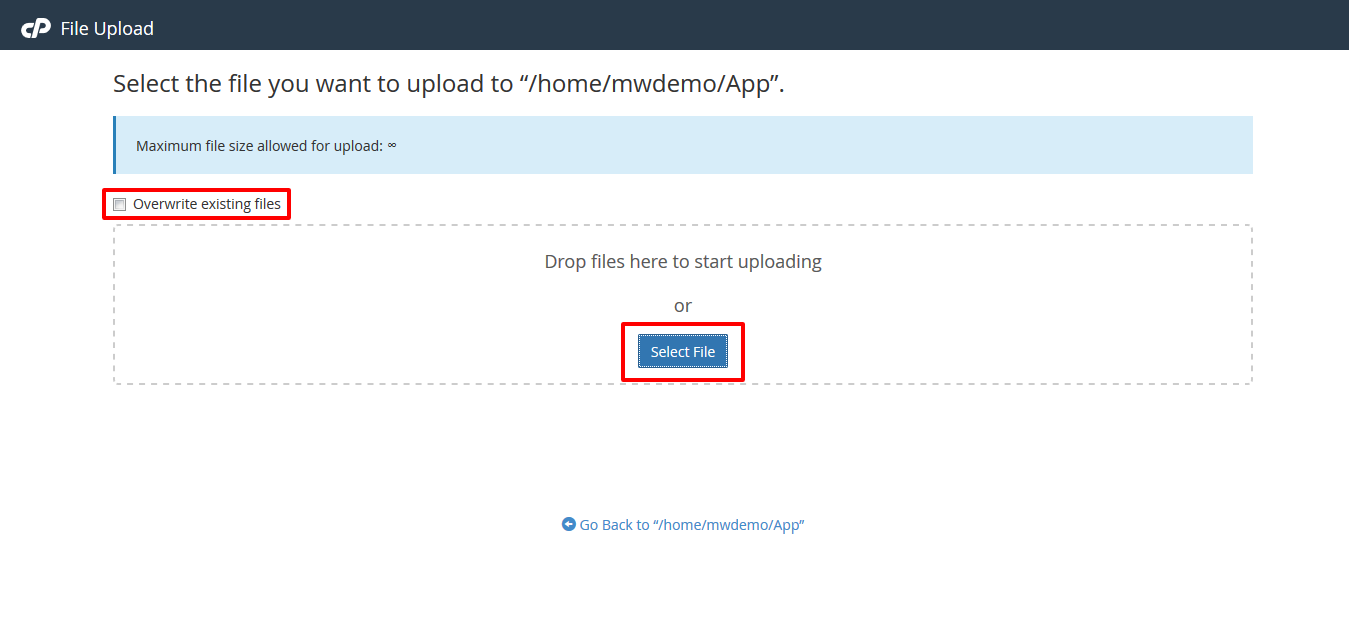
- Click Select File and choose a file from your computer. You can also drag the file into the box.
- Wait until the green bar shows 100%.
- Click Go Back to the folder link.
- Click Reload if you do not see the new file.
Tip: To upload many files, zip them on your computer first. Upload the one zip file. Then right-click it in File Manager and choose Extract. This is much faster.
Warning: If you upload a file with the same name as an existing one, it may replace it. Back up important files first.
Download a file
- Open File Manager.
- Go to the folder that has your file.
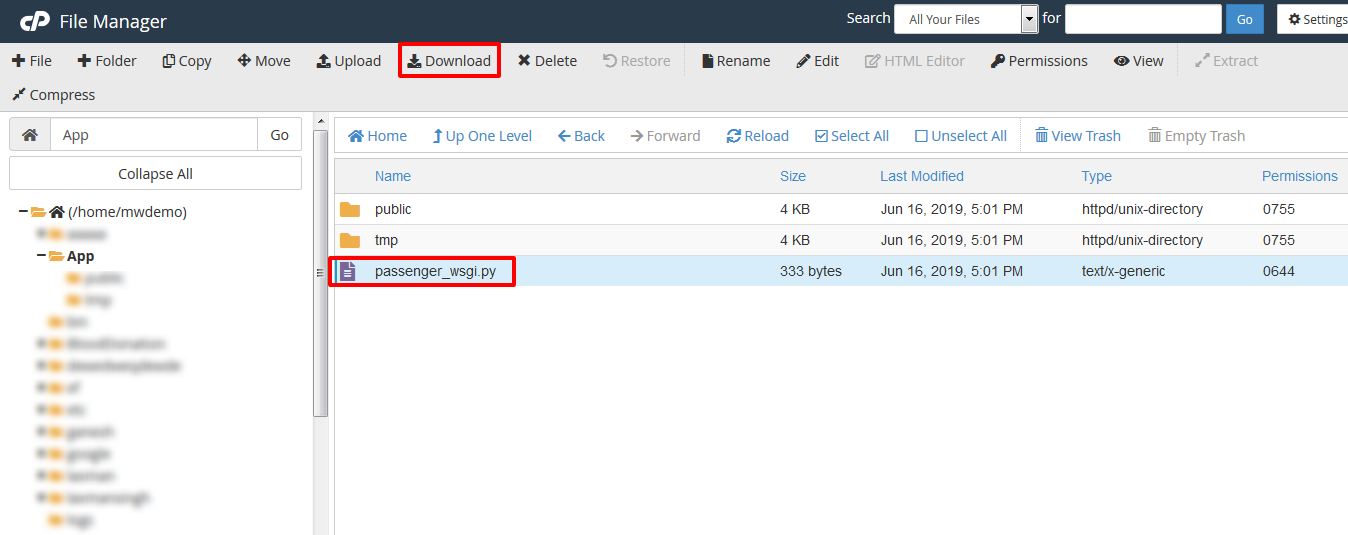
- Click the file once to select it.
- Click Download in the top bar.
- Your browser saves the file to your computer.
Download a whole folder
File Manager cannot download a folder directly. Make it into one file first.
- Right-click the folder.
- Click Compress.
- Choose Zip Archive and click Compress File(s).
- Select the new zip file and click Download.
After downloading, you can delete the zip file from the server to save space.
If an upload fails
- The file may be too big. Try zipping it, or use an FTP program instead. FTP is another way to move files to a server.
- Your disk space may be full.
- Your internet may have dropped. Try again.
If it still fails, open a ticket at https://secure.hostvento.com/submitticket.php.
Quick recap
- File Manager is in cPanel under Files.
- Website files go in
public_html. - Use Upload to add files and Download to save them.
- Zip many files or folders to move them faster.
- Back up before replacing files.