

What are cPanel and WHM?
cPanel is the control panel you use to manage one hosting account. You use it for files, email and databases. WHM stands for WebHost Manager. It is the control panel for the whole server. Resellers, VPS owners and dedicated server owners use WHM to manage many cPanel accounts.
You need WHM login details for this guide. Normal shared hosting users do not have WHM. If that is you, use the client area or ask Hostvento support to help.
Steps
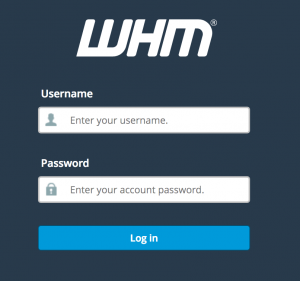
- Log in to WHM. If you manage a VPS or dedicated server, your welcome email has the details. You can also ask Hostvento support.
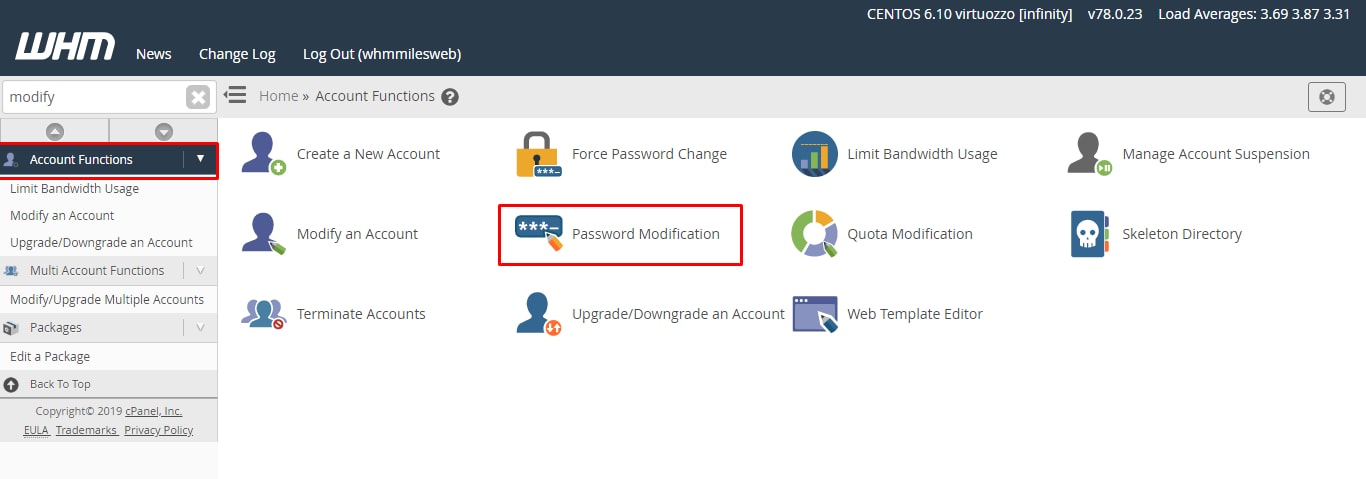
- In the search box at the top left, type Password Modification.
- Click Password Modification in the results.
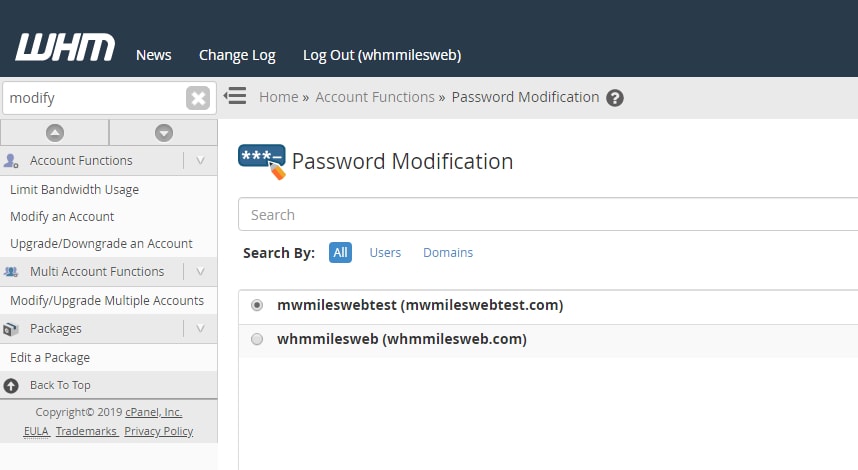
- Pick the account from the Username list.
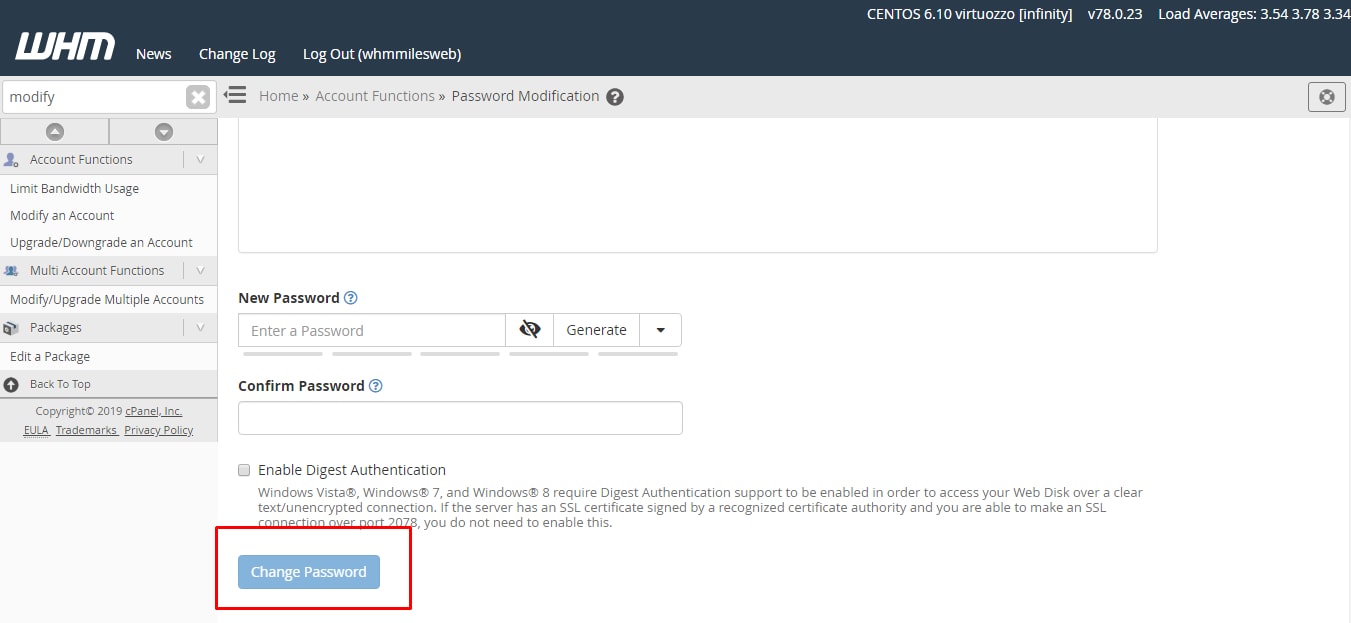
- Type a new password in the Password box. You can also click Password Generator to make a strong one.
- Type it again in the confirm box if it asks.
- Leave the option to sync the password with other services as it is, unless you know you want to change it.
- Click Change Your Password.
- WHM shows a message when the change is done.
Test the new password
- Open the cPanel login page for the account.
- Enter the username and the new password.
- Check that you can log in.
Using the command line
If you have root access, you can also reset the password with a command. Root access means full control of the server, so be careful. Run:
whmapi1 passwd user=USERNAME password='NewStrongPass123!'This sets the new password for the named account. Replace USERNAME and the password with your own values. Typing a password in a command may save it in the shell history. Clear the history afterwards or use WHM instead.
Make a good password
- Use at least 12 characters.
- Mix letters, numbers and symbols.
- Do not reuse an old password.
Quick recap
- WHM manages the server and all cPanel accounts on it.
- Open Password Modification, pick the user and set a new password.
- Click Change Your Password and test the login.
- Update any apps that used the old password.