

What are notifications?
A notification is a short message that tells you something happened. It might say your disk is nearly full, or that a service stopped. cPanel is the panel for a hosting account. WHM is the panel for the whole server. Server owners (VPS and dedicated customers) use WHM and need root access, the main administrator login.
Part 1: Set your contact email in cPanel
- Log in to cPanel.
- Click your username at the top right, then choose Contact Information. On some versions it is under Preferences.
- Type an email address you check often. Use an address outside your own website, so you still get alerts if your site email breaks.
- Tick the types of alerts you want to receive.
- Click Save.
Part 2: Set up alerts in WHM
- Log in to WHM as root.
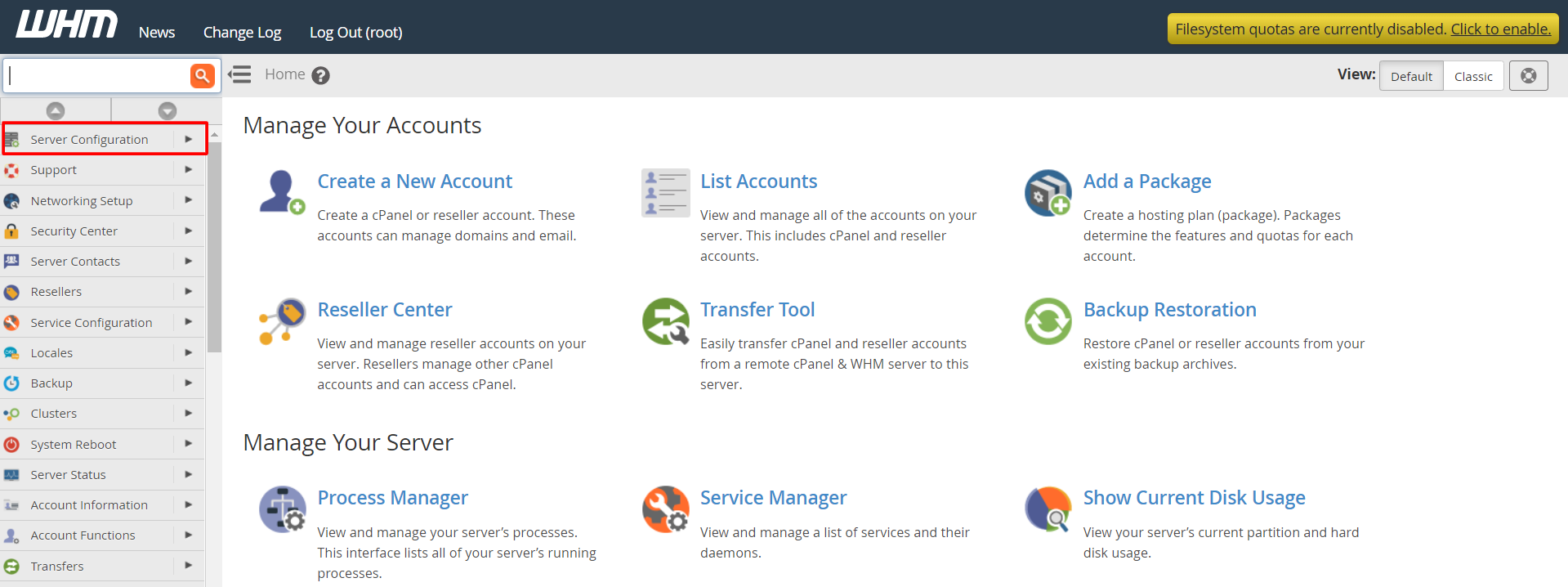
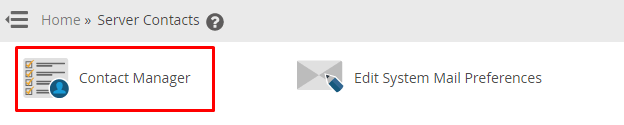
- Use the search box at the top left and type Contact Manager.
- Open Contact Manager.
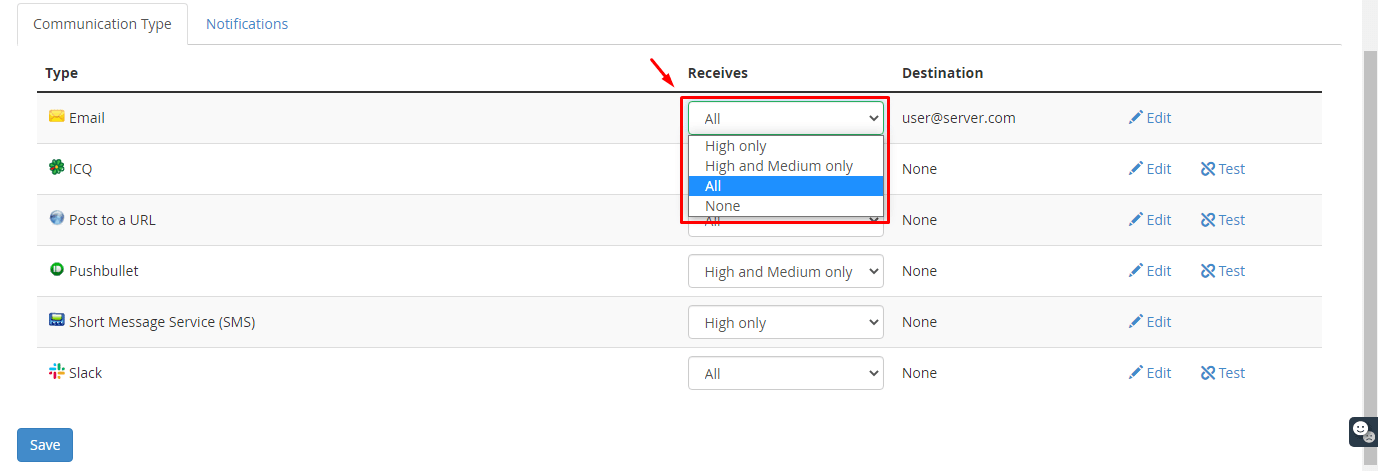
- Enter your email address in the contact fields.
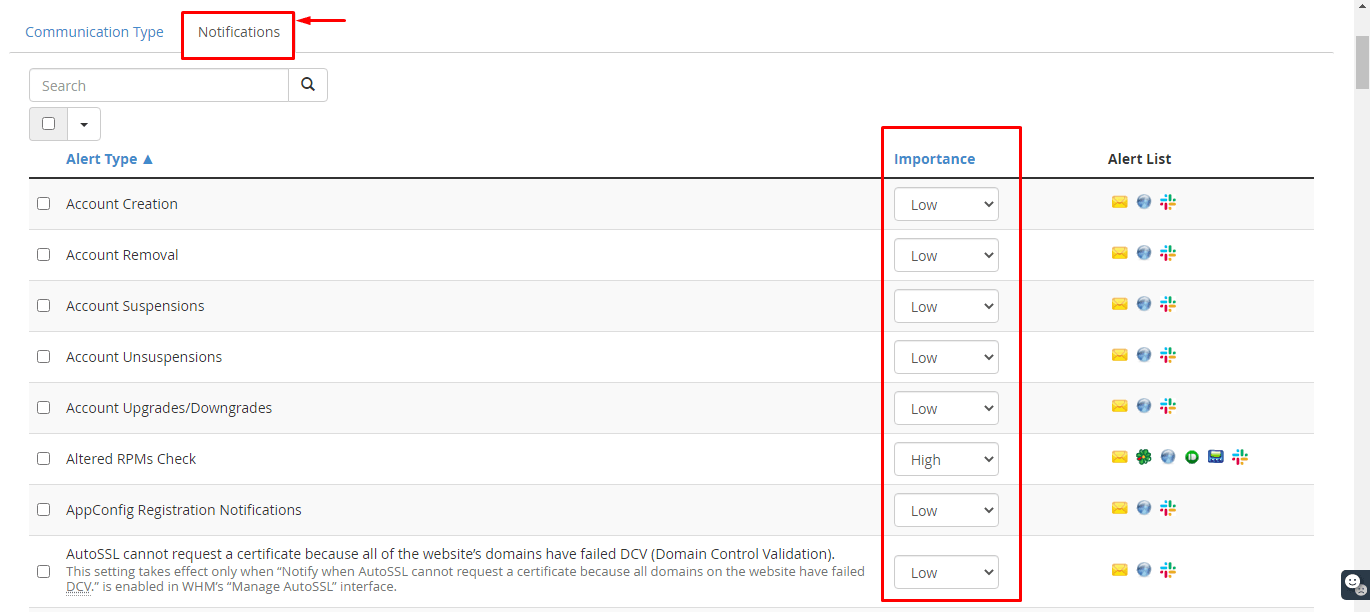
- Choose which events send a message, and how important they must be.
- Click Save.
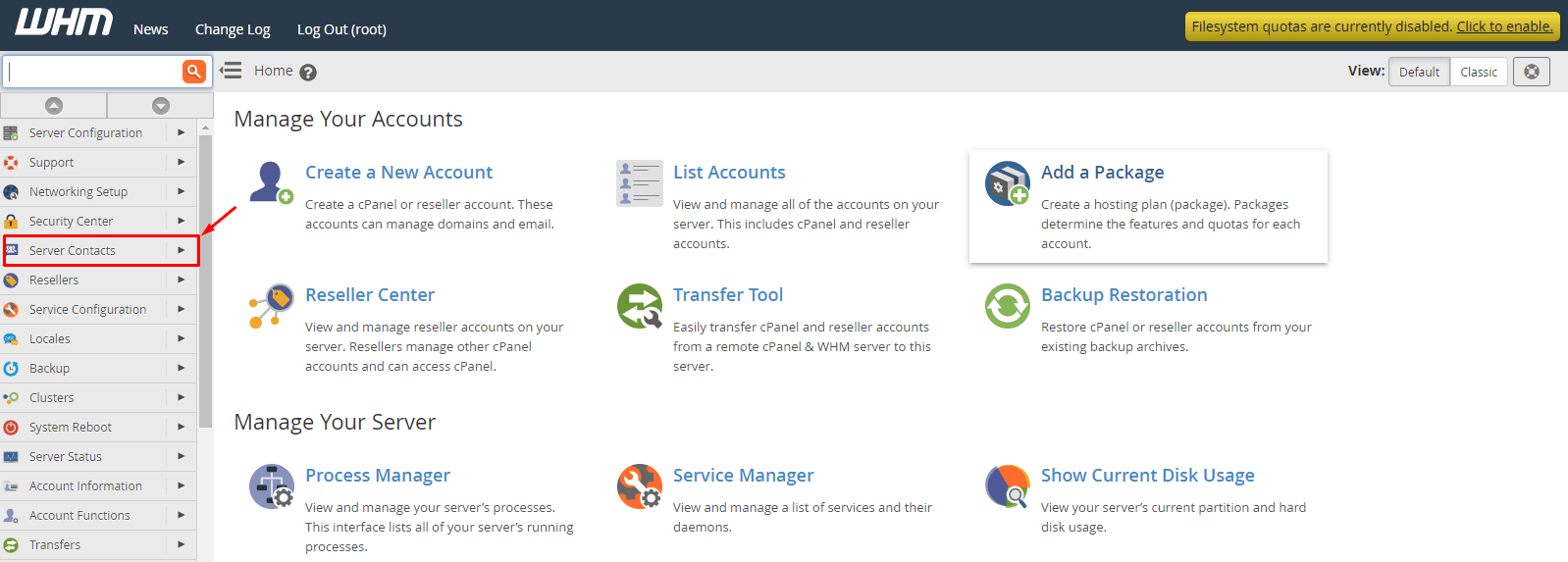
Next, check your main server contact address.
- In WHM, search for Basic WebHost Manager Setup and open it.
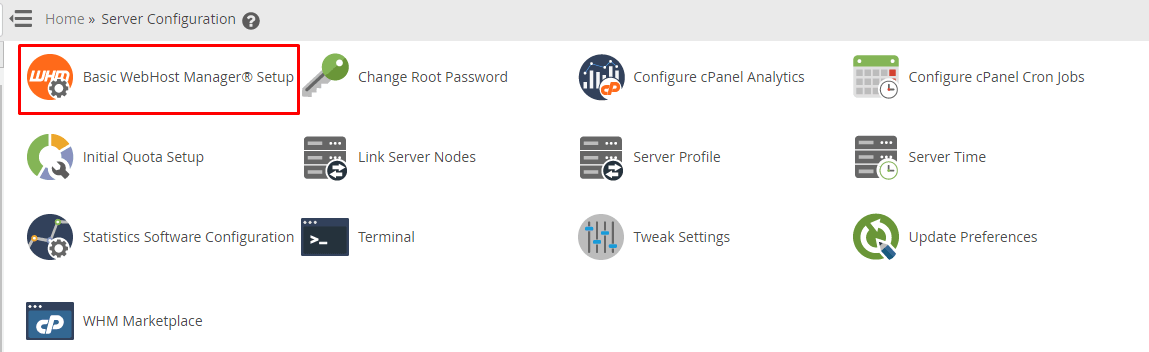
- Find the field for the server contact email address.

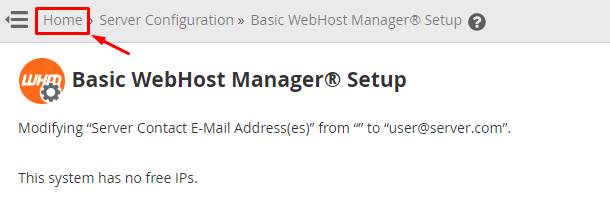
- Enter your address and click Save Changes.
Test it
Ask a friend or yourself to trigger a harmless alert if your version has a test button. Then check your inbox and your spam folder. If nothing arrives, the server may be unable to send mail. Open a support ticket and Hostvento support can check it.
Tip: Menu names change between cPanel versions. If you cannot find an item, use the search box in cPanel or WHM. It is the quickest way to find any page.
Warning: Do not enter a wrong address. Alerts can include private server details. Send them only to people you trust.
Quick recap
- Notifications are short emails about your account or server.
- In cPanel, set your address under Contact Information.
- In WHM, use Contact Manager and Basic WebHost Manager Setup.
- Use an email address that is not on the same server.
- Check spam, and ask support if nothing arrives.