

What is email authentication?
Anyone can pretend to send mail from your domain. Email authentication proves a message really came from you. It works like a stamp on a letter. Mail services check the stamp before they trust the message.
There are two main stamps:
- SPF is a list of servers that may send mail for your domain.
- DKIM adds a secret signature to each message. The receiver checks it against a public key.
These are stored as DNS records. DNS is like a phone book for the internet. It holds facts about your domain.
Steps
- Log in to your cPanel account.
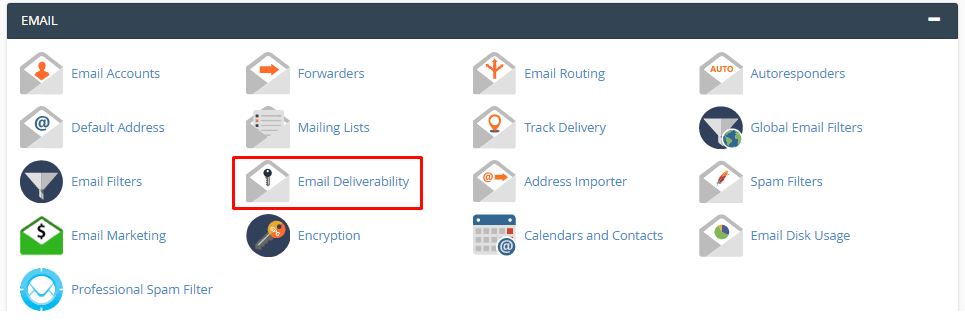
- In the Email section, open Email Deliverability. On older versions, open Authentication instead.
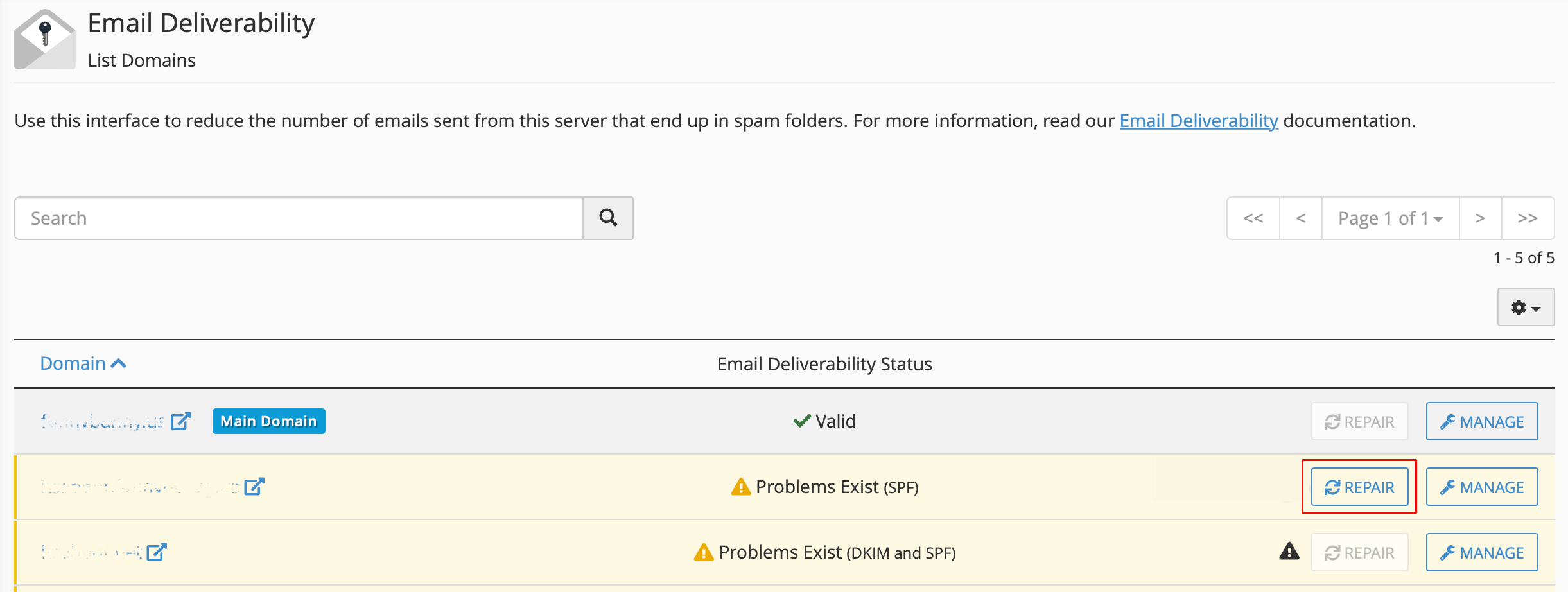
- Find your domain in the list. A status shows if it is valid or has a problem.
- If there is a problem, click Manage next to the domain.
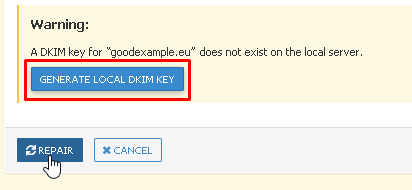
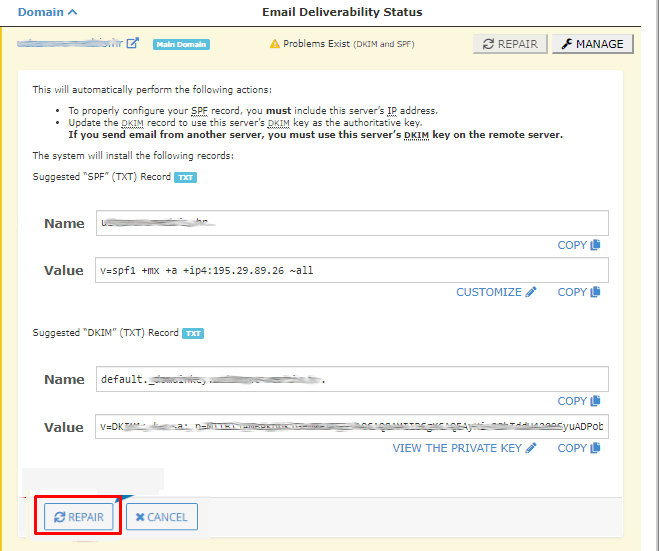
- Read the suggested record for SPF and for DKIM.
- Click Install the suggested record for each one. If your domain uses nameservers elsewhere, click Copy and add the record at the DNS service that hosts your domain.
- Go back to the list and check that both show as valid.
On older cPanel versions with the Authentication page, click Enable under both DKIM and SPF.
Wait, then test
DNS changes can take from a few minutes up to a day to spread. Then send a test message to a free mail account and open it. Look at the message details for the words SPF and DKIM with a pass result.
Which nameservers does my domain use?
Your welcome email shows which nameservers your domain uses. You can also check your domain in the client area under Domains. If you are not sure where to add records, ask Hostvento support.
Quick recap
- Email authentication proves your mail is real.
- SPF lists who may send. DKIM signs each message.
- Use Email Deliverability in cPanel to install the records.
- Wait for DNS to spread, then send a test.
- Ask support if you are unsure where your DNS is hosted.