

Why use Jupiter
- Modern look. A clean design that is easy to use.
- Responsive. It adapts to computers, tablets and phones.
- Quick access. Frequently used tools are close at hand.
- Search bar. Find any tool fast by typing its name.
- Customizable. You can change some colors and the layout.
Switch the theme
- Open your browser and go to your cPanel login page, usually
yourdomain.com/cpaneloryourdomain.com:2083. Log in.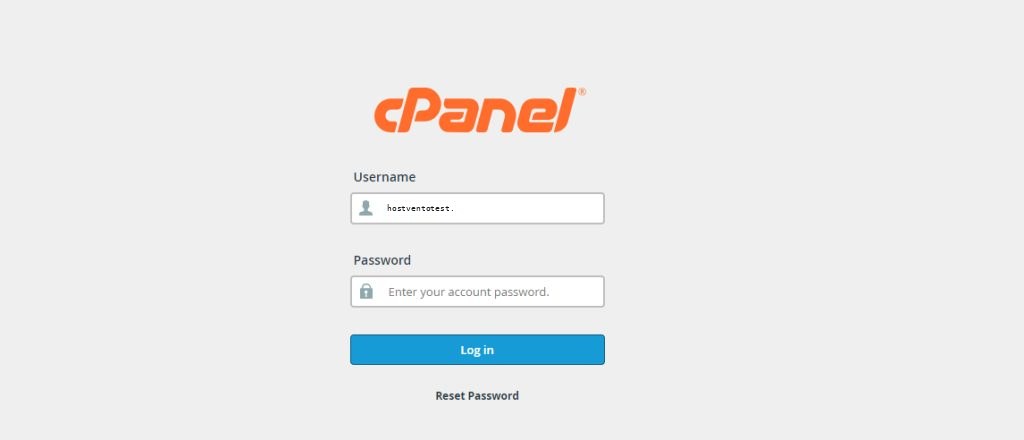
- Open the Preferences section and click Change Style (it may also be called Theme or Style).
- Choose Jupiter from the list of styles. A preview shows how it looks.
- Click Apply (or Change or Save) to confirm.
- cPanel reloads with the new theme.
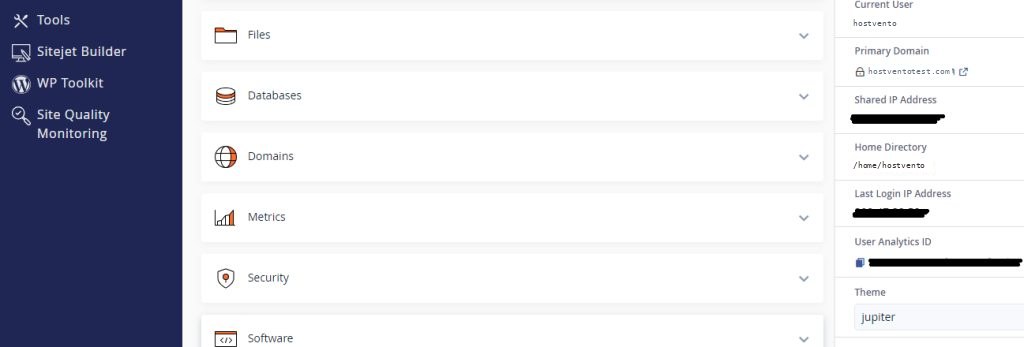
If you do not see the option
- Your host may offer only one theme. Ask your hosting support to enable Jupiter for your account.
- On the server (for the administrator), set the default theme in WHM under Server Configuration > Tweak Settings with the option Default theme for new accounts. The theme for an existing account can be set in WHM under Account Functions > Modify an Account.
Customize Jupiter
- Use the Search field at the top to find tools.
- Click the Tools or Dashboard menu for shortcuts.
- Open the User Interface Settings (profile menu) to choose the dark or light mode on newer versions.
Quick recap
- Preferences > Change Style > Jupiter > Apply.