

What is a redirect?
A redirect sends visitors to a new address. It is like a sign on a closed shop that says "We moved, go to the new street". The visitor does not need to do anything. The browser moves on its own.
People use redirects when they change a domain, move a page, or want www and non-www to land on one address.
Types of redirect
- 301 permanent: the move is forever. Search engines move their records to the new address. Use this most of the time.
- 302 temporary: the move is only for a while. Search engines keep the old address.
Steps
- Log in to DirectAdmin. Your welcome email has the address and your details.
- Open Account Manager and click Site Redirection. Use the search box if you cannot see it. Some skins list it under Domain Setup.

- Choose the domain if the panel asks.
- Pick the type: 301 or 302.
- In the first box, type the path to redirect from. Use
/for the whole site. Use something like/old-pagefor a single page. - In the second box, type the full new address, starting with
https://.
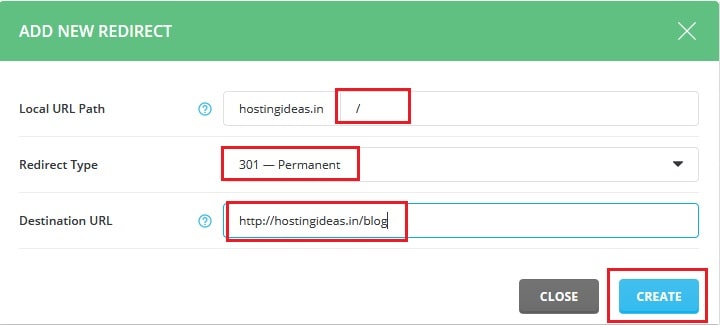
- Click Add.
Test it
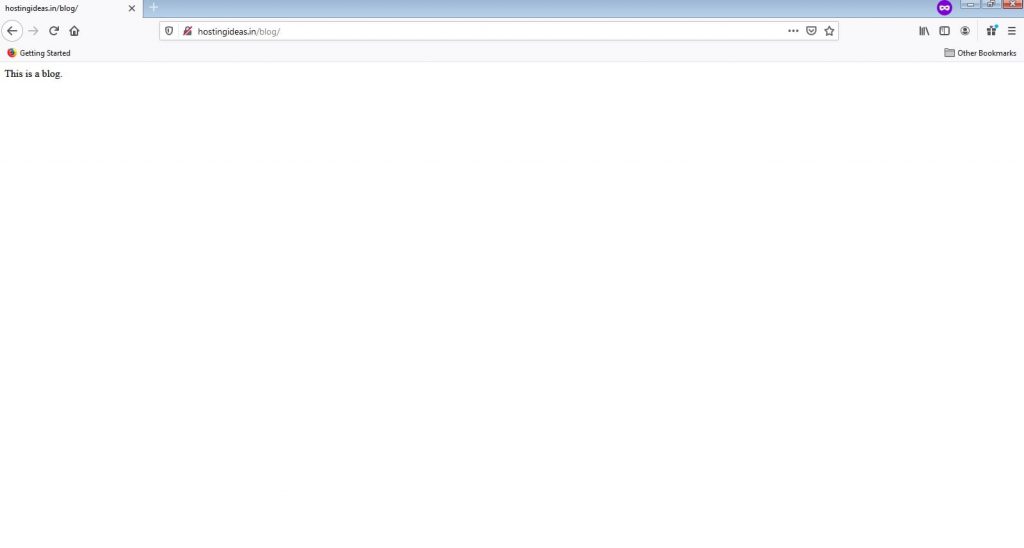
- Open a private browser window.
- Type the old address.
- Check that you land on the new address.
Browsers remember a 301 for a long time. If the test looks old, clear the browser cache. A cache is a store of saved page copies.
Remove a redirect
- Open Site Redirection again.
- Tick the redirect you no longer want.
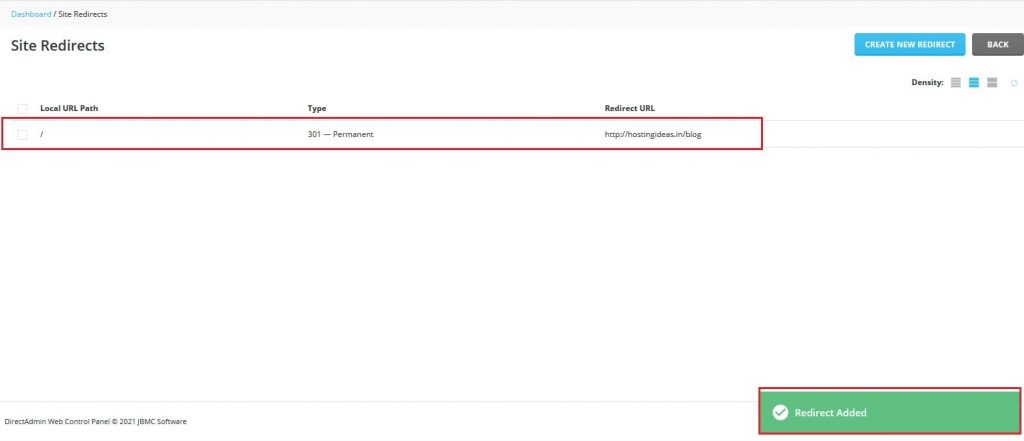
- Click Delete.
Warning: A wrong redirect can send your whole site to the wrong place. Do not redirect a page to itself, because it loops forever. Check the path twice. Back up your site first if it is live.
Need help? Open a ticket at https://secure.hostvento.com/submitticket.php.
Quick recap
- A redirect sends visitors from one address to another.
- Use 301 for permanent moves and 302 for short ones.
- Add it in Site Redirection and test it in a private window.
- Avoid loops.