

What is a backup?
A backup is a safe copy of your website data. It is like a photo of your room before you move the furniture. If something breaks, you can put things back as they were.
A DirectAdmin backup can include website files, databases, emails and settings. A database is where a site stores things like posts and customer details.
Steps
- Log in to DirectAdmin.
- Open Create/Restore Backups under the Advanced Features or Account Manager section.
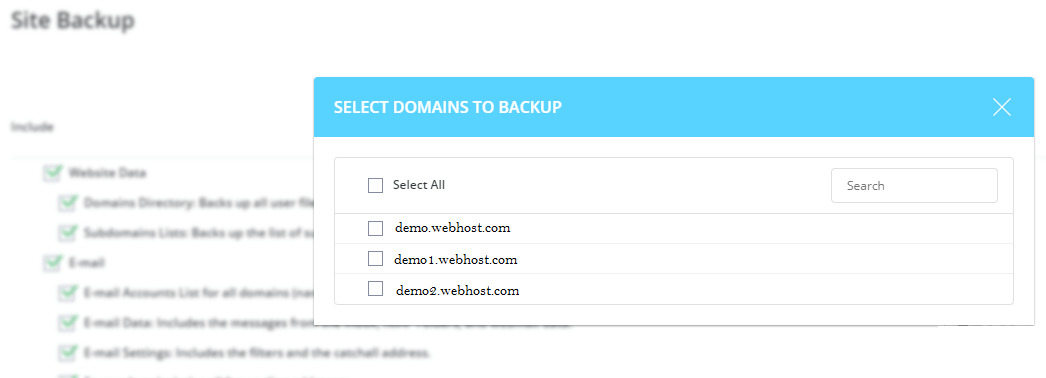
- Look at the list of domains. Each domain has a checkbox.
- Tick only the domain or domains you want to save.
- Look at the list of items to include. It may include Domains Directory, Email Accounts, Databases, Subdomain lists and more. Tick only what you need.
- Click Create Backup.
- Wait. A big site takes longer.
You will see a message when the backup starts. DirectAdmin may email you when it ends. The finished file is listed on the same page.
Download the backup
- Go back to Create/Restore Backups.
- Find your backup file in the list at the bottom. Its name includes the date.
- Click the file name to download it to your computer.
Keep a copy somewhere safe, like an external drive. A backup stored only on the same server may be lost if the server has a problem.
Restore later
- Open Create/Restore Backups.
- Tick the backup file.
- Choose what to restore.
- Click Restore Selected Items.
Warning: Restoring overwrites current files and data with the older copy. Make a fresh backup first if you may need what is there now.
Good to know
- Backup menu names differ between DirectAdmin versions.
- Your plan may limit how large a backup can be. Ask Hostvento support if a backup fails.
- Set a regular schedule if your account offers it.
Quick recap
- Open Create/Restore Backups.
- Tick only the domains and items you want.
- Click Create Backup, then download the file.
- Restoring replaces current data, so back up first.