

Why change the format?
Different places write dates in different ways. One person reads 03/04/2025 as 3 April. Another reads it as March 4. A clear format stops mix-ups when you read logs, emails and backups in your panel.
The exact menu names depend on your DirectAdmin version and skin. A skin is the look of the panel. This guide tells you where to look. Some servers may not offer the setting. If you do not see it, ask Hostvento support.
Steps
- Log in to DirectAdmin. Your welcome email has the address and your details.
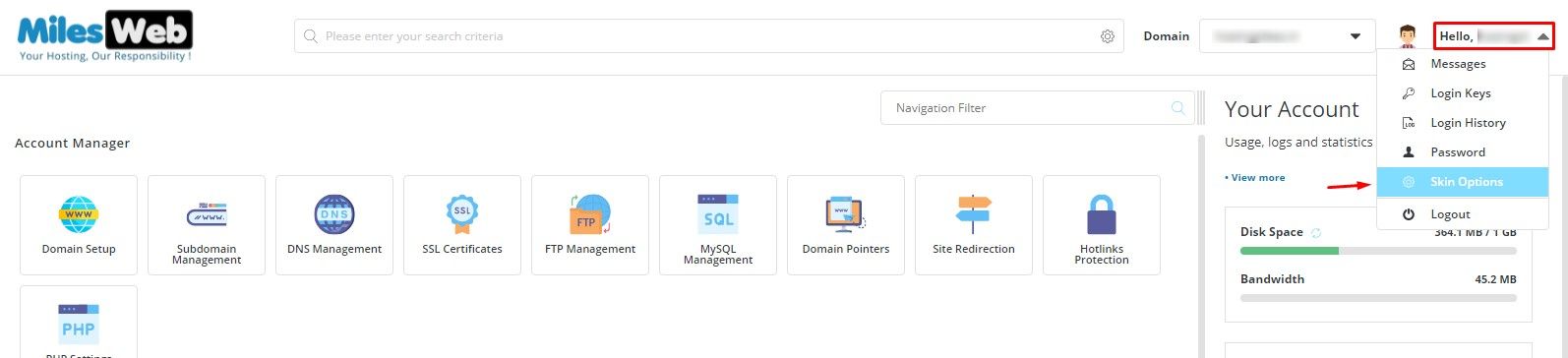
- Click your user name in the top bar, or open Account Manager.
- Look for a page named Preferences, Skin Options or User Settings. The search box at the top helps.
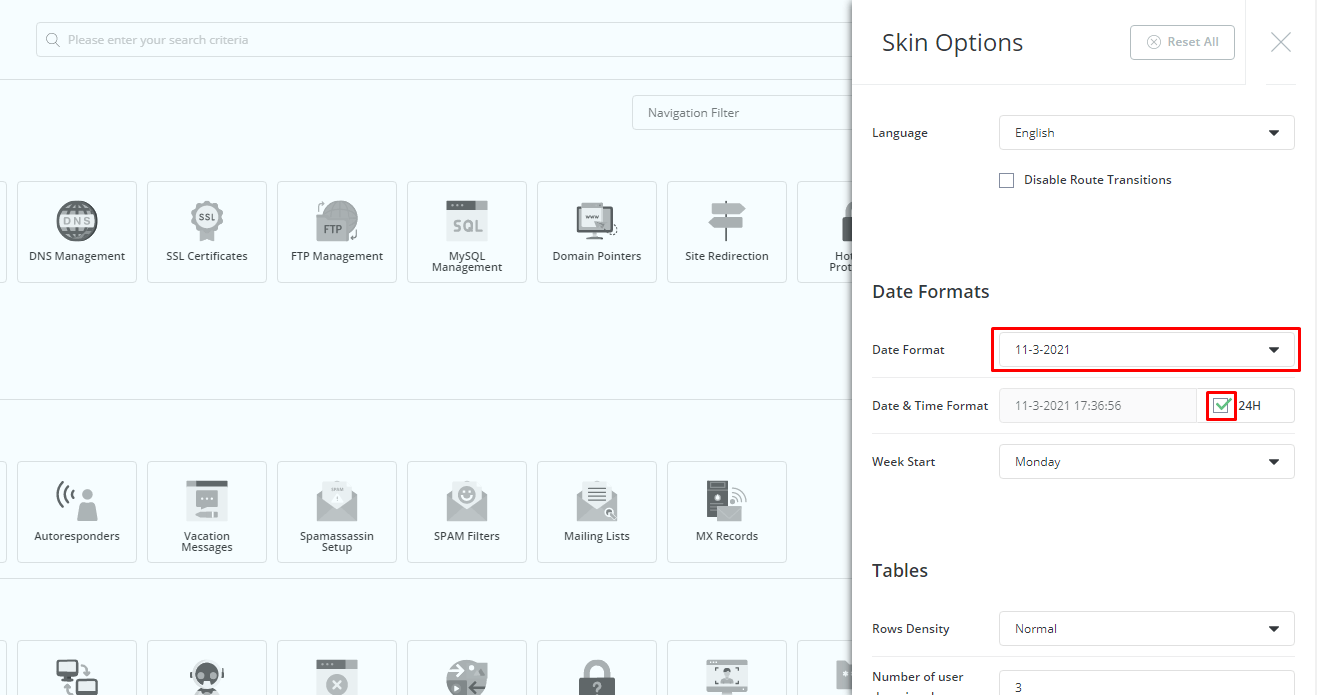
- Find the field for Date Format or Time Format.
- Pick a format from the list. A sample shows how the date will look.
- Choose your Time Zone too, if the page has it. This makes sure the time is right for where you live.
- Click Save.
- Reload the page. The new format should show in lists and logs.
Common formats
| Format | Example |
|---|---|
| Year-month-day | 2025-04-03 |
| Day/month/year | 03/04/2025 |
| Month/day/year | 04/03/2025 |
| 24-hour time | 15:30 |
| 12-hour time | 3:30 PM |
The year-month-day style cannot be mixed up, so it is a safe pick.
What it does not change
- It changes only how your account shows dates. It does not change the clock of the server.
- It does not change time stamps inside your website or its emails.
Tip: If the time looks wrong by some hours, the problem is the time zone, not the format. Check the time zone field.
Cannot find the setting? Open a ticket at https://secure.hostvento.com/submitticket.php.
Quick recap
- Look under your account preferences or skin options.
- Pick a date format, a time format and a time zone.
- Click Save and reload.
- It affects only how your account shows dates.