

What is DirectAdmin?
DirectAdmin is a control panel. A control panel is a web page where you manage your hosting, a bit like the dashboard of a car. A domain is the name people type to reach your site, such as example.com.
Before you start
Changing a domain can break your website and email for a short time. Take a full backup first. Your files, databases and email addresses may all be tied to the old name.
Note that the user level of DirectAdmin may not allow this change. On many servers, only the reseller or admin can rename a domain. If you cannot see the option, ask Hostvento support to do it for you.
Steps for a reseller or admin
- Log in to your DirectAdmin panel. Your welcome email has the address and login details.
- Make a backup of the account. Use the Create/Restore Backups option.
- Open the user account you want to change.
- Look for Domain Administration or Domain Setup.

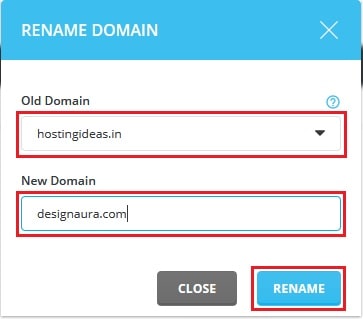
- Find the option to change the domain. It is often called Change Domain.
- Type the new domain name in the box. Use only letters, numbers and hyphens.

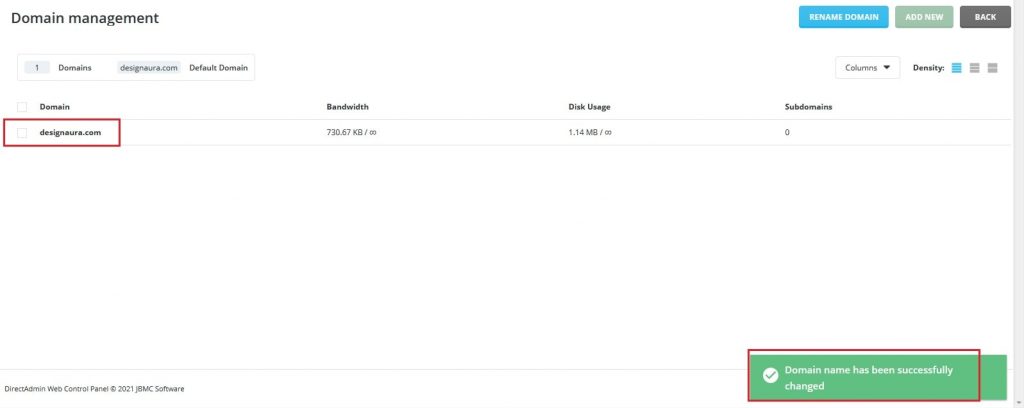
- Click Change and confirm.
- Wait a minute while DirectAdmin updates the files and settings.
If you cannot change it
If the option is missing, you can add the new domain as a second domain instead. Then move your site files into its folder. Ask support if you are unsure.
After the change
- Point the new domain to your hosting. This is done at the place where you bought the domain, using the nameservers from your welcome email. Nameservers are the addresses that tell the internet where your site lives.
- Wait for DNS to update. DNS is the internet's phone book. It can take a few hours.
- Open your new domain in a browser and check that the site loads.
- Send a test email to and from your new email addresses.
- If you use WordPress, update the site address inside WordPress too.
Tip: Set up a redirect from the old domain to the new one. This keeps visitors from landing on a dead page.
Tip: Menu names can change a little between DirectAdmin skins. If you cannot find a button, use the search box at the top of the panel.
Quick recap
- Back up your account before you change anything.
- Only the reseller or admin can usually rename a domain.
- Use Domain Setup or Domain Administration to find the change option.
- Update nameservers, email and your website settings afterwards.
- Ask support if you cannot find the option.