

What are file permissions?
Permissions are rules on a file. They say who may read it, change it or run it. Think of a school locker. Some people have a key, and some do not.
Permissions are shown as a three-digit number, like 644. The first digit is for the owner, the second for the group, and the third for everyone else. Each digit is made by adding these values:
- 4 means read.
- 2 means write (change).
- 1 means execute (run).
So 6 means read plus write. And 5 means read plus run.
Common safe values
| Item | Usual value |
|---|---|
| Files such as pages and images | 644 |
| Folders | 755 |
Avoid 777. It lets anyone write to the file, which is a security risk.
Steps
Warning: Wrong permissions can make your site show errors, or leave it open to attack. Take a backup first.
- Log in to DirectAdmin.
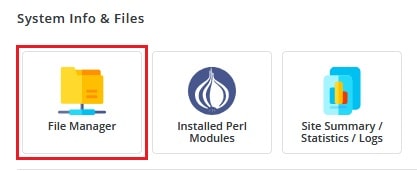
- Open File Manager.
- Go to the folder that holds your file. Your website files are usually inside domains, then your domain name, then public_html.
- Click the file or folder to select it.
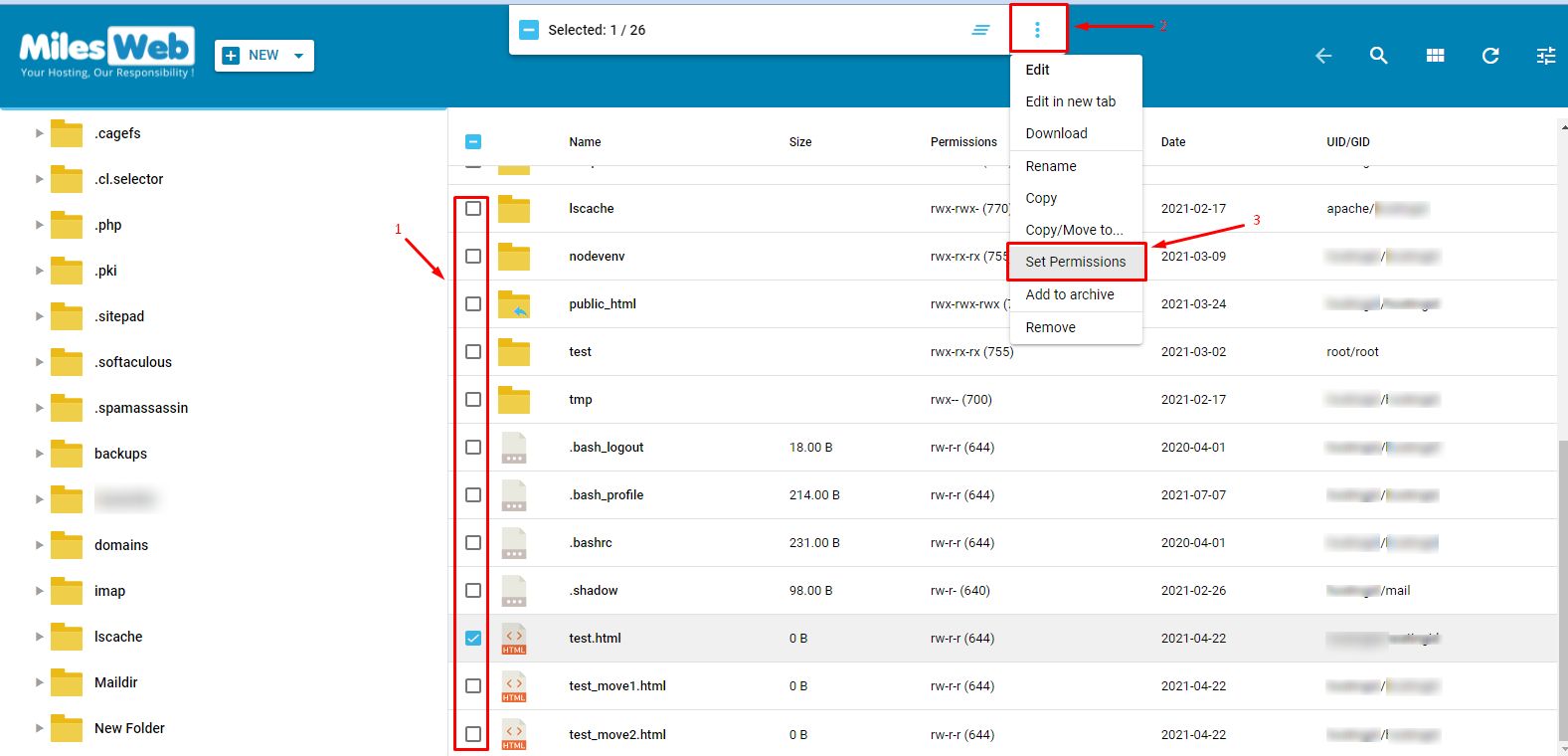
- Click Permissions. In some skins, right-click the file and choose Change Permissions or Chmod.
- Tick the boxes for read, write and execute, or type the number, for example 644.
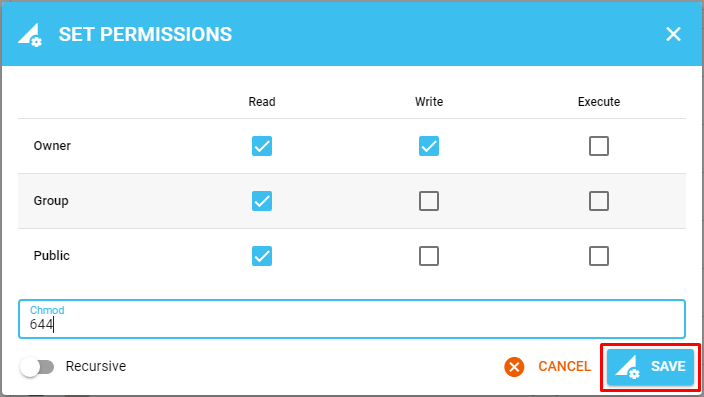
- Click Save.
Changing many files
You can select several files with the tick boxes. Then use the same permission option. Do not apply a folder value like 755 to every file in your site. Files and folders need different values.
Quick recap
- Permissions control who can read, write and run a file.
- Files are normally 644. Folders are normally 755.
- Open File Manager, select the item and click Permissions.
- Never use 777 unless support tells you to.
- Back up before you change many items.