

What are PHP settings?
PHP is the language that runs many websites, such as WordPress. PHP settings are rules for how your site's code behaves. The most common ones are:
- memory_limit is the most memory one script may use. It is like the size of a desk. A bigger desk lets you work on bigger jobs.
- upload_max_filesize is the biggest file you can upload.
- post_max_size is the biggest amount of data a form can send. Keep it at least as big as the upload size.
- max_execution_time is how many seconds a script may run.
If you see an error like "Allowed memory size exhausted", the memory limit is too low.
Steps using the PHP Settings page
- Log in to DirectAdmin.
- Look for PHP Settings. It may be under Account Manager or Extra Features. Not every server has this page.
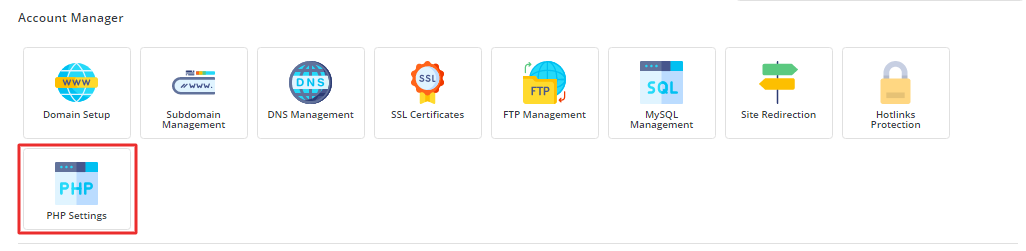
- Choose your domain if the page asks.
- Find the setting you want, such as memory_limit.

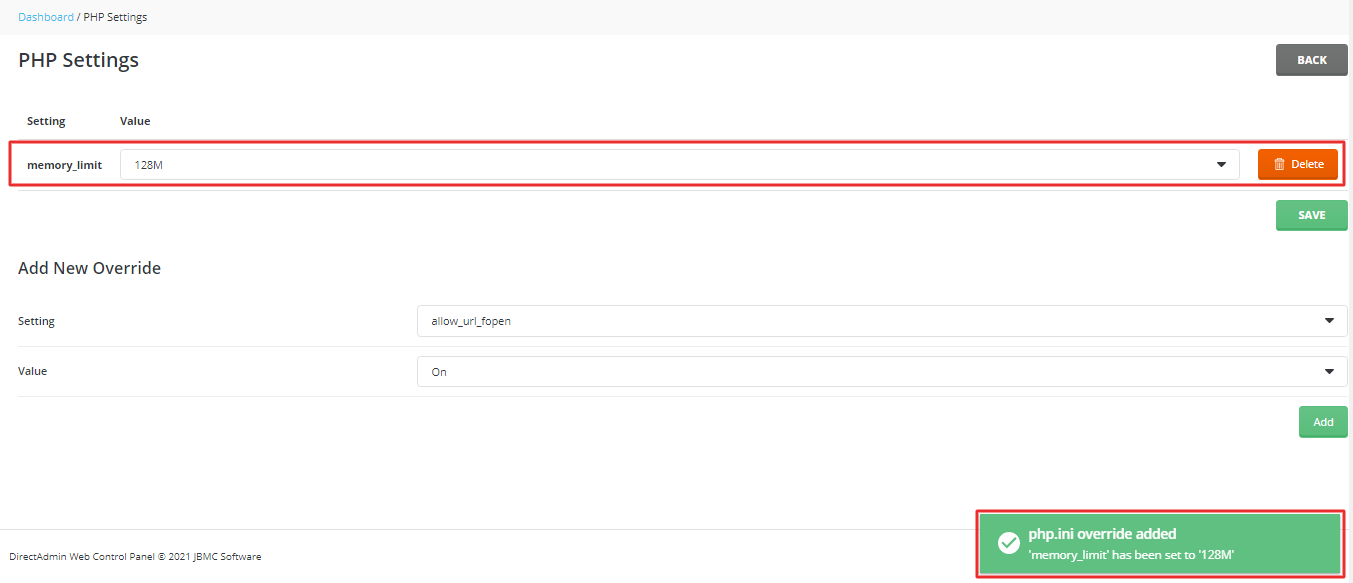
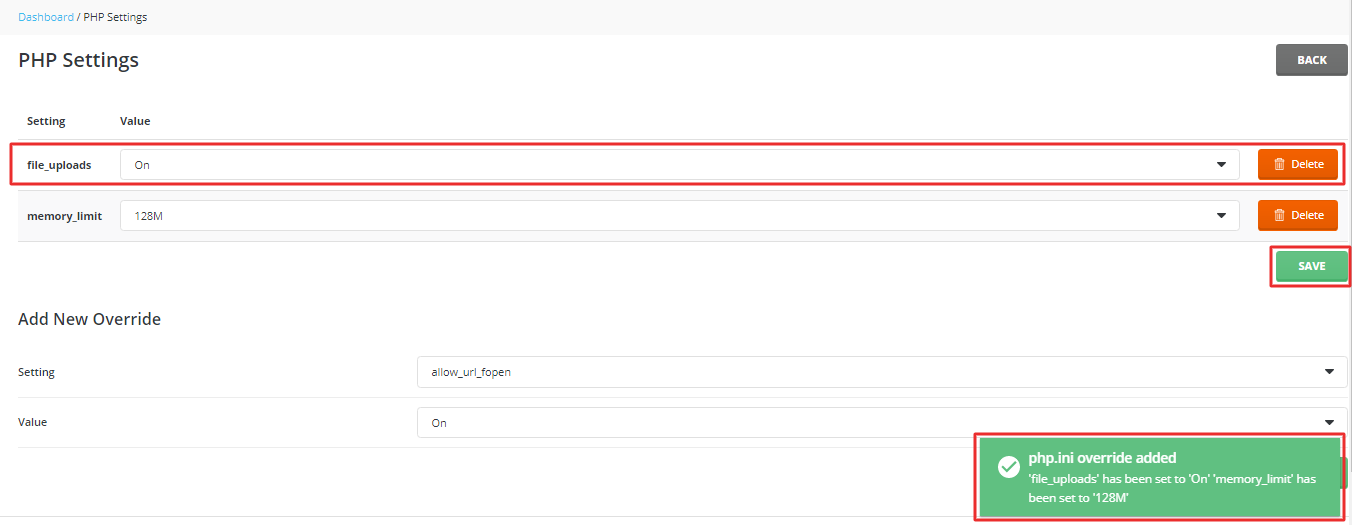
- Type a new value, for example
256M. The M means megabytes. - Click Save.
Steps using a php.ini file
If there is no PHP Settings page, you can use a file.



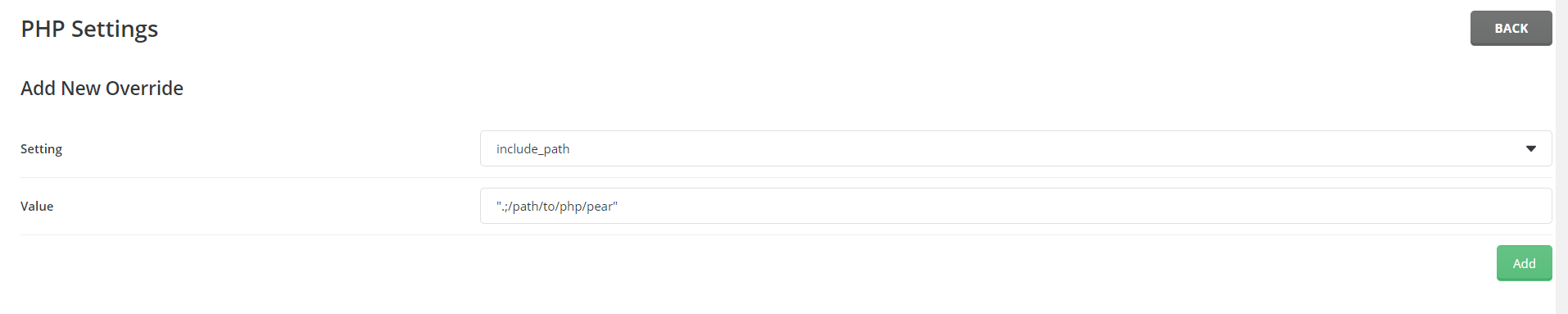
- Open File Manager.

- Go to the folder public_html of your domain.

- Check for a file named
php.inior.user.ini. If none exists, create a new file with one of these names. Which name works depends on how PHP runs on your server. Ask support if you are unsure.
- Add these lines:

memory_limit = 256M
upload_max_filesize = 64M
post_max_size = 64M
max_execution_time = 300
These lines raise the memory, upload size and run time. Pick numbers that fit your needs. The server may have its own top limit.

- Save the file.
- Reload your website to test.

Warning: a wrong line in a settings file can break your site. Back up the file before you edit it.
Tip: Raise the limit in small steps. A very high memory limit does not fix slow code, and it may use up server resources.
Tip: Changes made with
.user.ini can take a few minutes to apply.Quick recap
- PHP settings control memory, upload size and run time.

- Use the PHP Settings page if you have it.

- Otherwise add lines to
php.inior.user.ini.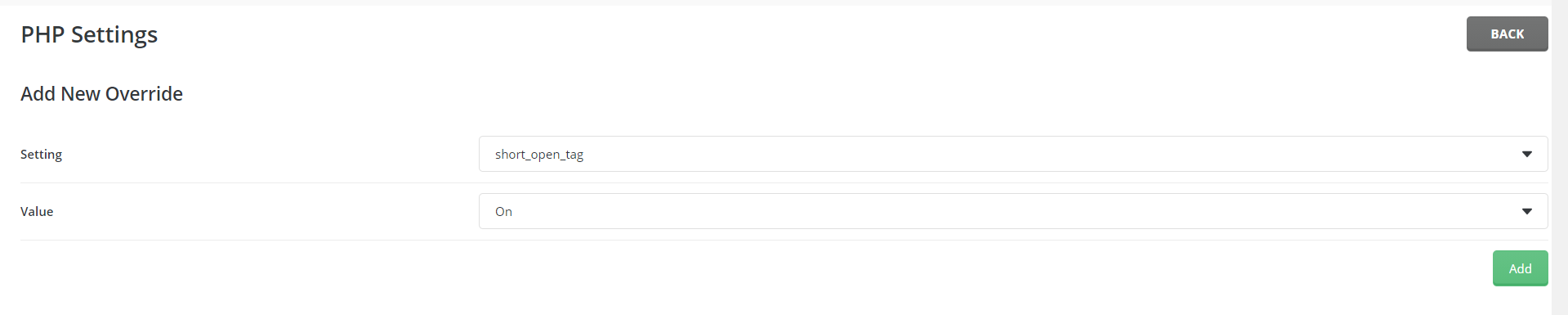
- Back up before you edit, and test your site after.

- Ask support if the change does not apply.
