

What is a subdomain?
A subdomain is a small extra address in front of your domain. For example, blog.example.com is a subdomain of example.com. It can hold a different website from the main one.
PHP is the language many websites run on. Each version is a little different. You may want an old version for an old app on the subdomain. Your main site can keep a newer one.
Before you start
Changing PHP can break a site. Take a backup of the subdomain files first. Also note the current version so you can go back.
Steps
- Log in to DirectAdmin.
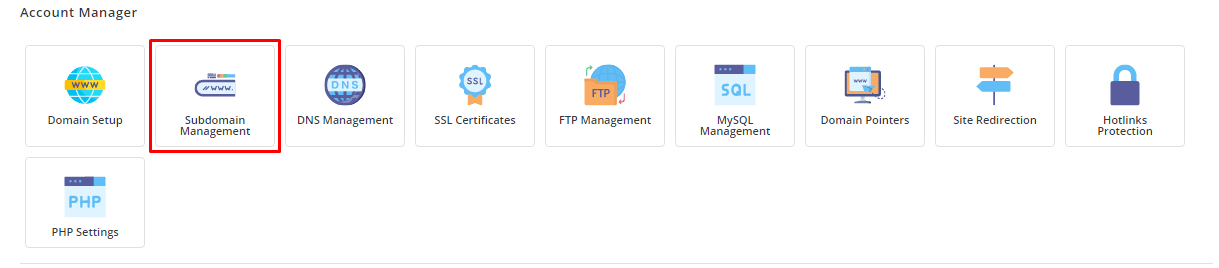
- Open Select PHP Version. It is usually under Account Manager or Extra Features. In some skins it is part of Domain Setup.
- Choose your main domain.
- Look for your subdomain in the list. Some servers show subdomains as their own rows. Others show a drop-down to pick one.
- Click the subdomain.
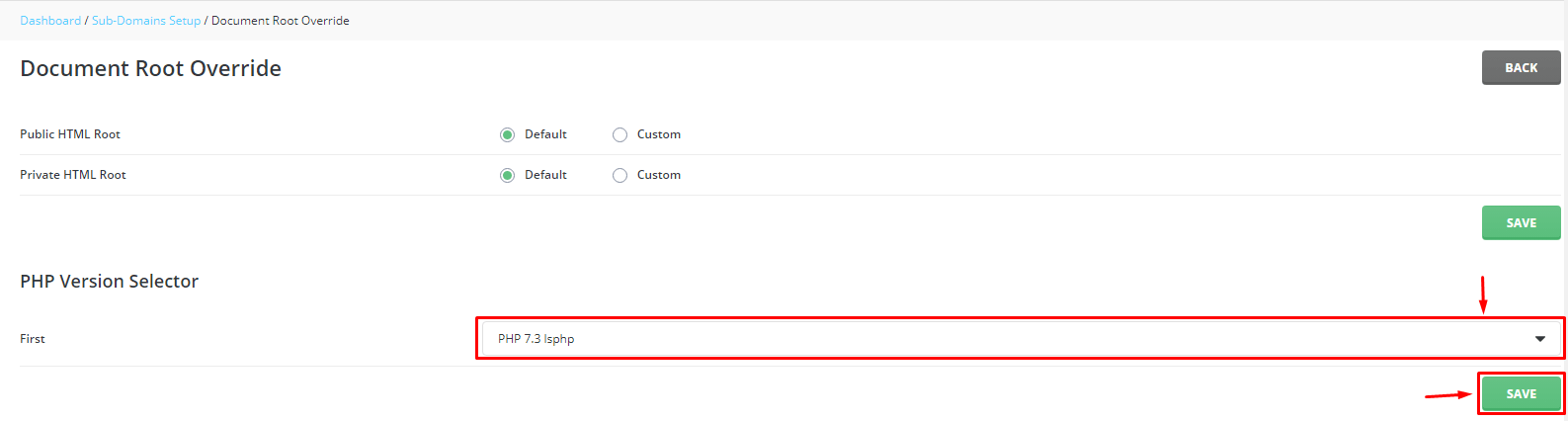
- Pick the PHP version you want.
- Click Save.
- Visit the subdomain in your browser and test it.
If subdomains are not listed
On some setups, a subdomain follows the version of its main domain. You cannot set it by itself in the panel. You have two options.
- Ask Hostvento support if your server can set a version per subdomain.
- Add the subdomain as a separate domain on its own, if your plan allows.
Testing the version
You can check which PHP version a subdomain uses. Create a file named info.php in the subdomain folder with this one line:

<?php phpinfo();Open subdomain.example.com/info.php in a browser. The top of the page shows the PHP version. Delete this file when you are done. It shows private details about your server.
Quick recap
- A subdomain can run on a different PHP version in some setups.
- Use Select PHP Version and choose the subdomain.
- Back up and test after changing.
- Delete
info.phpafter checking. - Ask support if the subdomain does not show.