

What is phpMyAdmin?
A database is where WordPress stores its settings and posts. phpMyAdmin is a web tool that lets you look inside a database. Think of it as a spreadsheet viewer for your website's data.
WordPress keeps its web address in two settings, siteurl and home. If they are wrong, your site may redirect to the old address or show errors.
Before you start
Editing the database can break your site. Take a backup first. In phpMyAdmin, you can use the Export tab to save a copy of the database.
Steps
- Log in to DirectAdmin.
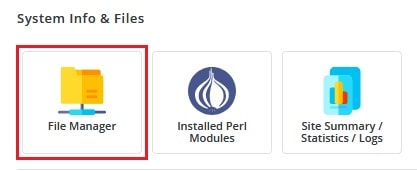
- Open phpMyAdmin. You can find it under Extra Features or in MySQL Management.
- If asked for a login, use your database username and password.
- In the left list, click the database that belongs to your WordPress site. If you are unsure which one, open
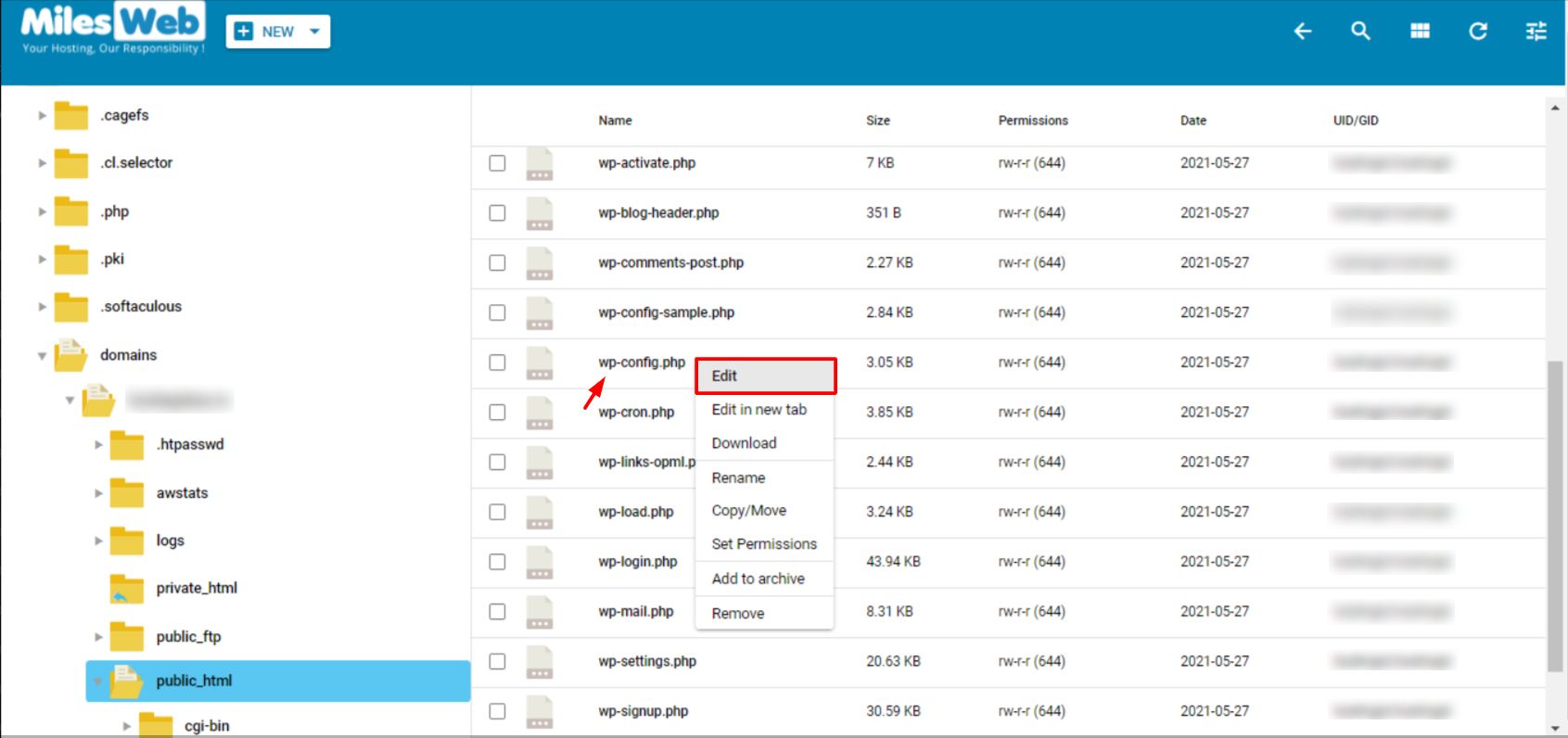
wp-config.phpin File Manager and look forDB_NAME.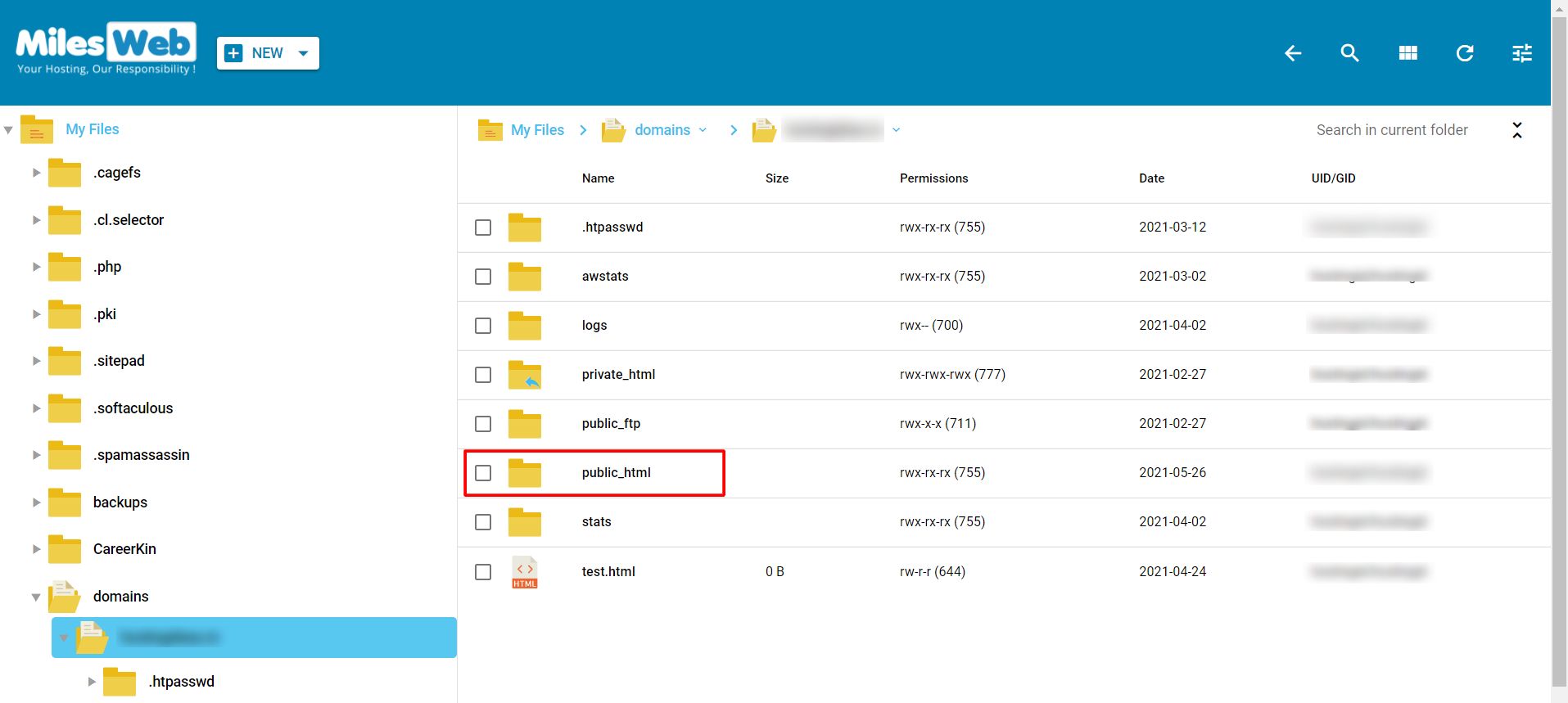


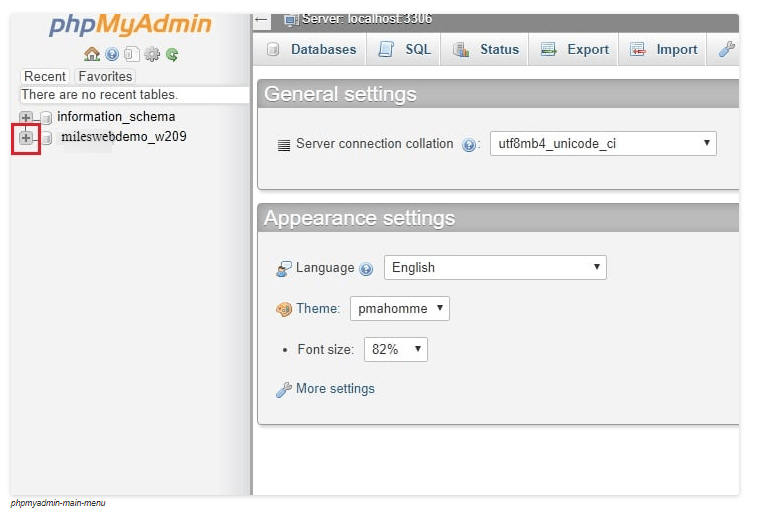
- Find the table named
wp_options. The start of the name may be different on your site, such asabc_options. Click it. - Click Browse if the rows are not shown yet.
- Find the row where
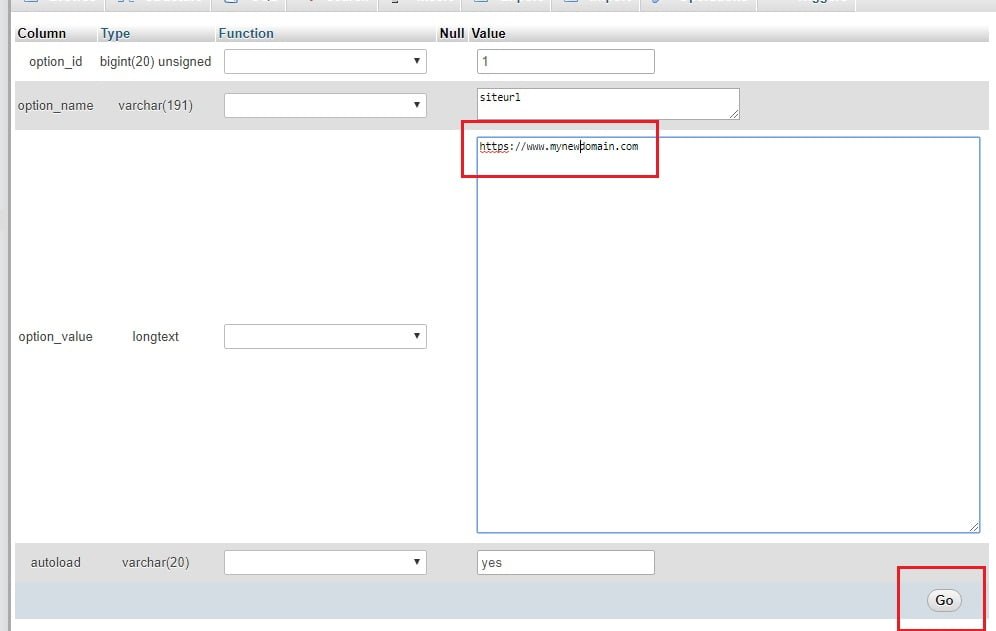
option_nameissiteurl. - Double-click the value in
option_value, or click Edit on that row. - Type your new address, for example
https://example.com. Do not add a slash at the end. - Click Go or press Enter to save.
- Do the same for the row where
option_nameishome.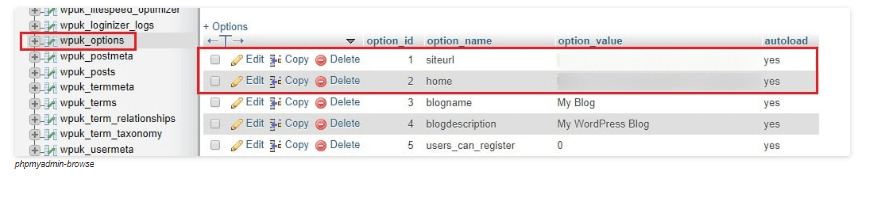
- Open your site in a browser and test it. Clear the browser cache if you still see the old one.
If links and images still point to the old address
Posts can store the old address inside their text. Use a plugin such as a search-and-replace tool to fix them. Always back up first. Avoid running a manual replace in phpMyAdmin on serialized data, because it can break settings.
Tip: Use
https:// if your site has an SSL certificate. A mix of http and https can cause warnings.Quick recap
- WordPress stores its address in the
siteurlandhomerows. - Open phpMyAdmin and find the
_optionstable. - Edit both rows to the new address.
- Back up the database before you change anything.
- Test the site and clear your cache.