

What are usage statistics?
Every hosting account has limits. Usage statistics show how close an account is to each limit. The main ones are:
- Disk space is the storage used by files, emails and databases.
- Bandwidth is the data sent to visitors. It is like water flowing through a tap.
- Inodes is the count of files and folders. Every file counts as one.
- Email accounts, databases and domains are counted against the plan too.
Checking them helps you find an account that is about to hit a limit. It also helps you find one that uses too much of the server.
Steps for a reseller
- Log in to DirectAdmin as the reseller.

- Open Manage User Accounts.
- The list shows each user with their disk and bandwidth figures. Look at the columns.
- Click a username to see more detail for that user.
- Read the usage lines. Each one shows what is used, and the limit.
Some skins have a page named Reseller Usage or Show All Users. It lists everyone in one table. Use the search box to find a name quickly.
Steps for the admin
- Log in as admin.
- Open Show All Users or Manage Resellers.
- Click a user.
- Read the usage and limits.
Steps for the user themselves
- Log in to the user's own DirectAdmin.
- Check the Statistics or Account Usage box on the first page.

What to do with the numbers
- If an account is near its limit, ask the user to clean up files or raise their package.
- If bandwidth jumps suddenly, look at the site's visitor reports for odd traffic.
- Remember that stats may update only every few hours. A fresh change may not show yet.
Tip: Check usage every month. You can then warn a user before their site goes over a limit.
Quick recap
- Usage statistics show how much of each limit an account uses.
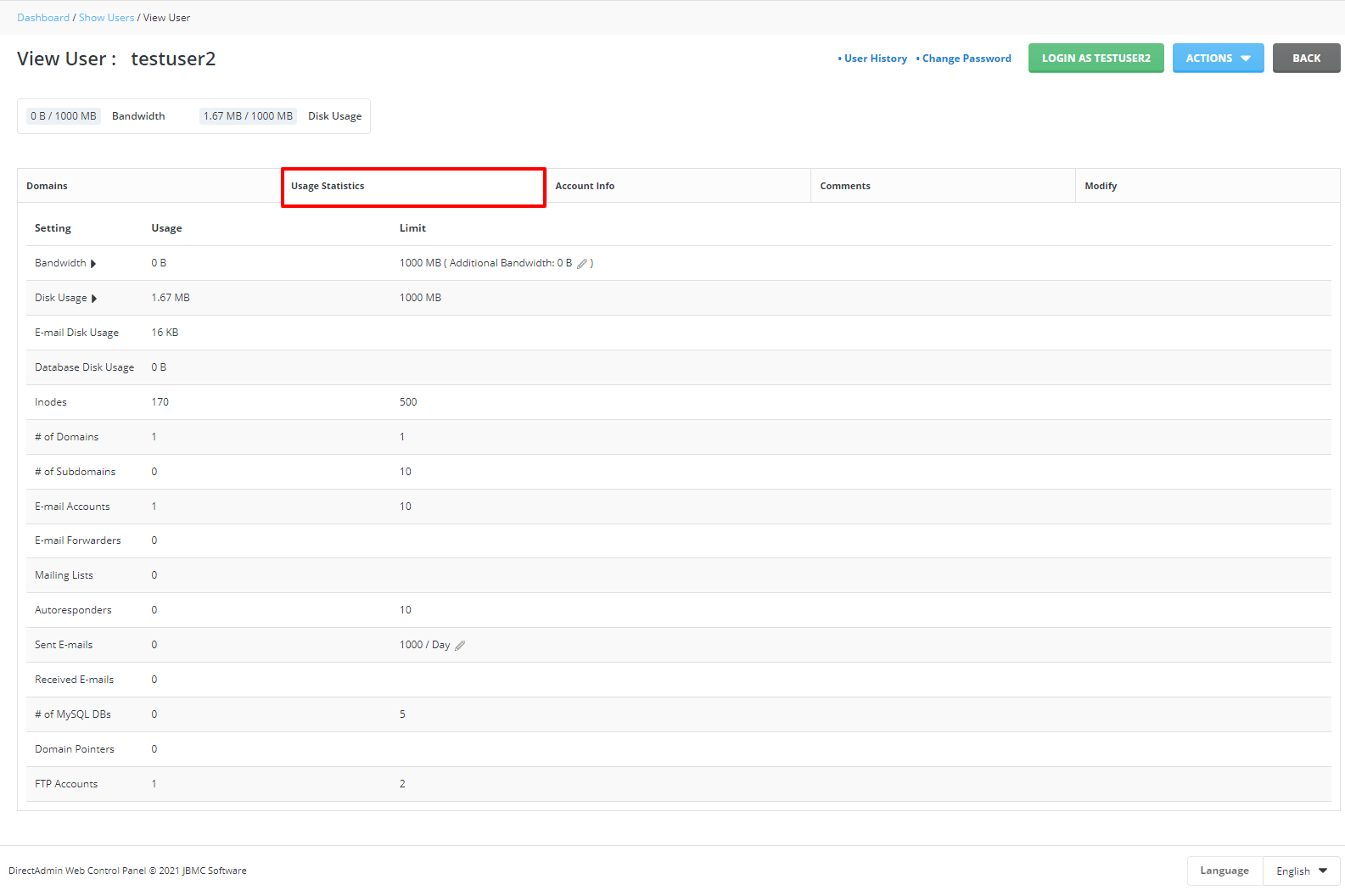
- Resellers use Manage User Accounts.
- Admins use Show All Users.
- Users see their own numbers on the home page.
- Numbers update every few hours, not instantly.