

What does compress mean?
Compressing means squeezing files so that they take less space. It also puts many files into one file. Think of packing clothes into a suitcase. The suitcase file is called an archive. Common types are zip and tar.gz. Decompressing, or extracting, means opening the suitcase again.
This is useful when you move a whole website. One archive uploads much faster than thousands of small files.
Compress files
- Log in to DirectAdmin.
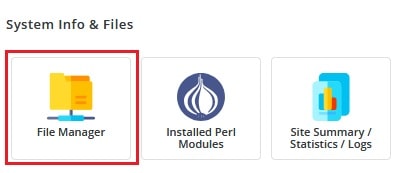
- Open File Manager. You will find it in the System Info & Files area, or in the main menu.
- Go to the folder that holds what you want to pack.
- Tick the box next to each file or folder you want to include.
- Click Compress. If you do not see it, right-click and look for Archive.
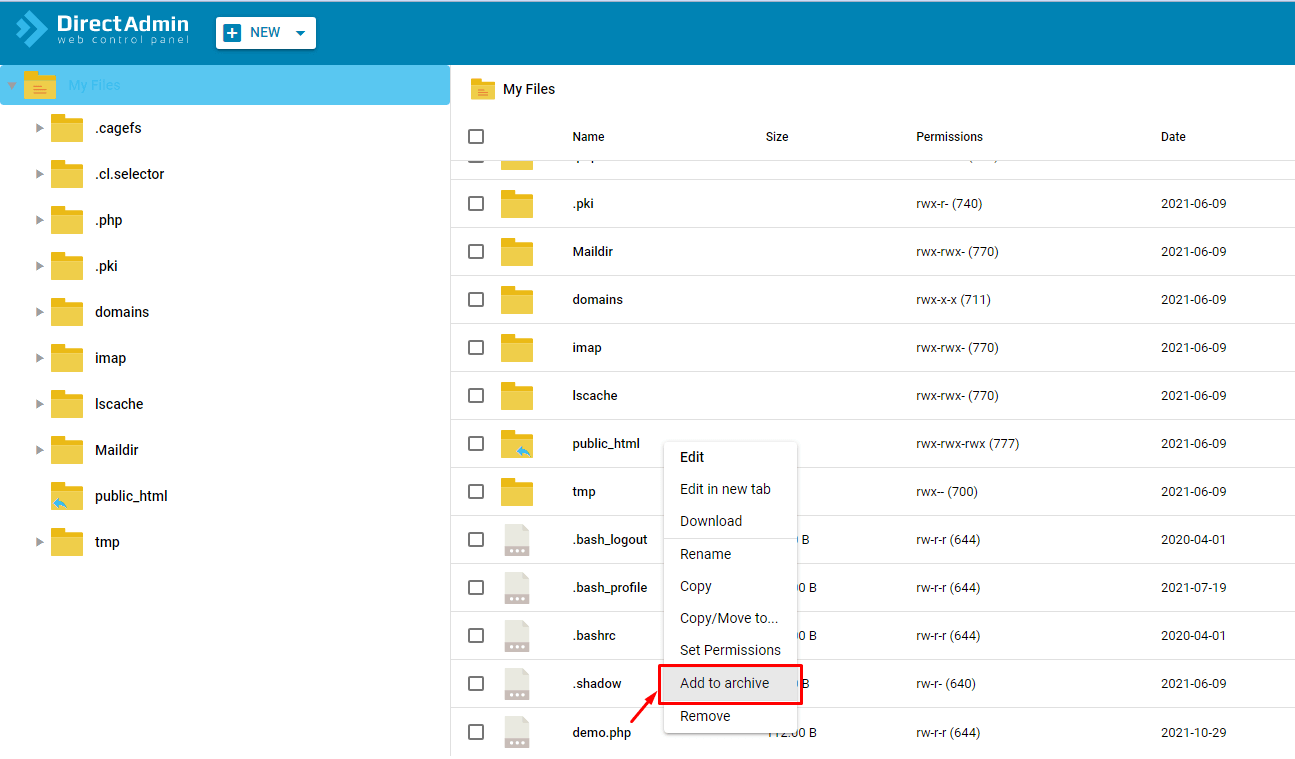
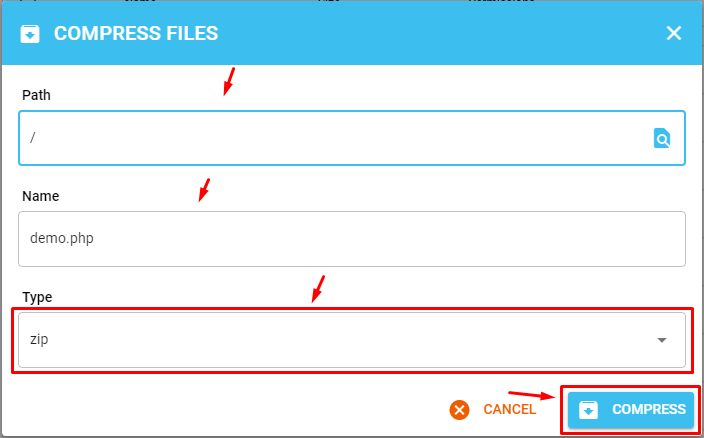
- Choose a format. Zip is the best choice for most people.
- Type a name for the new archive, for example
mysite-backup.zip. - Click Compress or Create.
- Wait a moment. The new file appears in the same folder.
Extract files
- Open File Manager and go to the folder with the archive.
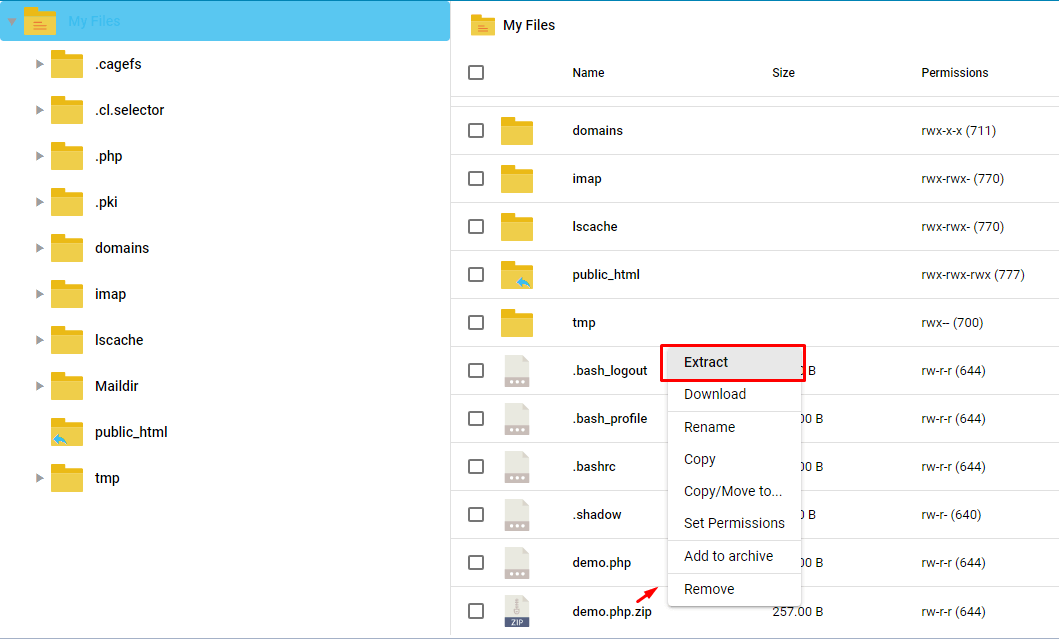
- Click the archive file to select it.
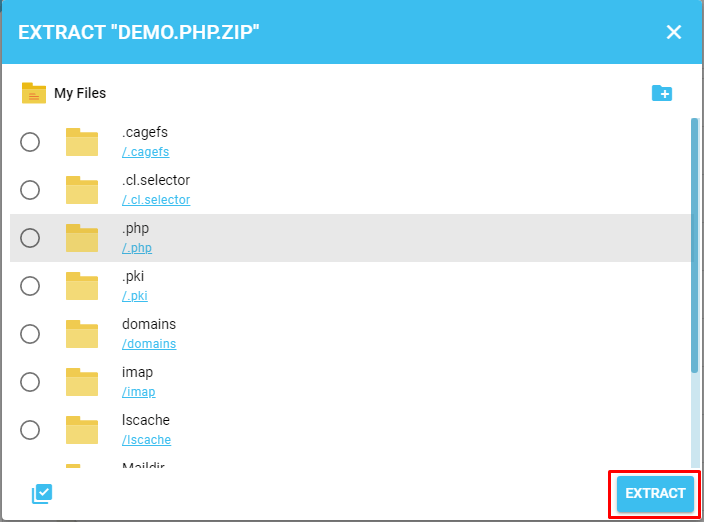
- Click Extract. In some skins, right-click and choose Extract or Decompress.
- Choose where the files should go. Leave the default to unpack into the same folder.
- Click Extract or OK.
- Refresh the page and check the new files.
Warning: extracting can overwrite files with the same name. If you are unpacking over a live website, take a backup first. Consider extracting into a new empty folder, then moving files across.
Clean up afterwards
An archive holds a full copy of your files. It takes space on your plan. Delete it when you are done. If it contains private data, do not leave it in a public folder. Anyone who knows the address could download it.
Quick recap
- An archive packs many files into one smaller file.
- Select files, then click Compress.
- Select the archive, then click Extract.
- Back up before you extract over a live site.
- Delete old archives to save space and stay safe.