

What is the File Manager?
The File Manager is a tool inside DirectAdmin. It lets you see and manage the files of your website in your browser. It works like the file window on your own computer.
Copy or move: what is the difference?
- Copy makes a second version. The original stays where it is.
- Move takes the file out of the old place and puts it in the new one. Nothing stays behind.
Warning: moving files can break your website if the site expects them in the old place. Take a backup first. Copying is safer if you are not sure.
Steps with the toolbar
- Log in to DirectAdmin.
- Open File Manager.

- Go to the folder that holds your file. Your website files are usually in domains, your domain, then public_html.
- Tick the box next to the files or folders you want to use.
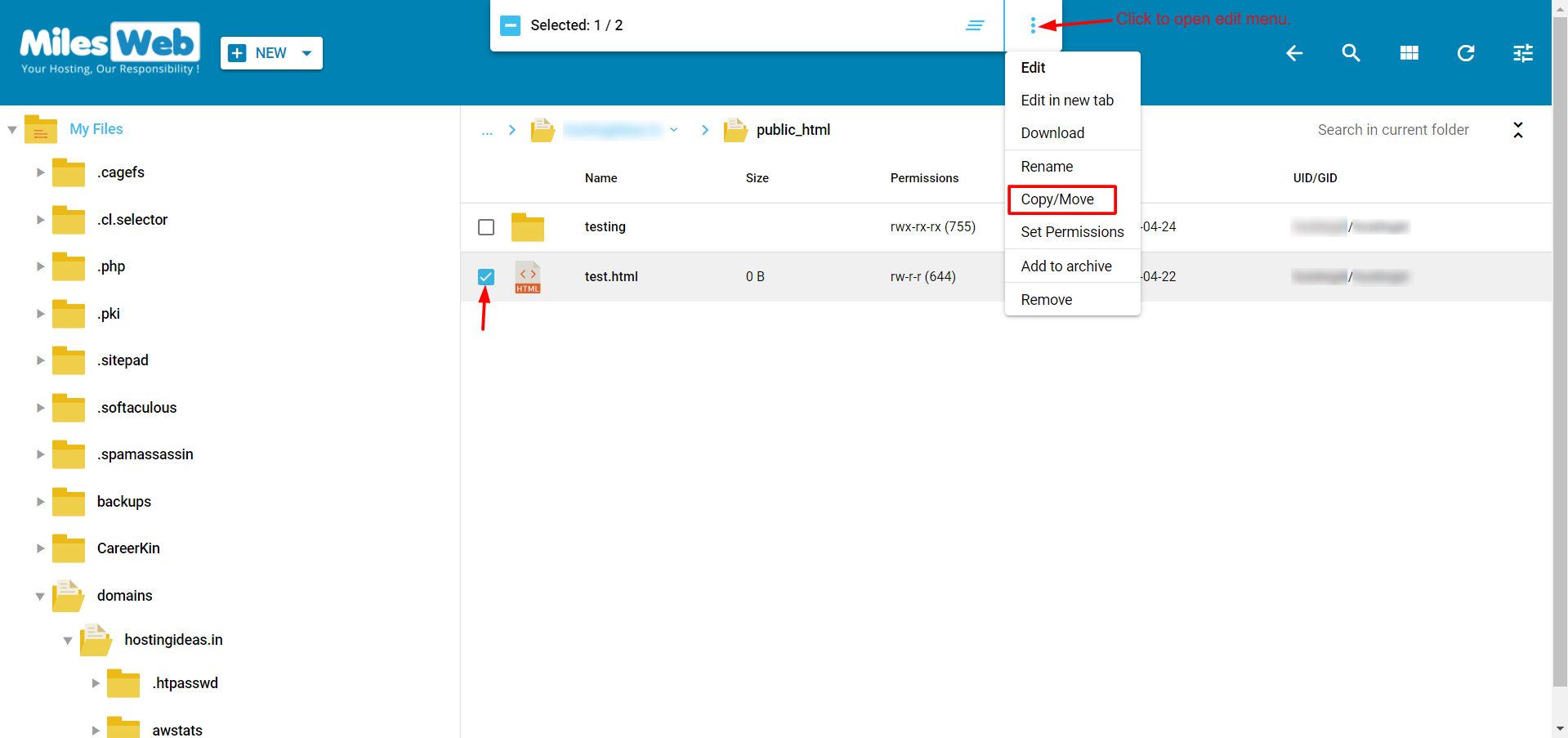
- Click Copy or Move in the top bar. In some skins, right-click and pick it from the menu.
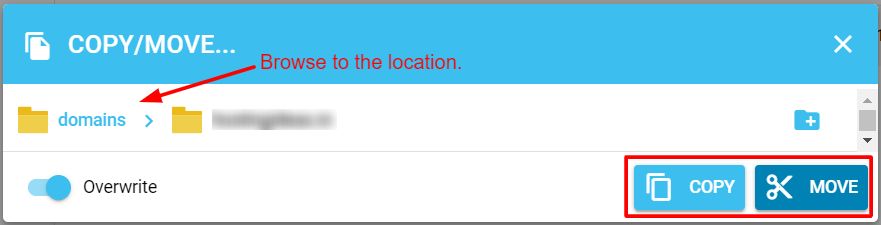
- A box opens. Type the target folder path, or choose it from the folder list.
- If a box asks about files that already exist, choose whether to overwrite them. Overwriting replaces the old file with the new one.
- Click Copy or Move to confirm.
- Open the new folder and check that the files are there.
Steps with drag and drop
Some skins let you drag a file onto a folder. This normally moves it. Check the pop-up that appears so you know whether it will copy or move.
Copy a whole website folder
Copying a folder with many files can take a while. If the File Manager stops, compress the folder first. Then copy the archive. Then extract it at the new place.
Tips on paths
- A path is the address of a folder, such as
domains/example.com/public_html. - Paths are case sensitive.
Imagesandimagesare two different names. - Avoid spaces in names. Use hyphens instead.
Tip: After you move a file that a page uses, such as an image, update the link in the page. Otherwise you will see a broken picture.
Quick recap
- Copy keeps the original. Move does not.
- Tick the items, then click Copy or Move.
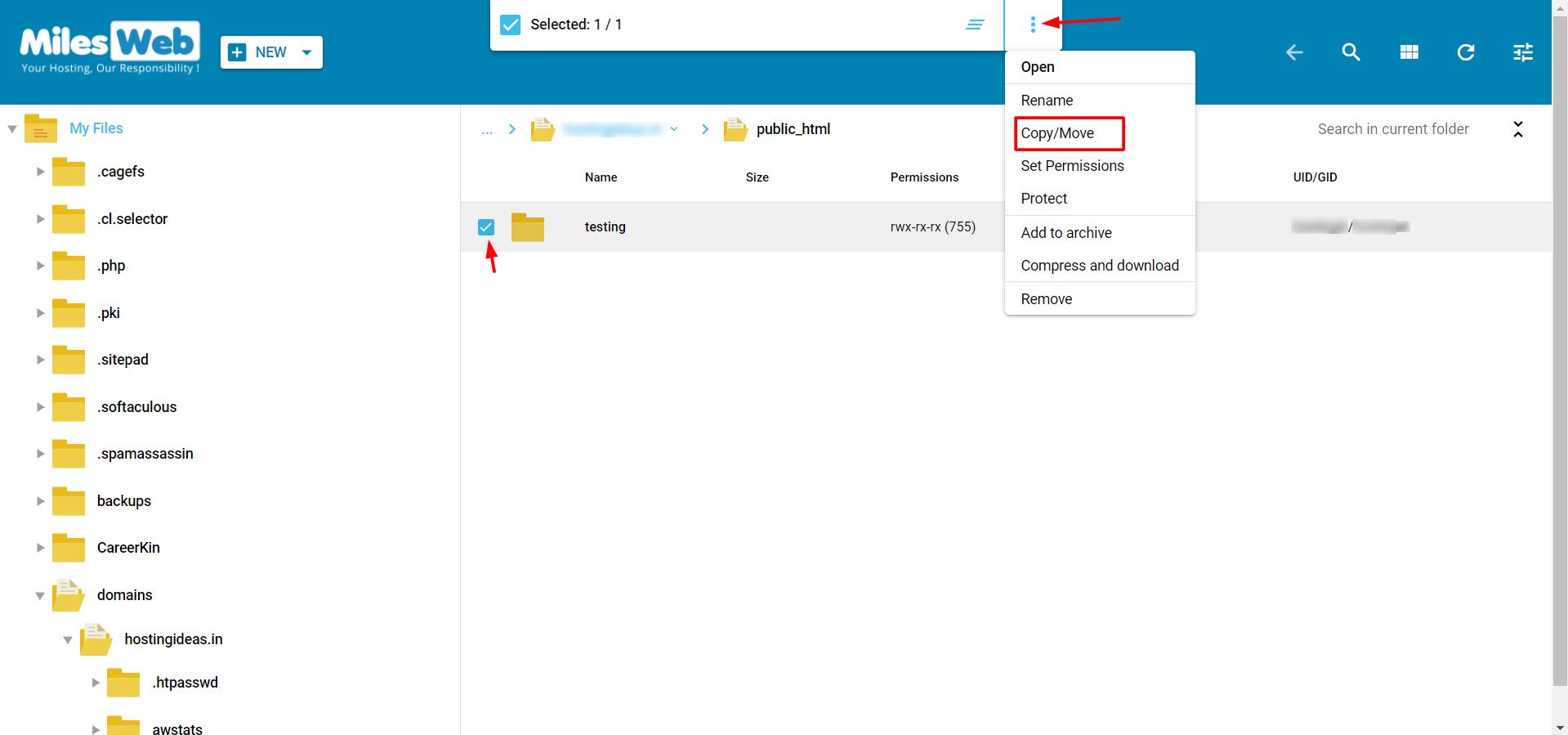
- Choose the target folder and confirm.
- Back up before you move site files.
- Check your website after the move.