

What is a backup?
A backup is a safe copy of your data. If you delete something by mistake or a site breaks, you can go back to the copy. Think of it as a photo of your website at one moment.
A DirectAdmin backup can hold your website files, databases, email accounts, email messages and settings. You choose which to include.
Create a backup
- Log in to DirectAdmin.
- Open Create/Restore Backups. It is under Account Manager or Extra Features.

- Choose the domain, if the page asks.
- Tick the items you want, such as Domains Directory, Subdomain Lists, Email Accounts and Databases.
- Click Create Backup.
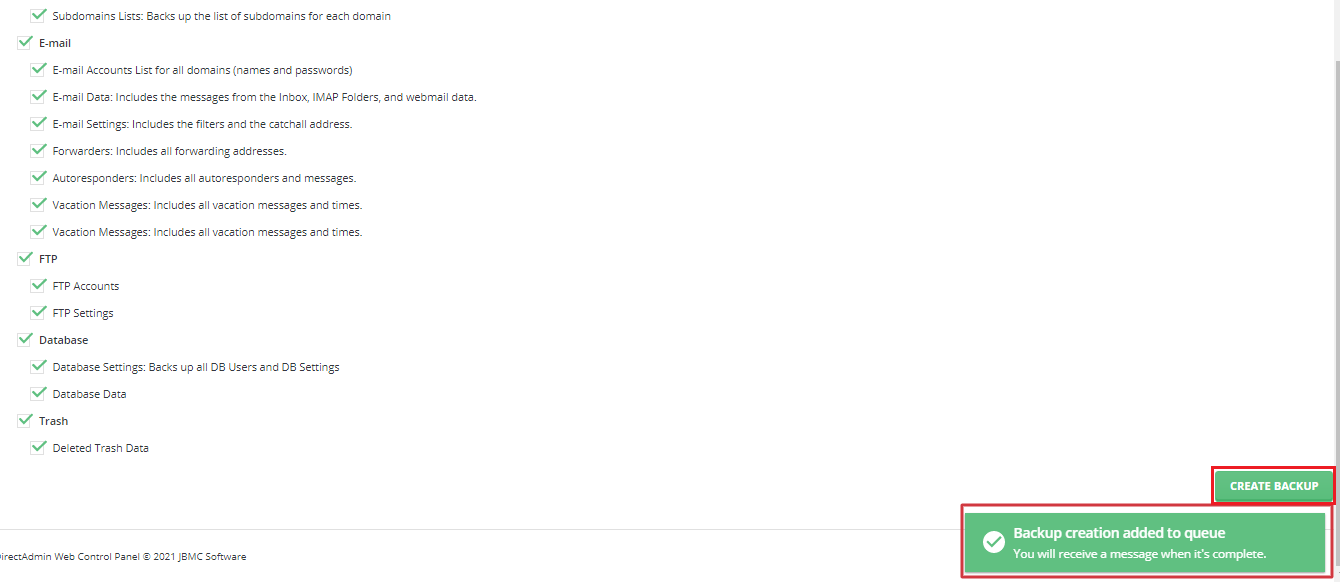
- Wait. A message will tell you when it is done. Large sites take longer.
- Refresh the page. The backup file shows in the list below.

- Click the file name to download it to your computer.
Keep a copy on your own computer or cloud storage. A backup that lives only on the same server will be lost if the server fails.
Restore a backup
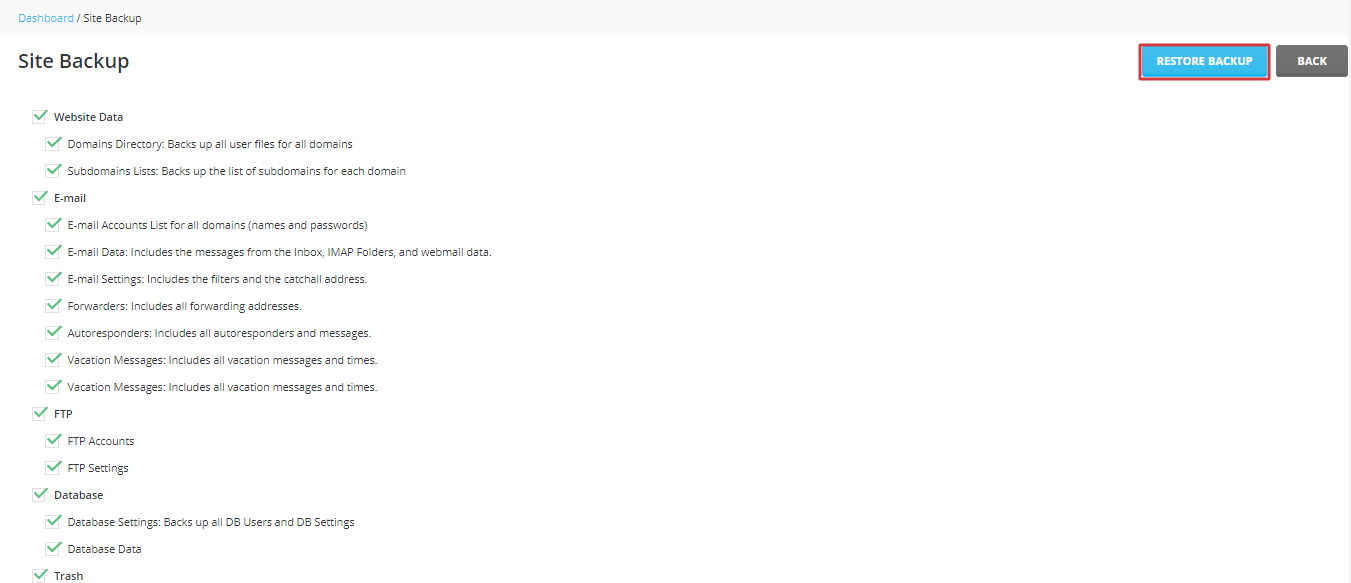
Warning: restoring replaces current data with the data in the backup. Anything new since the backup can be lost. Make a fresh backup first if you can.
- Open Create/Restore Backups.

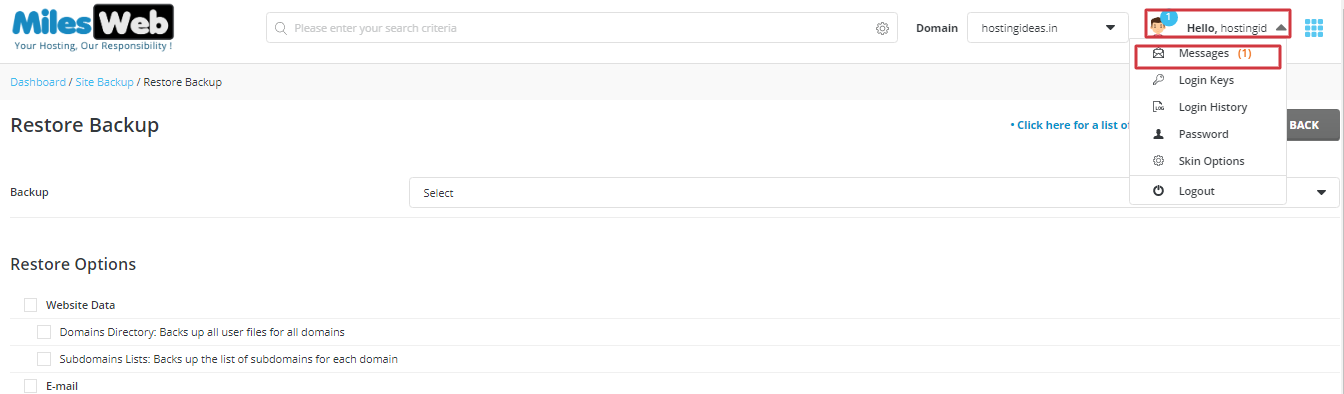
- Look for your backup in the list. If it is on your computer, upload it first with the upload option if your skin shows one.
- Click the backup you want.
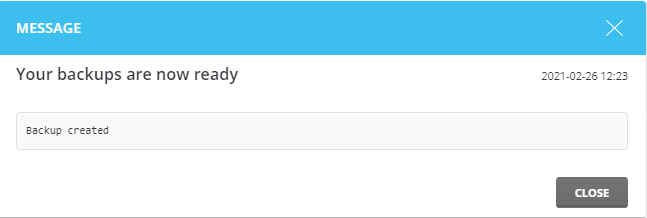
- Tick the items to restore. You can restore only the database, for example.
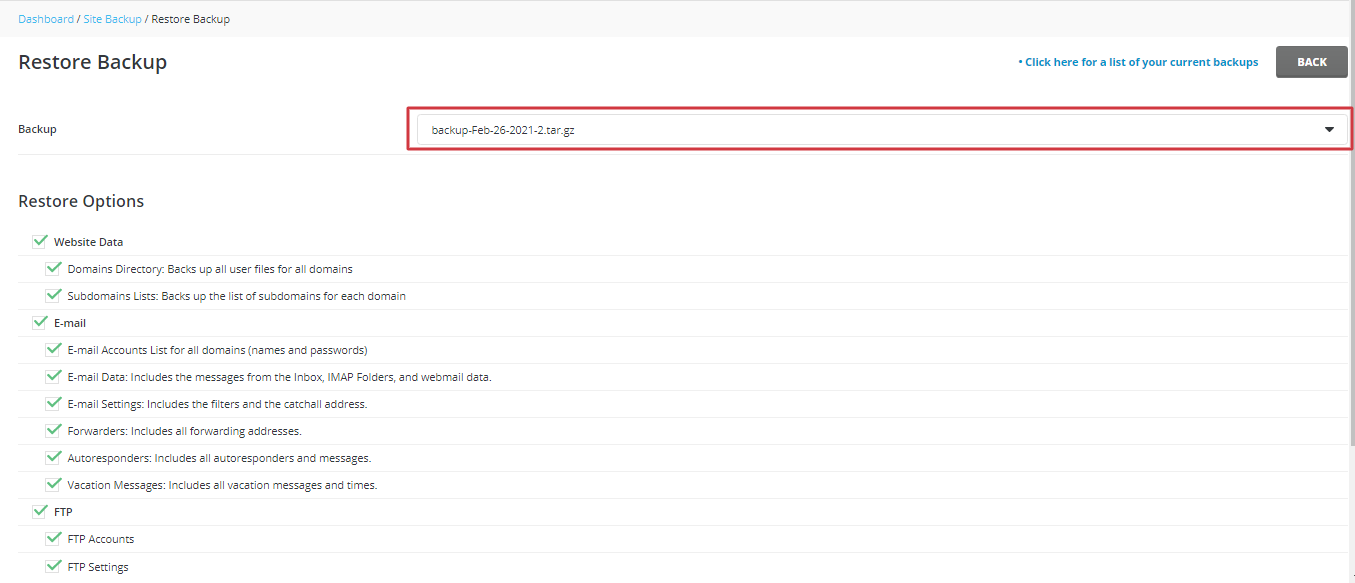
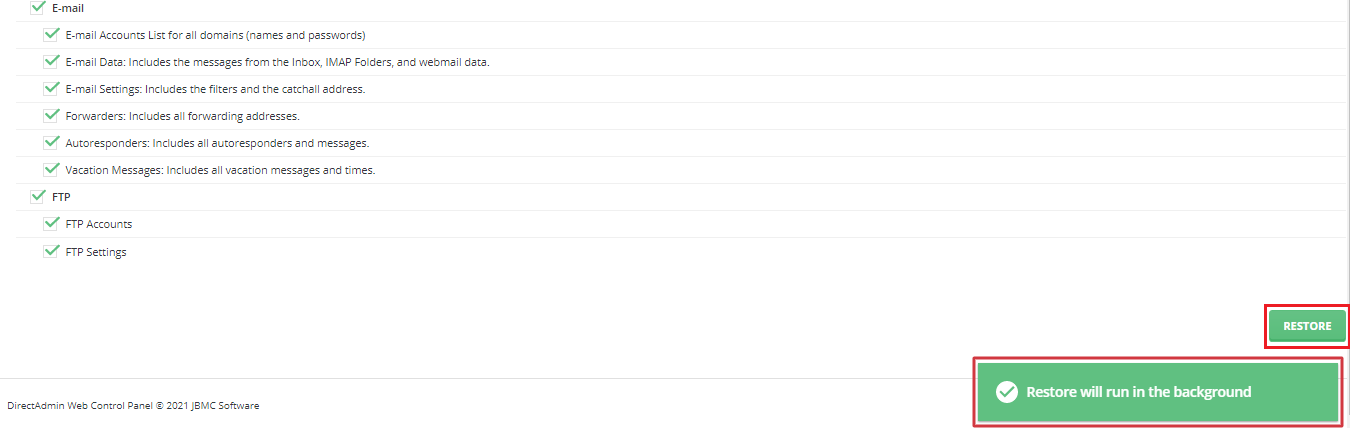
- Click Restore Selected Items.
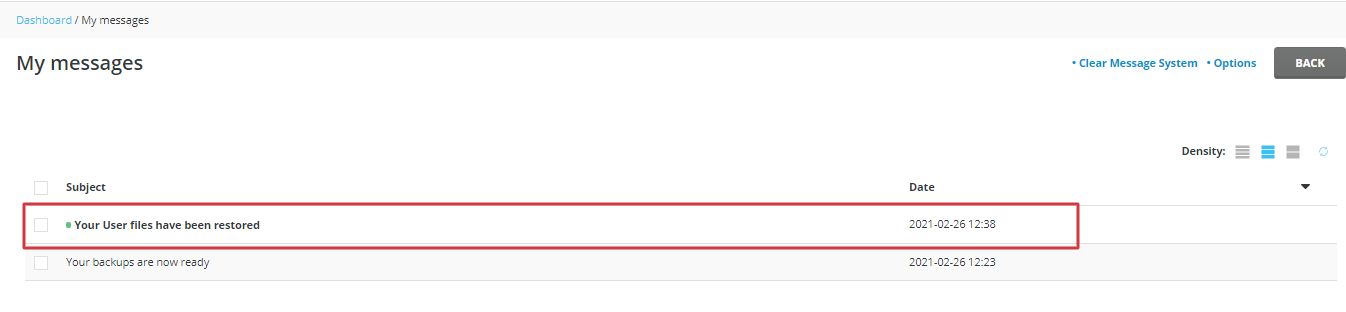
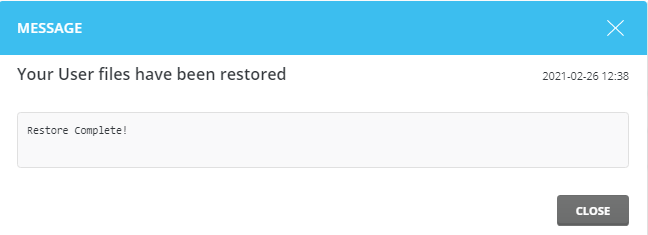
- Wait for the message that says it is finished.
- Open your website and check it.
Good habits
- Back up before updates, big edits or domain changes.
- Back up on a regular day, such as every week.
- Test a restore now and then, to be sure the file works.
- Delete old backups from the server to save space.
Your plan may also include automatic backups made by Hostvento. Ask support what is available and how to ask for a restore.
Tip: Name your downloaded backups with the date, for example
mysite-2026-10-08. It makes the right one easy to find.Quick recap
- A backup is a copy you can go back to.
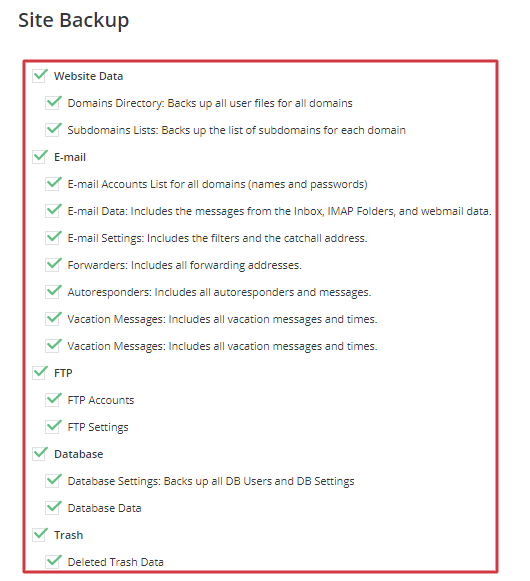
- Use Create/Restore Backups and tick what to include.
- Download the file and keep it safe.
- Restoring overwrites current data, so be careful.
- Back up regularly.