

What is a mailing list?
Imagine a group chat for email. You write one message to a single list address. The server then sends a copy to everyone who is on the list. It is handy for club news, class updates or a small newsletter.
Keep in mind that a mailing list is meant for people who agreed to get your mail. Sending unwanted mail may get your account blocked.
Create the list
- Log in to DirectAdmin.
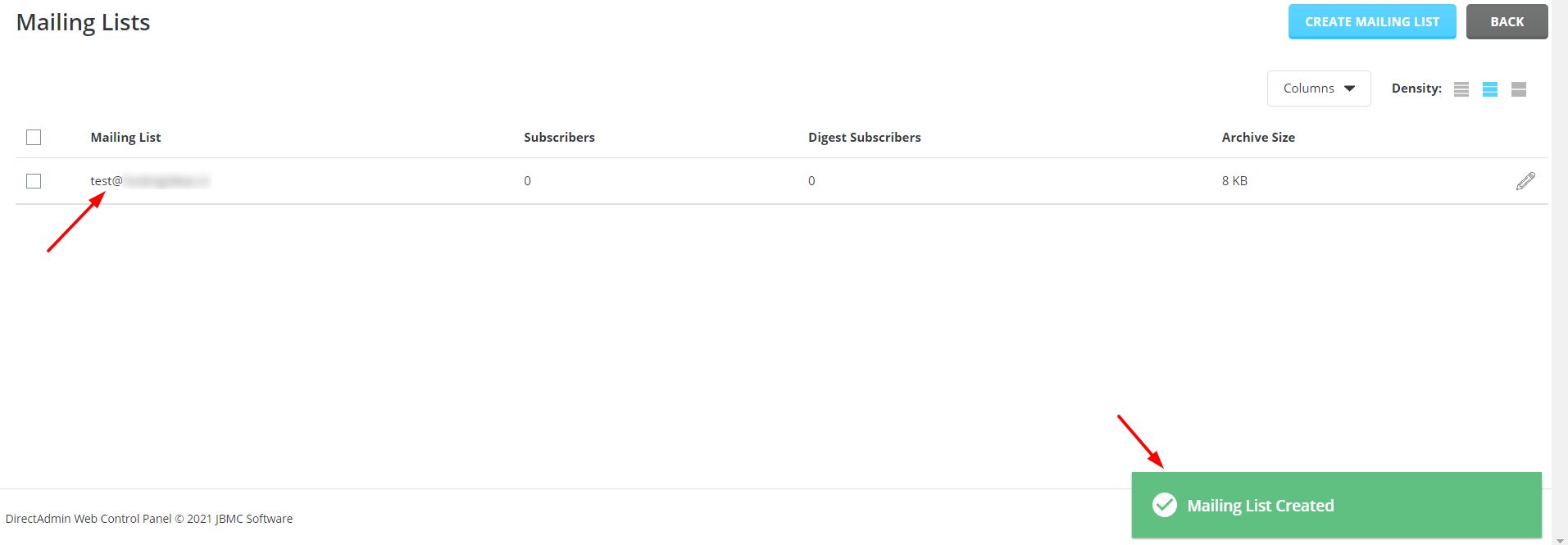
- Open E-Mail Manager and click Mailing Lists.

- Click Create Mailing List.

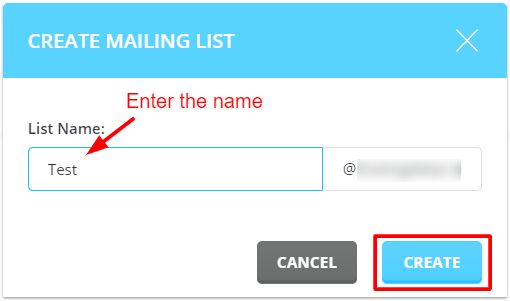
- Type a name for the list, for example
news. The list address becomesnews@yourdomain.com. - Choose the domain if you have more than one.
- Click Create.
Add people to the list
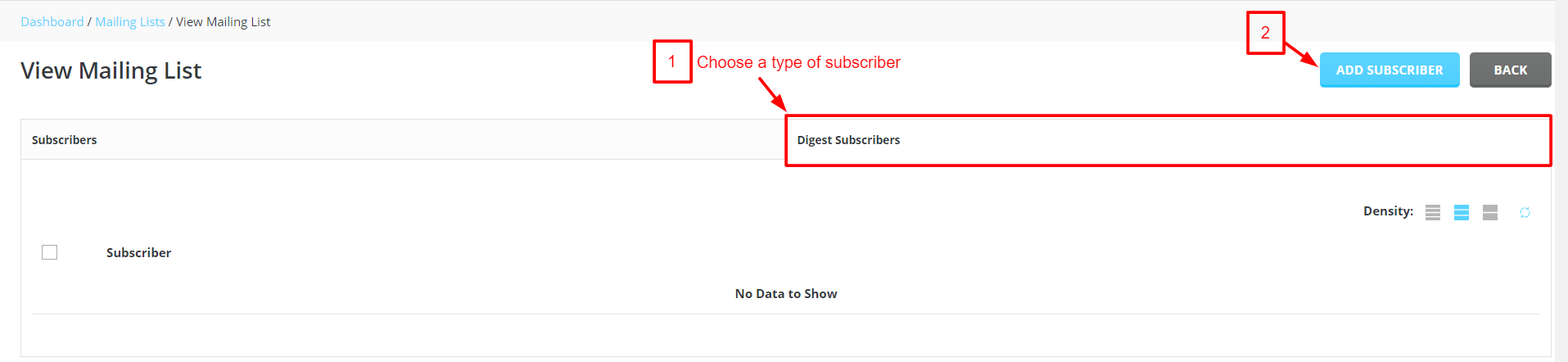
- In Mailing Lists, click the name of your list.
- Find the box for members, often called Subscribers.
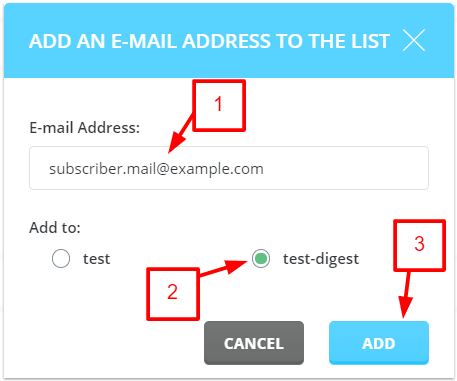
- Type one email address per line.
- Click Save.
Send a message to the list
- Open your normal email program or webmail.
- Create a new message.
- In the To field, type the list address.
- Write your message and click send.
Everyone on the list will get a copy. Depending on the settings, only some senders may be allowed to post. Check the options page of the list for this.
Tip: Send a test message to the list with just two or three addresses first. This shows you if it works before you add everyone.
Remove people or delete the list
To remove a person, open the list and delete their address from the subscribers box. To delete the whole list, go back to Mailing Lists, tick it and click Delete.
If the menu is missing, ask Hostvento support if it is on your plan.
Quick recap
- A mailing list sends one message to many people.
- Create it under Mailing Lists.
- Add subscribers one per line.
- Send mail to the list address.
- Only mail people who said yes.