

What is a subdomain?
A domain is the name of your website, like example.com. A subdomain is a word placed in front of it, like blog.example.com. Think of a big building with several doors. Each subdomain is a different door that can lead to its own folder of files. People often use them for a blog, a shop or a test site.
Create a subdomain
- Log in to DirectAdmin.
- Open Account Manager and click Subdomain Management.

- If you own several domains, pick the right one.
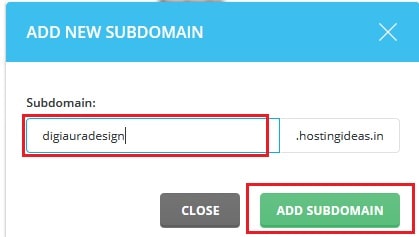
- In the Subdomain box, type only the new word, for example
blog. - Click Create.
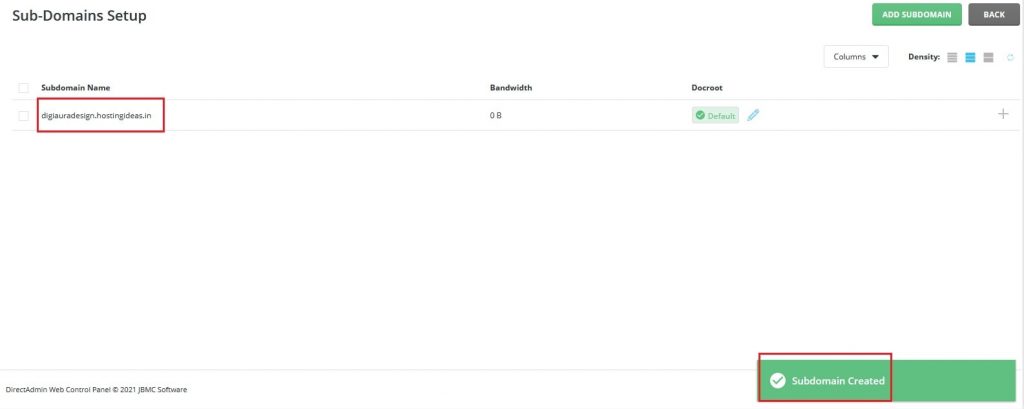
DirectAdmin makes a folder for it, usually inside public_html. Upload the files for that part of your site into this folder. It may take a short time before the new address works.
Remove a subdomain
Warning: removing a subdomain can also delete its folder and files. Back up anything you want to keep first.
- Go to Subdomain Management again.

- Tick the box next to the subdomain.
- Click Delete.
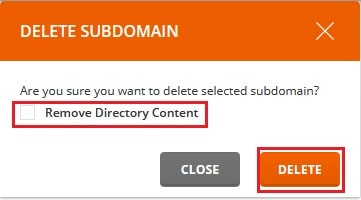
- The screen may ask whether to remove the files too. Read it carefully, then choose.
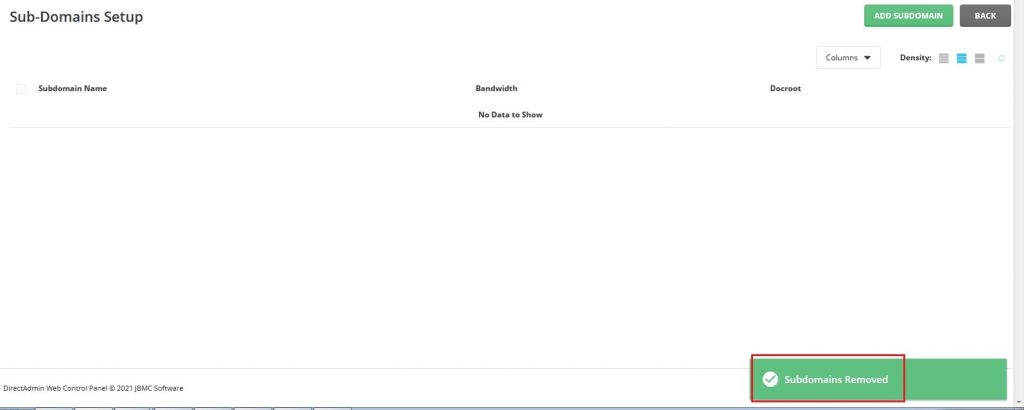
- Confirm.
Check that it works
- Upload a simple file named
index.htmlinto the subdomain folder. - Open the new address in your browser.
- You should see your file.
Tip: Use lowercase letters, numbers and hyphens in subdomain names. Avoid spaces and symbols.
If the subdomain still does not load after some hours, ask Hostvento support through a ticket.
Quick recap
- A subdomain is a word before your main domain.
- Use Subdomain Management to create or delete it.

- Type only the new word when creating.
- Back up files before deleting.