

This guide needs admin access, so it is for VPS and dedicated server owners.
What is a backup?
A backup is a safe copy of your data. It is like a photo of your homework before you start to edit it. If something goes wrong, you can go back to the photo. An admin backup lets the server owner save many accounts at once.
Create a backup
- Log in to DirectAdmin as admin.

- Go to Admin Level and click Admin Backup/Transfer.
- Click the Create Backup area, or the tab with that name.

- Choose the users you want to save. Tick them one by one, or choose all.
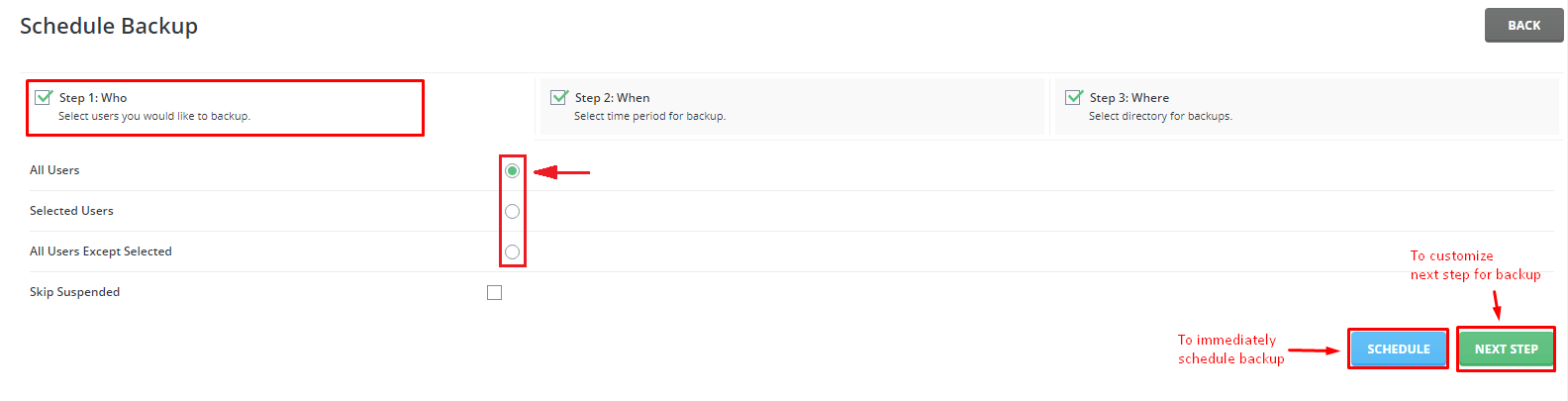
- Tick what to include, such as websites, databases and email.
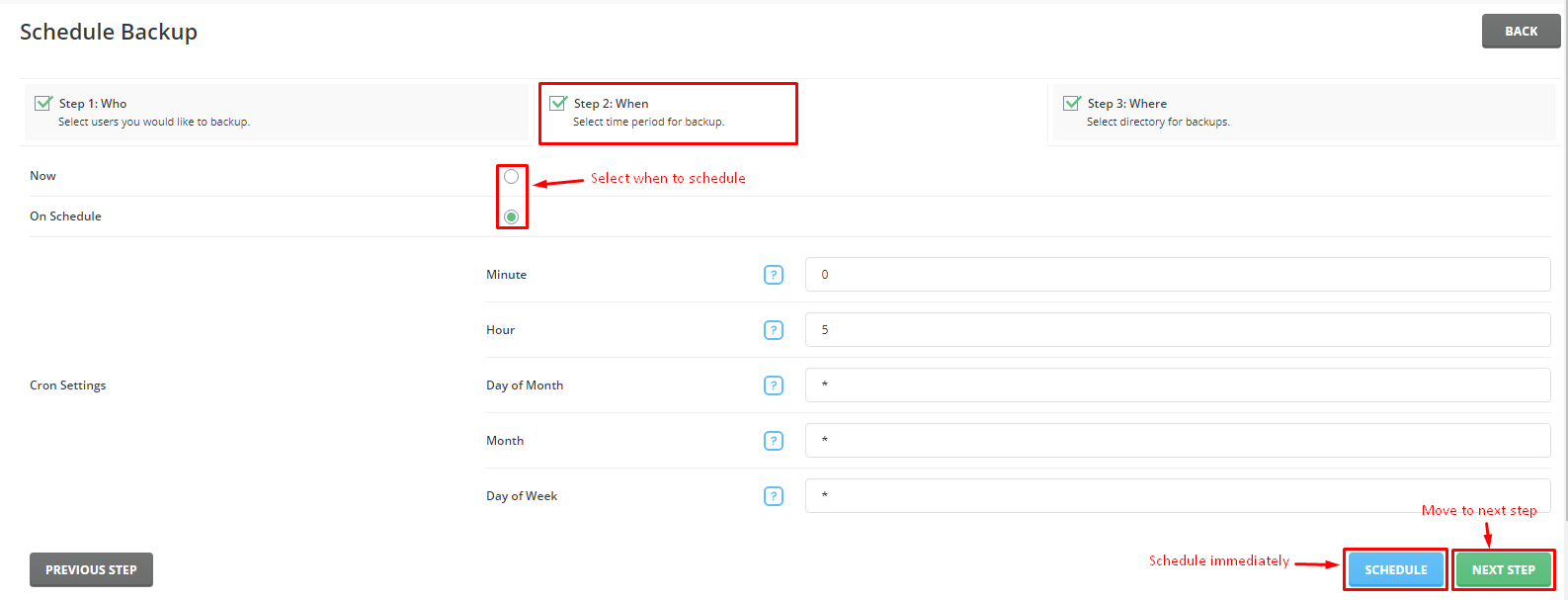
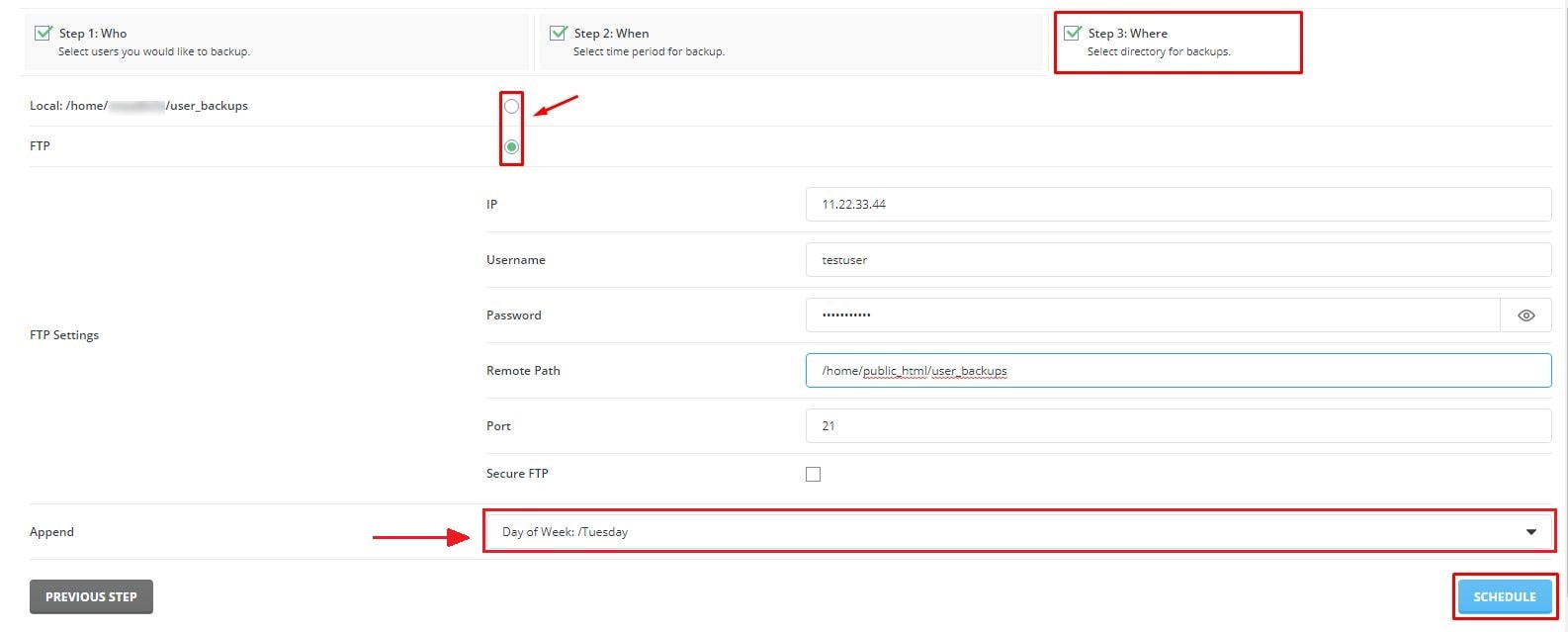
- Choose where to keep the file. The default is the server itself. You can choose a remote place if your version allows it.
- Click Next or Create.
The backup runs in the background. Bigger accounts take more time. You will see a message when it finishes.
Restore a backup
Warning: restoring replaces the current data with older data. Newer files and emails may be lost. Take a fresh backup first if you are not sure.
- Go to Admin Backup/Transfer again.
- Click the Restore Backups area.
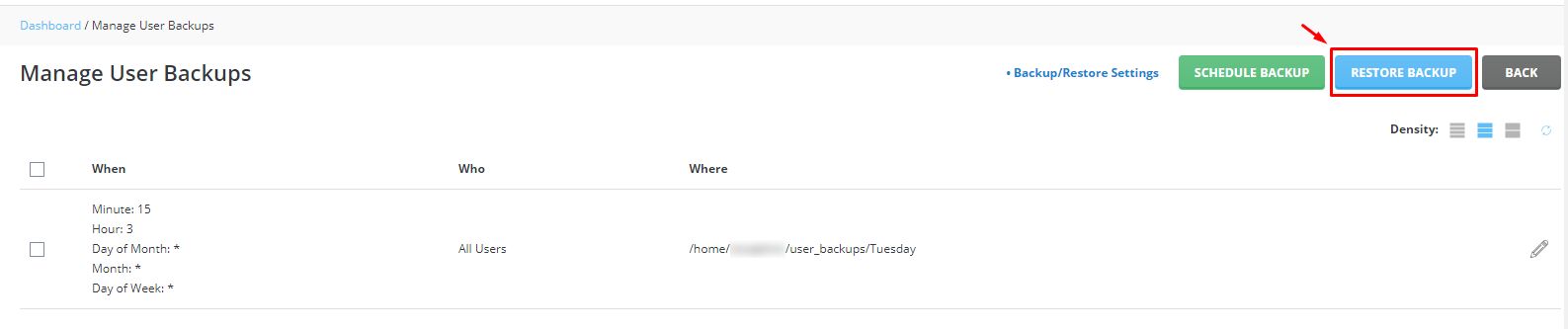
- Choose the folder or location that holds the backup file.
- Tick the backup file you want.
- Choose which parts to bring back, such as everything or only the databases.

- Click Next and then Restore.
Wait until the screen says it is done. Then open the website and check that it works.
Tip: A backup that stays only on the same server can be lost if the server fails. Copy important backups to another place, such as your own computer.
Need help? Open a ticket at the support page.
Quick recap
- Use Admin Backup/Transfer under Admin Level.
- Pick users and what to include, then create.
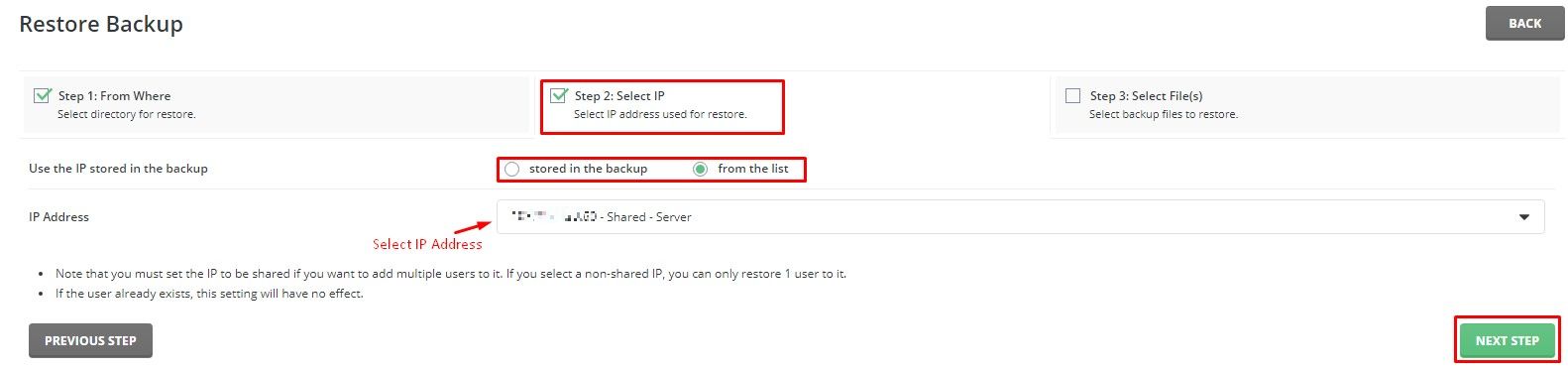
- To restore, choose the file and what to bring back.
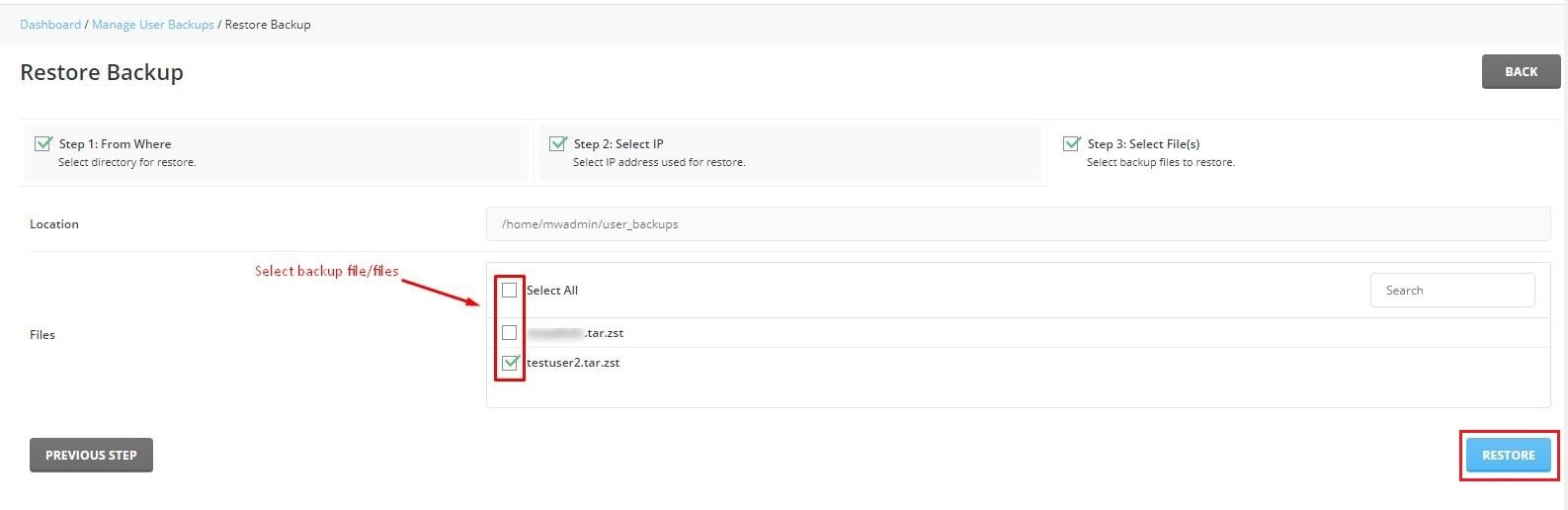
- Restoring overwrites newer data, so be careful.
- Keep a copy somewhere else.