

What is a skin?
A skin is the outfit of a control panel. It changes how the buttons, menus and colors look. It does not change what the panel can do. Evolution is a newer skin for DirectAdmin. It has a clean layout and works on phones.
Customizing is usually done by an admin or reseller, so users see your brand. Normal users may only pick a light or dark style.
Before you start
- You need admin or reseller access for the branding options.

- Take note of the current settings so you can go back.
- Have your logo file ready. A small, clear picture works best.
Steps
- Log in to DirectAdmin.
- Go to Admin Level or Reseller Level.
- Look for Evolution Skin Customization or a similar item such as Skin Options. The name can differ by version.
- Choose the color theme you like.
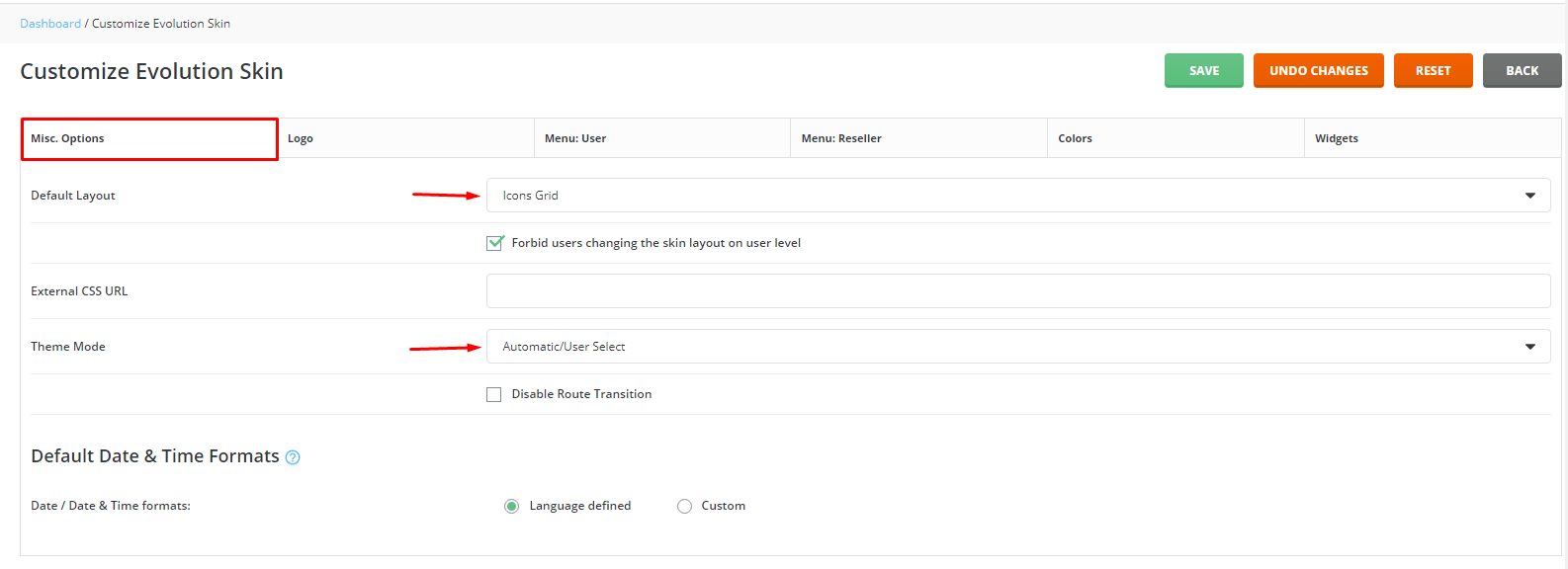
- Upload your logo if the page has a logo option.
- Change other options you see, such as the page title or the login page picture.
- Click Save.
- Refresh the page with Ctrl + F5 to see the change.
Change the theme as a user
- Click your username at the top right.
- Open the settings for your account.
- Choose a style from the list. For example, a light or dark one.
- Save the change.
If the changes do not show
- Clear your browser cache. The cache is a store of old page parts your browser keeps.
- Try a private window.
- Check that the file you uploaded is a normal picture type, like PNG or JPG.
Tip: Deep changes to the skin files on a VPS or dedicated server may be lost after a DirectAdmin update. Use the built-in options when you can.
For help, open a ticket at the support page.
Quick recap
- A skin changes the look of the panel only.
- Find the Evolution customization page under Admin or Reseller Level.
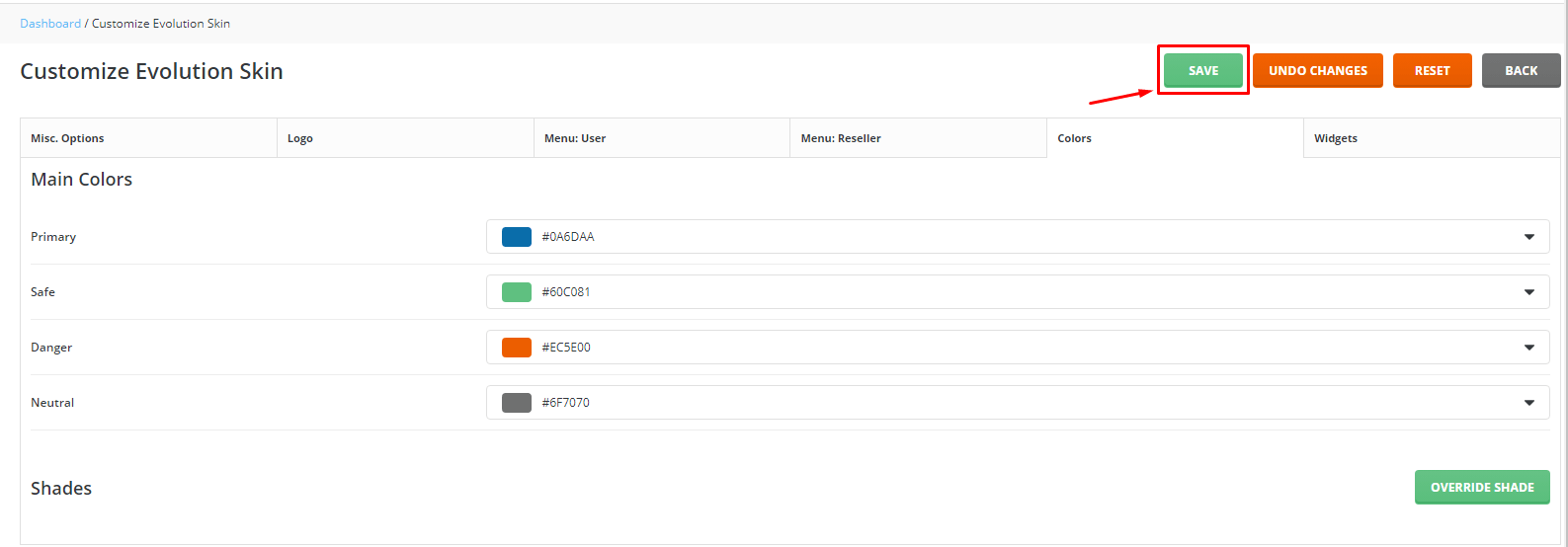
- Pick colors, add a logo and save.
- Refresh your browser to see the result.