

What happens when you delete?
An email account is a mailbox with an address and a password. When you delete it, DirectAdmin removes the mailbox. Messages stored inside it are usually deleted too. The address stops working, and anyone who writes to it may get an error message.
Warning: deleted mail may not be recoverable. Save any important message first.
Save your mail first
- Open the mailbox in webmail, or in your mail app.
- Move important messages to another account, or export them.
- Check that the copies are safe.
Webmail is a website where you can read your email in a browser.
Steps to delete
- Log in to DirectAdmin.
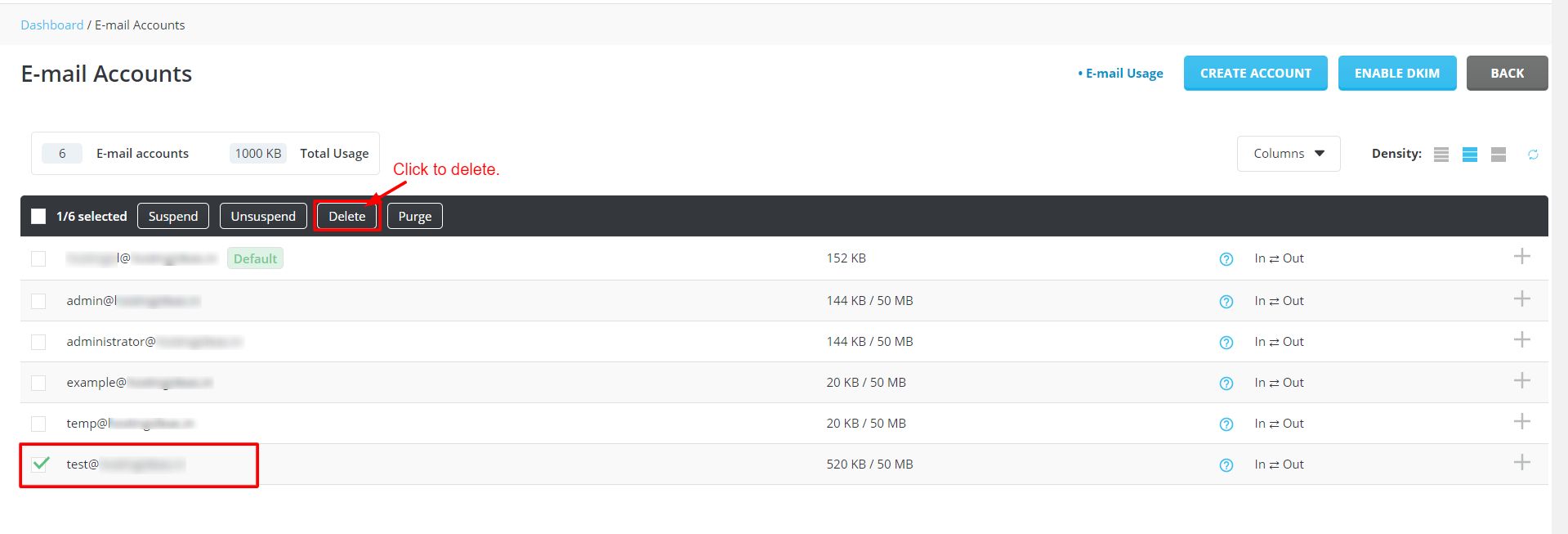
- Open E-Mail Manager and click E-Mail Accounts.

- Find the address you want to remove in the list.
- Tick the box next to it.
- Click Delete Selected.
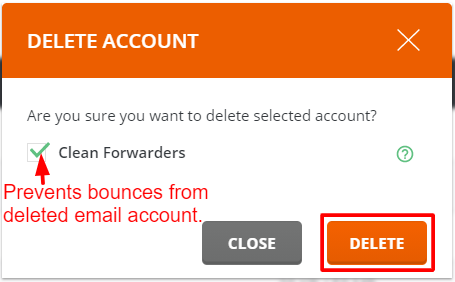
- Read the question on the screen.
- Confirm the choice. The mailbox is removed.
Other things to check
- If you use the address on your website or contact page, change it so people do not write to a dead address.
- If other forwarders send mail to this address, update or remove them too.
- Remove the account from your phone or computer mail app.
Do you really need to delete it?
You may only want to stop one person from using the address. In that case, change its password. You can also set a forwarder so new mail goes to someone else. Both keep the address alive.
Tip: If you deleted an address by mistake, you can create it again with the same name. The old messages will not come back unless you restore a backup.
Need help with a backup? Ask the team through a support ticket.
Quick recap
- Deleting a mailbox can remove its messages for good.
- Save important mail first.
- Use E-Mail Accounts, tick the address and click Delete Selected.
- Update forwarders and websites that used the address.