

What is the File Manager?
The File Manager is a tool inside DirectAdmin. It works like the Files app on your computer. You can see folders, open them, move things and delete things. A folder is a container that holds files, and a file is one document, picture or page.
Warning: deleting the wrong file can break your website. Download a copy of anything you are unsure about first.
Steps
- Log in to DirectAdmin.
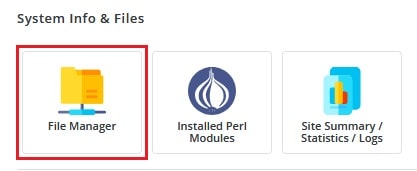
- Open System Info & Files and click File Manager. In some versions, it is simply listed as File Manager on the main page.
- Click your way to the folder that holds the item. Your main website files are often in
public_html. - Click the box next to the file or folder you want to remove. You can tick more than one.
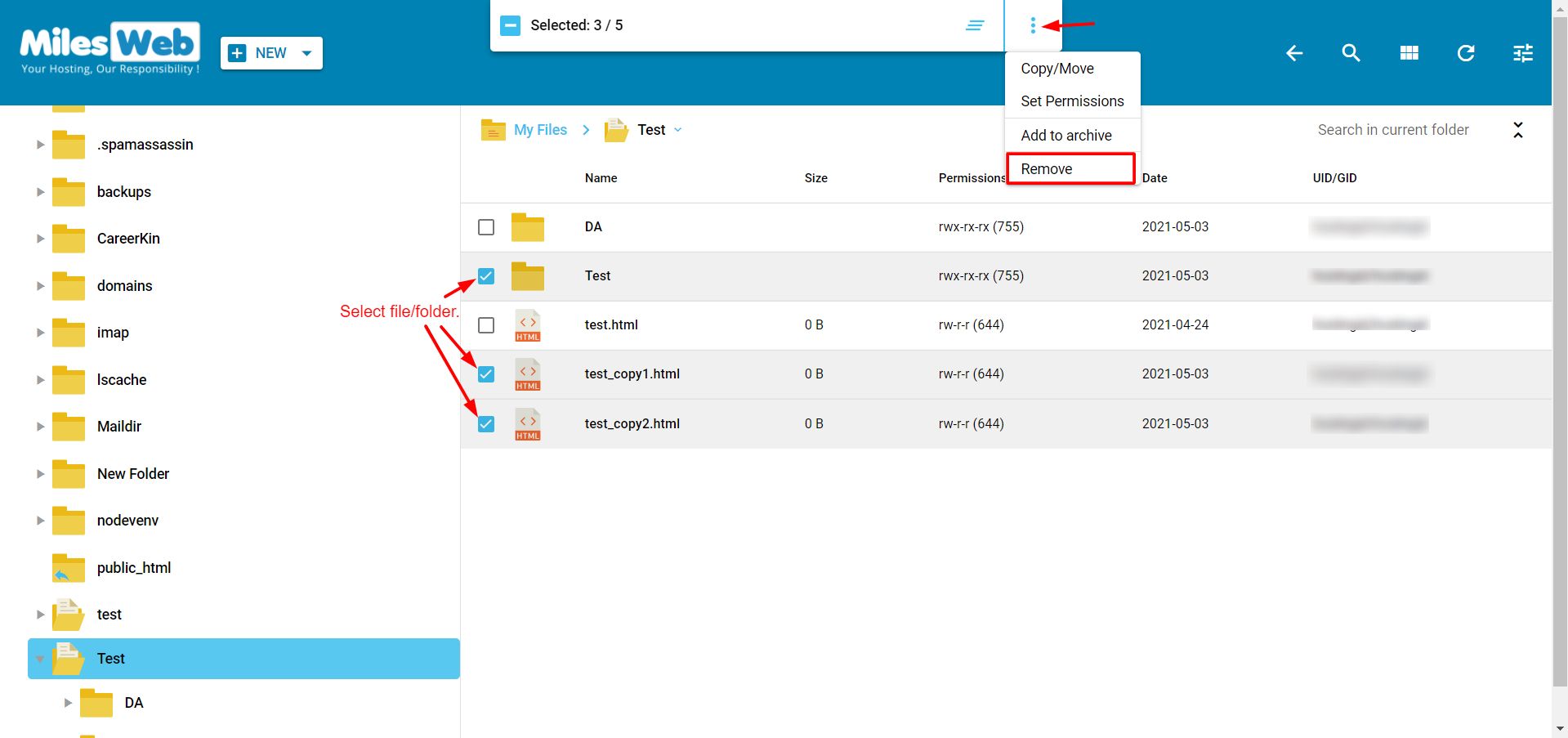
- Click Delete at the top of the list.
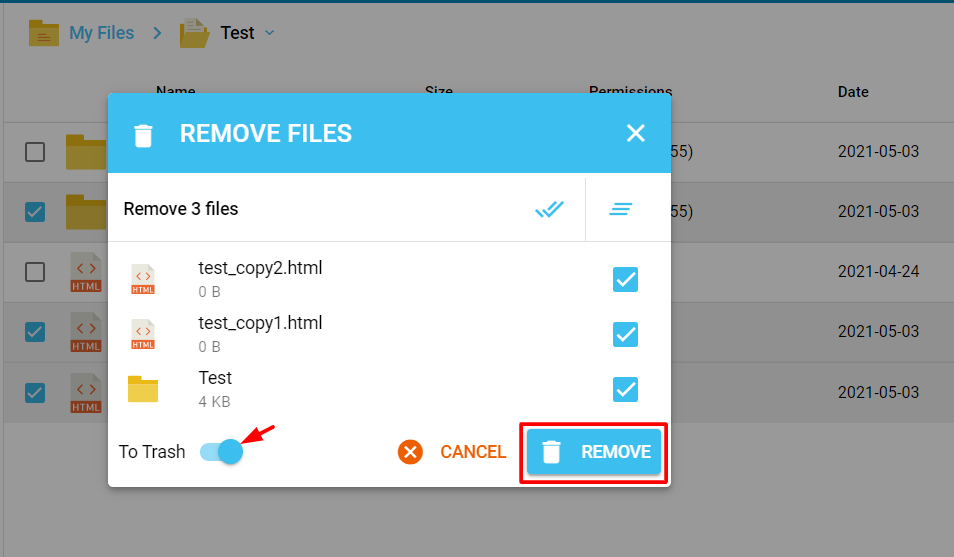
- Confirm when the box asks if you are sure.
The item is removed from the list.
The Trash
Many versions of DirectAdmin move deleted items to a Trash folder first. It is like the recycle bin on a computer. You can open it and restore the item if you change your mind. To remove items for good, empty the Trash. Some servers turn the Trash off, so check the buttons you see.
Good habits
- Do not delete system folders you do not know, such as
.htaccessorcgi-bin, unless you are sure.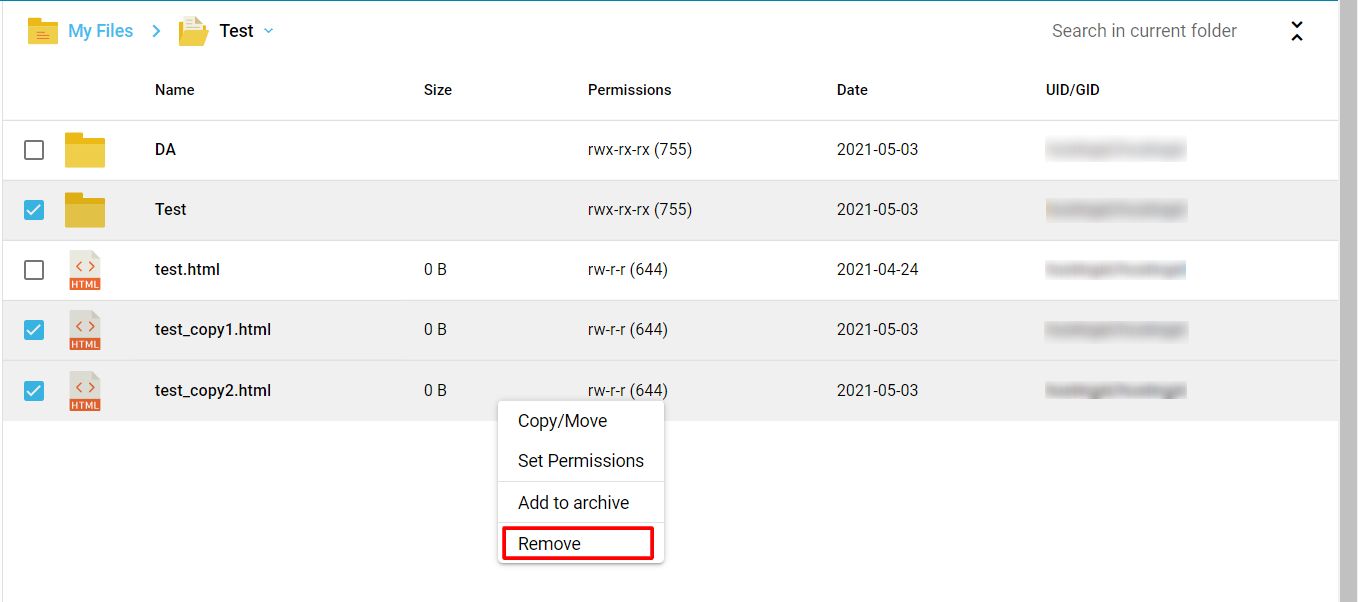
- Delete one folder at a time if you are nervous.
- Keep a backup copy on your own computer.
If a file will not delete, it may be locked by the server. Ask Hostvento to help at the ticket page.
Quick recap
- Open the File Manager.
- Tick the items, click Delete and confirm.
- Check the Trash if you want to restore something.
- Back up before you delete anything important.