

What is .htaccess?
The .htaccess file is a small settings file for websites that run on Apache, a popular web server program. It can hold redirects, rules and security settings. Because it can contain private details, visitors should never be able to open it.
Most servers already block this file. This guide helps you add an extra rule, so you are sure.
Before you start
Editing .htaccess can break your site if a line is wrong. Make a backup copy first. In File Manager, you can copy the file and name the copy .htaccess-backup.
Steps
- Log in to DirectAdmin.
- Open File Manager.
- Go to the
public_htmlfolder. This is the main folder of your website. - Find
.htaccess. Hidden files may not show. Look for a setting to show hidden files if you cannot see it. - Click the file name, then click Edit.
- Scroll to the end of the file.
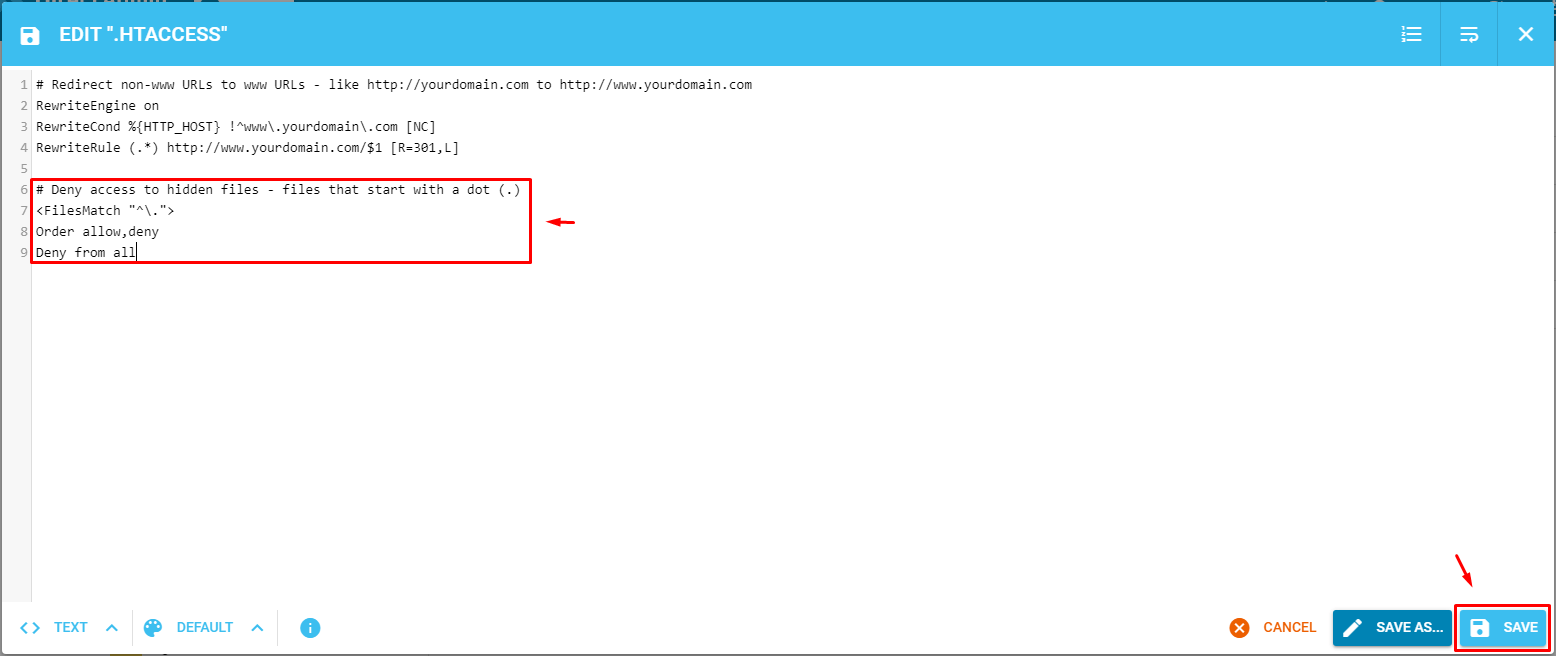
- Add the following lines on a new line:
<Files ".htaccess">
    Require all denied
</Files>
This tells Apache to refuse anyone who asks for the .htaccess file. It works on Apache 2.4. On older Apache 2.2, use these lines instead:
<Files ".htaccess">
    Order allow,deny
    Deny from all
</Files>- Click Save.
Test it
- Open a browser.
- Type your domain followed by
/.htaccess. - You should see an error such as 403 Forbidden. That means access is denied. A 403 error is the server saying "you may not enter".
If your whole site shows an error, remove the lines you added. Then ask support through a ticket.
Tip: Some sites run on other server types, which do not read .htaccess at all. Ask support if you are unsure which one you have.
Quick recap
- .htaccess holds private site rules.
- Back it up, then edit it in File Manager.
- Add the Files block with
Require all denied. - Test by visiting
/.htaccessin your browser.