

What is the welcome message?
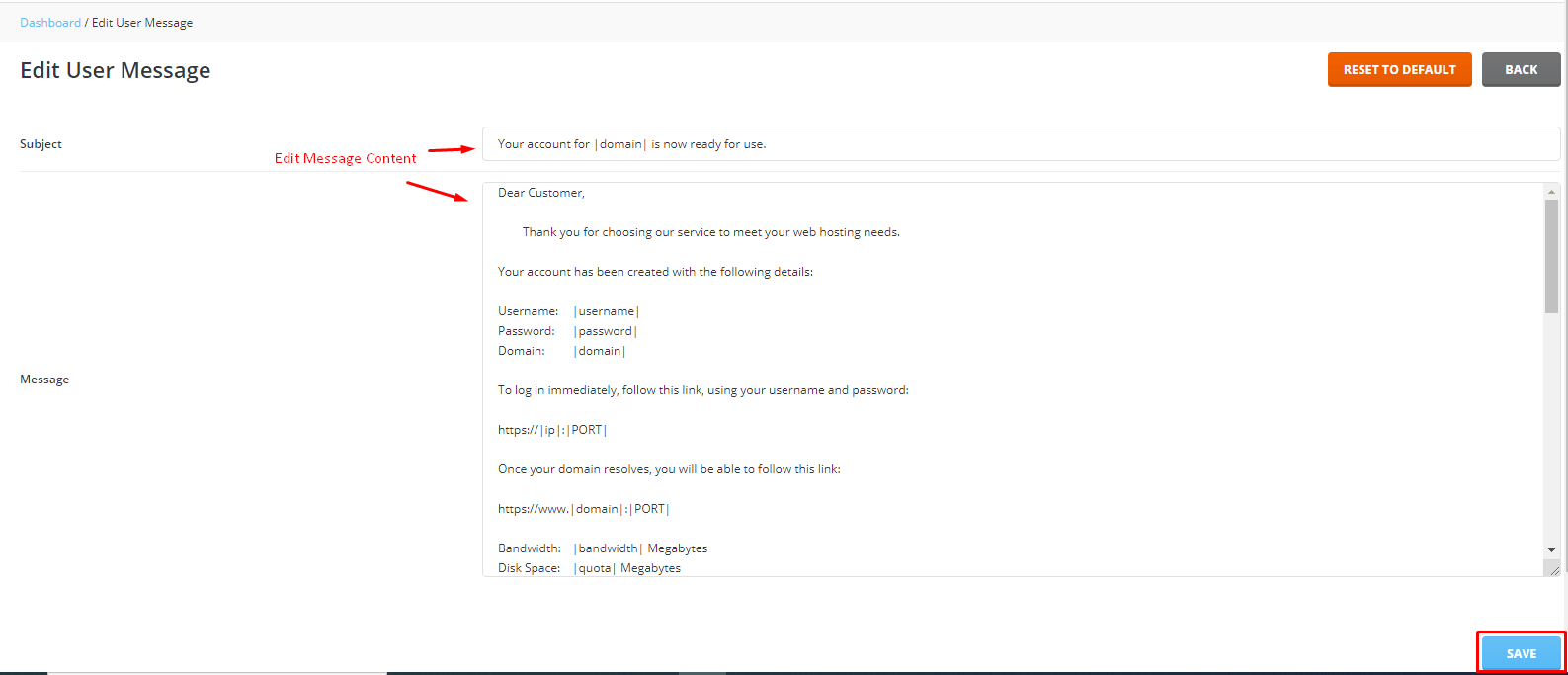
When you create a new user account, DirectAdmin can send an email to that person. It gives the login details and the first steps. This is the welcome message. It is built from a template. A template is a ready-made text with blanks, such as the username, which the system fills in for each new person.
You may want to change it to use your own words, add your brand name, or add helpful links.
You need reseller or admin access.
Option 1: Use the panel
- Log in to DirectAdmin as a reseller or admin.

- Open Reseller Level.
- Look for Customize Messages, Edit Message Templates or a similar item.
- Choose the welcome message.
- Edit the text.
- Click Save.
Names change by version. If you do not see it, try Option 2.
Option 2: Edit the file (server owners)
This needs root access, which is the main login of a server.
- Log in to the server using SSH, a secure way to type commands.
- List the template folder:
ls /usr/local/directadmin/data/templates/This shows the template files. Find the one for new user welcome.
- Create the custom folder if it is missing:
mkdir -p /usr/local/directadmin/data/templates/customFiles here are kept safe during updates.
- Copy the welcome template into this folder.
- Open your copy in a text editor.
- Change the words you want.
- Keep the blanks such as
|USER|or|PASS|as they are in the file you copied. DirectAdmin replaces them. - Save the file.
Test it
- Create a test user with your own email address.
- Check that the welcome email looks right.
- Delete the test user.
Tip: Do not write prices, offers or contact details into the message unless you are sure they are correct. Wrong details confuse people.
If you need help, open a ticket at the support page.
Quick recap
- The welcome message is sent to new users.
- Edit it in the reseller menus, or in a custom template file.
- Keep the blanks that DirectAdmin fills in.
- Test with a spare account.