

What is auto-login?
phpMyAdmin is a web tool for looking inside a database. A database is like a filing cabinet that stores the information of a website. Normally phpMyAdmin asks for a database username and password. Auto-login, also called single sign-on, lets DirectAdmin pass your details for you. You click a link and you are in.
Steps for a user
- Log in to DirectAdmin.
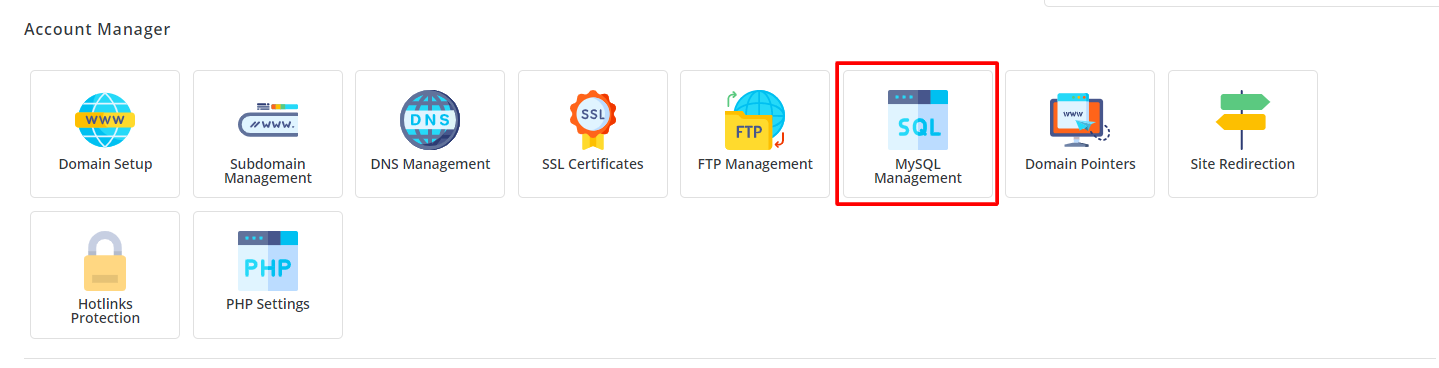
- Open Extra Features and click MySQL Management. The section name can differ by version.
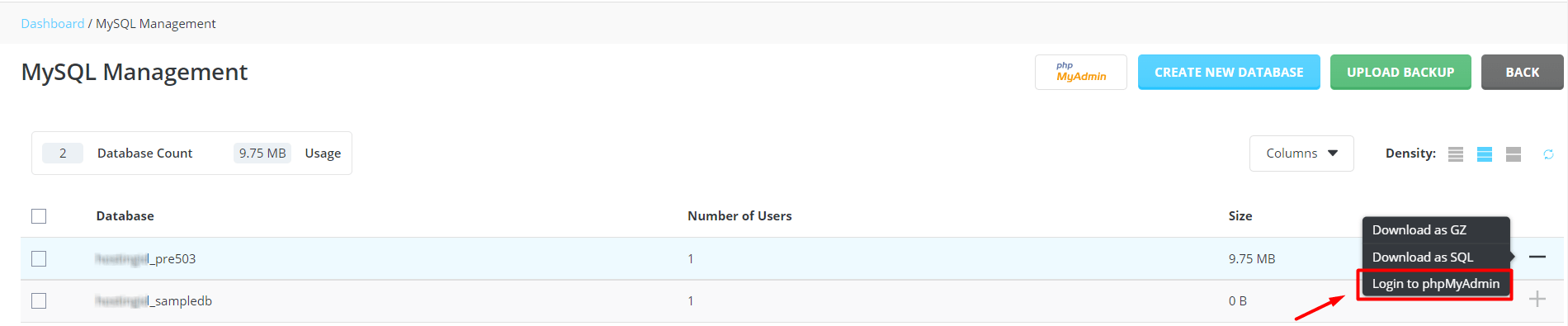
- Click the name of the database you want to open.
- Look for a button called phpMyAdmin, or Login to phpMyAdmin.
- Click it. A new window opens, and you are logged in.
If this works, auto-login is already on. You do not need to change anything.
If it asks for a password
- Allow pop-ups for your DirectAdmin page. A blocked pop-up can stop the new window.
- Clear your browser cache, which is a store of old page parts.
- Log out of DirectAdmin and log in again.
- Make sure your browser accepts cookies. A cookie is a small note a site keeps in your browser. Auto-login uses one.
Steps for a server owner
This part needs root access, so it is for VPS and dedicated server owners. Single sign-on needs a working phpMyAdmin install with DirectAdmin's sign-on script.
- Log in to the server with SSH, a secure way to type commands.
- Go to the CustomBuild folder:
cd /usr/local/directadmin/custombuildThis is where the server software tool lives.
- Update the scripts and rebuild phpMyAdmin:
./build update
./build phpmyadmin
The rebuild installs phpMyAdmin with DirectAdmin's sign-on setup.
- Test with a user account.
Tip: For safety, never save your database password in a shared computer's browser.
If it still fails, send Hostvento a note via the ticket page.
Quick recap
- Auto-login lets you enter phpMyAdmin without a password.
- Click the phpMyAdmin button in MySQL Management.
- Allow pop-ups and cookies.
- Server owners can rebuild phpMyAdmin with CustomBuild.