

This guide needs root access, so it is for VPS and dedicated server owners.
What is demo mode?
Demo mode is like a display model in a shop. People may look and click, but they cannot really break it. In DirectAdmin, demo mode blocks actions that would change or damage data. Hosting companies use it to show customers what the panel looks like. Teachers use it to train new staff.
Warning: never turn on demo mode for an account that you need to manage for real. The account may be unable to save changes. Use a test account instead.
Before you start
- Make a separate demo user and a demo reseller if you need them.
- Put no real customer data in the demo account.
- Make a backup copy of the settings file before editing it.
Steps
- Log in to the server with SSH, a secure way to type commands, as root.

- Copy the main DirectAdmin settings file as a backup:
cp /usr/local/directadmin/conf/directadmin.conf /usr/local/directadmin/conf/directadmin.conf.bakThis makes a safe spare copy.
- Open the real file with a text editor such as
nano:
nano /usr/local/directadmin/conf/directadmin.confThis opens the settings file for editing.
- Add the demo mode option. The setting is named
demo_mode. Check the official DirectAdmin option list to confirm the exact value your version needs. - Save the file and close the editor.
- Restart DirectAdmin:
systemctl restart directadminThis makes the panel read the new setting.
Test it
- Log in to DirectAdmin with a demo account.
- Try to change a harmless setting.
- You should see a message that the action is not allowed in demo mode.
Turn it off
Restore the backup copy of the settings file and restart DirectAdmin again.
Tip: Demo settings may be different between versions. If you are not sure, ask Hostvento support through a ticket before editing server files.
Quick recap
- Demo mode lets people explore the panel safely.
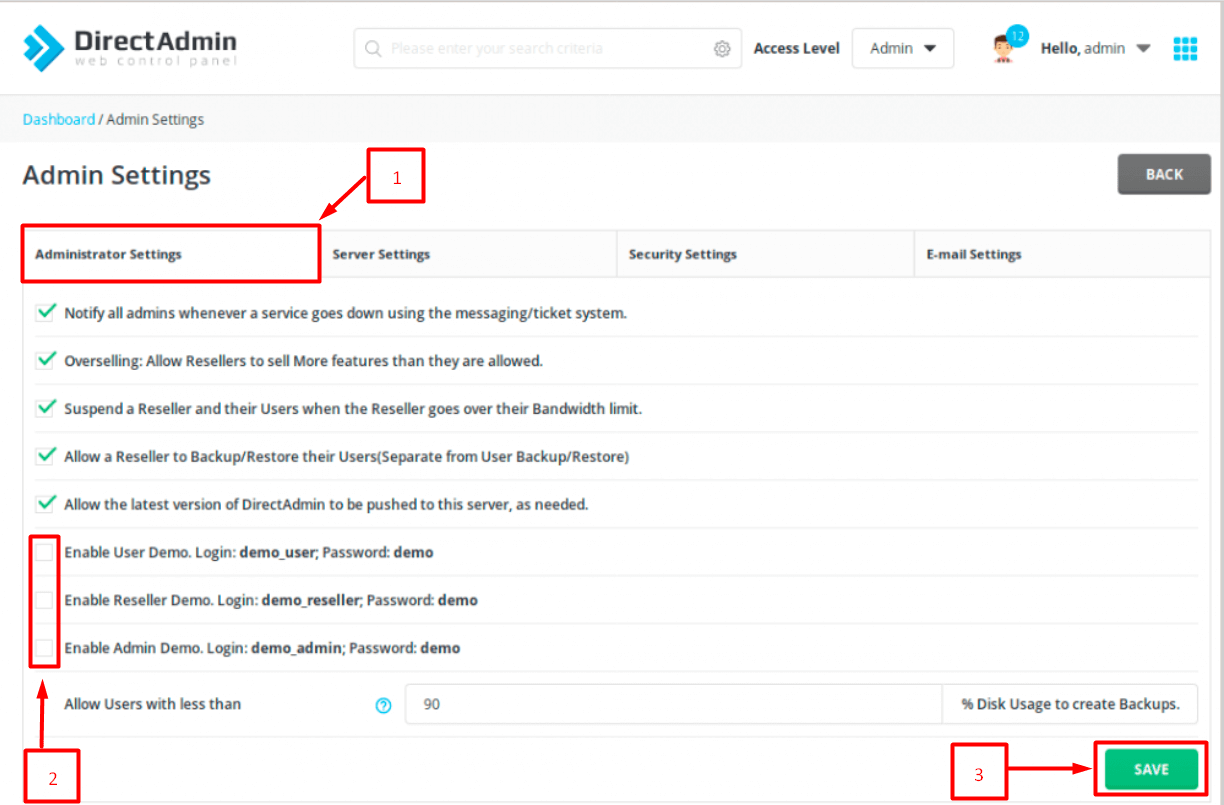
- It is set in the DirectAdmin settings file and needs root access.
- Back up the file first and restart the panel after the change.
- Use demo accounts only, never real ones.