

What is a notification email?
A notification email is an automatic message. It is like a doorbell for your hosting account. It rings when something needs your attention. Examples are a full disk, a finished backup or a problem with your account.
These messages go to the contact email address saved in your account. If that address is old or wrong, you will never see them. So the first job is to keep that address up to date.
Steps to set your contact email
- Log in to DirectAdmin. You can open it from your client area or use the login link in your welcome email.
- Open Account Manager.
- Click Change Email or Account Settings. The name depends on your skin.
- Type the email address where you want messages to go. Use an address that is not on the same domain you host here. If your site goes down, you would not get the message.
- Enter your current password if DirectAdmin asks for it.
- Click Save.
Steps to turn on message options
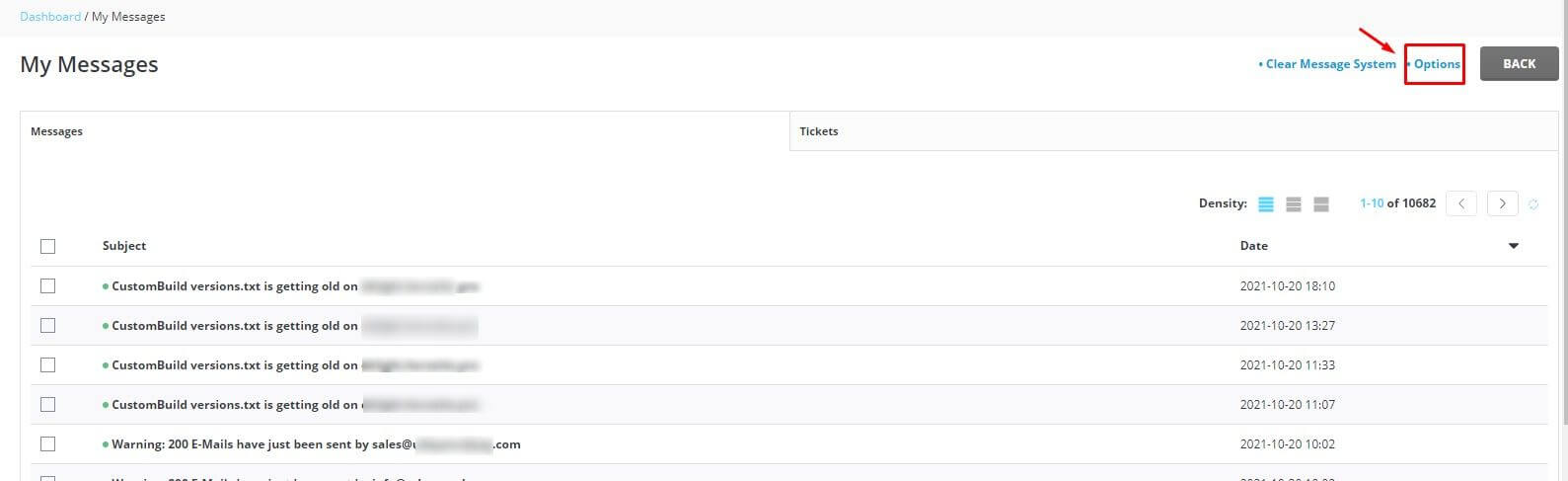
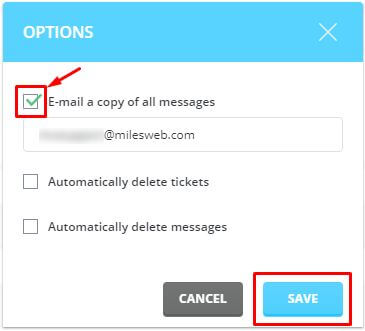
Some DirectAdmin setups give you options to choose which messages you get. The exact options depend on how your hosting is set up.
- In DirectAdmin, open Account Manager and look for Notifications or Message Preferences.
- Read the list of events. Tick the ones you want, such as disk or bandwidth warnings.
- Click Save.
If you do not see a notifications page, your account may not allow it. Messages are then controlled by the server owner.

Check your mailbox
- Look in your inbox and in the spam folder for emails from your hosting server.
- If you find them in spam, mark them as Not spam.
- Add the sender address to your contacts so they always arrive.
Need more help?
If you still get no notification emails, open a support ticket. Hostvento support can tell you which messages your plan sends.
Quick recap
- Notification emails warn you about events on your account.
- They go to the contact email saved in DirectAdmin.
- Change the address in Account Manager.
- Pick message options if your account offers them.
- Check your spam folder if nothing arrives.