

What is spam filtering?
A spam filter is like a mail sorter at a post office. It checks each letter. Junk goes in one pile and real mail goes in another. In DirectAdmin, a tool called SpamAssassin does this checking. It gives each email a score. A high score means the email looks like spam.
Your plan may or may not include SpamAssassin. If you cannot find the tools below, ask Hostvento support.
Turn on SpamAssassin
- Log in to DirectAdmin.
- Click Spam Filters in the email section. You can also use the search box at the top.
- Choose your domain.
- Tick Enable SpamAssassin.
- Choose what should happen to spam. You can delete it or move it into a spam folder. Moving it is safer, because you can check for mistakes.
- Set a score limit. A lower number catches more spam but may catch real mail too. Start with the default.
- Click Save.
Block one sender
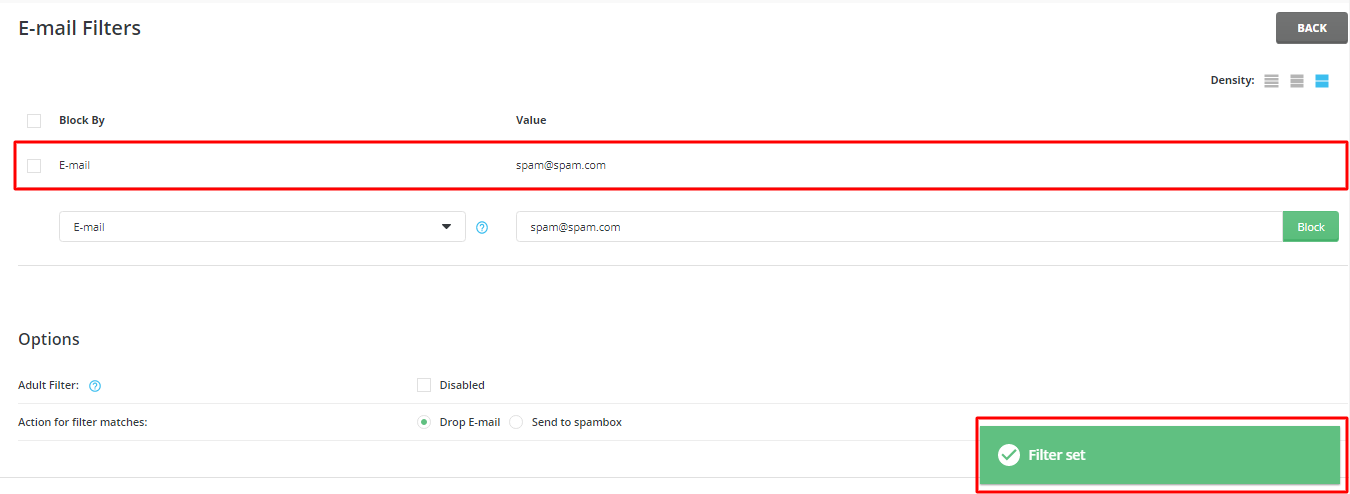
- Open E-mail Filters in the email section, if your account has it. You can also create filters in Roundcube webmail.

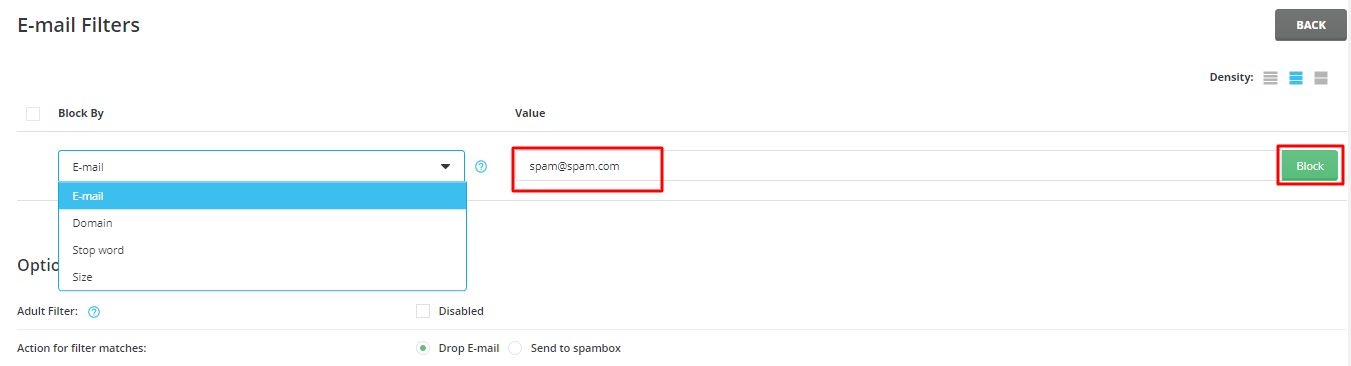
- Click Create Filter.
- Choose a rule, such as From contains the sender's address.
- Choose an action, such as Discard or Move to folder.
- Click Save.
Block words or a whole domain
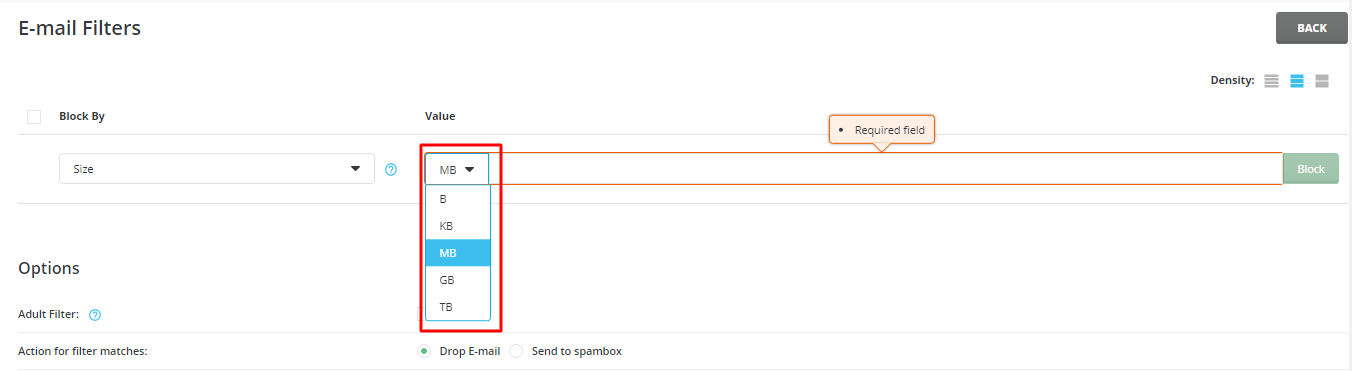
Use the same filter page. Pick Subject or From. Then type a word or part of an address, like @spamdomain.com. Be careful with short words. They may block good emails too.
Tip: Check your spam folder every few days at first. If a real email ended up there, lower the score limit or remove the rule that caught it.
Good habits
- Never reply to spam.
- Do not click links in strange emails.
- Do not post your email address openly on websites.

- Use a strong password for each email account.
If spam keeps coming after these steps, open a support ticket.
Quick recap
- SpamAssassin scores emails and finds likely spam.
- Turn it on in Spam Filters and choose to move spam to a folder.
- Use E-mail Filters to block one sender or word.

- Check the spam folder often for good emails caught by mistake.