

What is .htaccess?
.htaccess is a small text file that sits in a website folder. It gives the web server extra instructions. It works like a note on a door that says "send visitors this way". People use it to redirect pages, force HTTPS, block visitors or set error pages.
The name starts with a dot. Files that start with a dot are hidden on many systems. That is why you may not see it at first.
Warning: One wrong line can break your whole site. Download a copy of the file before you change it.
Steps to edit an existing file
- Log in to DirectAdmin.
- Click File Manager in the System Info & Files section.

- Open the folder
domains, then your domain name, thenpublic_html. - Look for
.htaccessin the list. - If you do not see it, look for a setting to show hidden files and turn it on.
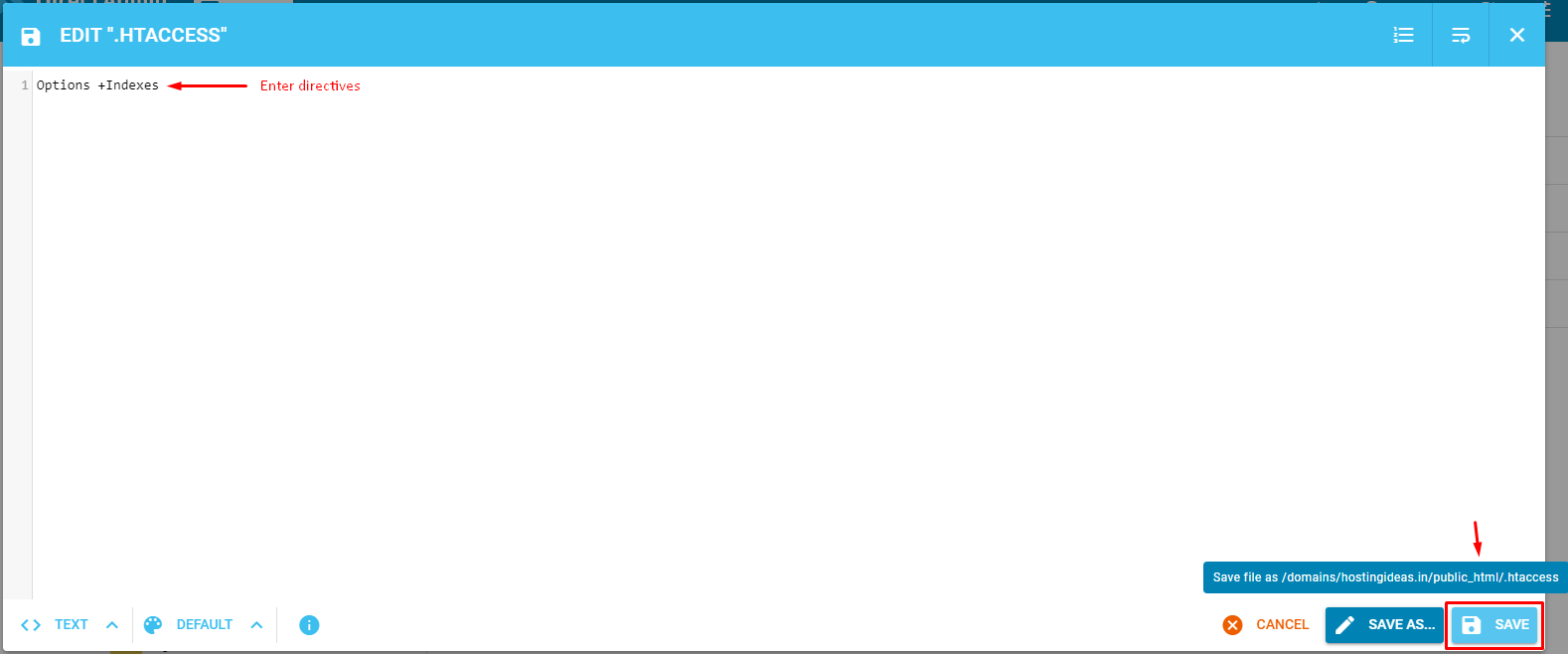
- Click the file name, then choose Edit or View/Edit.
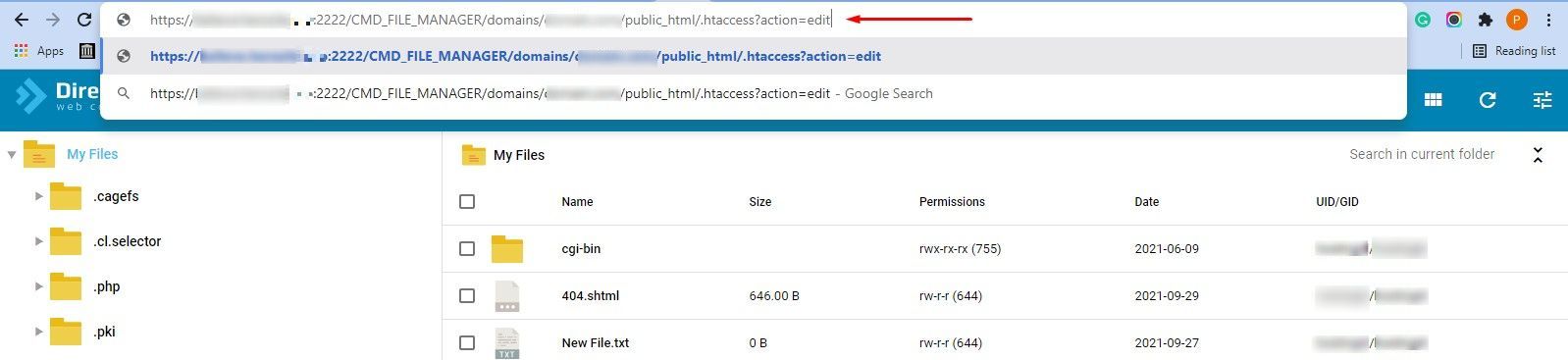
- Make your change in the text box.
- Click Save.
Steps to create a new file
- Open File Manager and go to
public_htmlfor your domain. - Click New File or Create File.
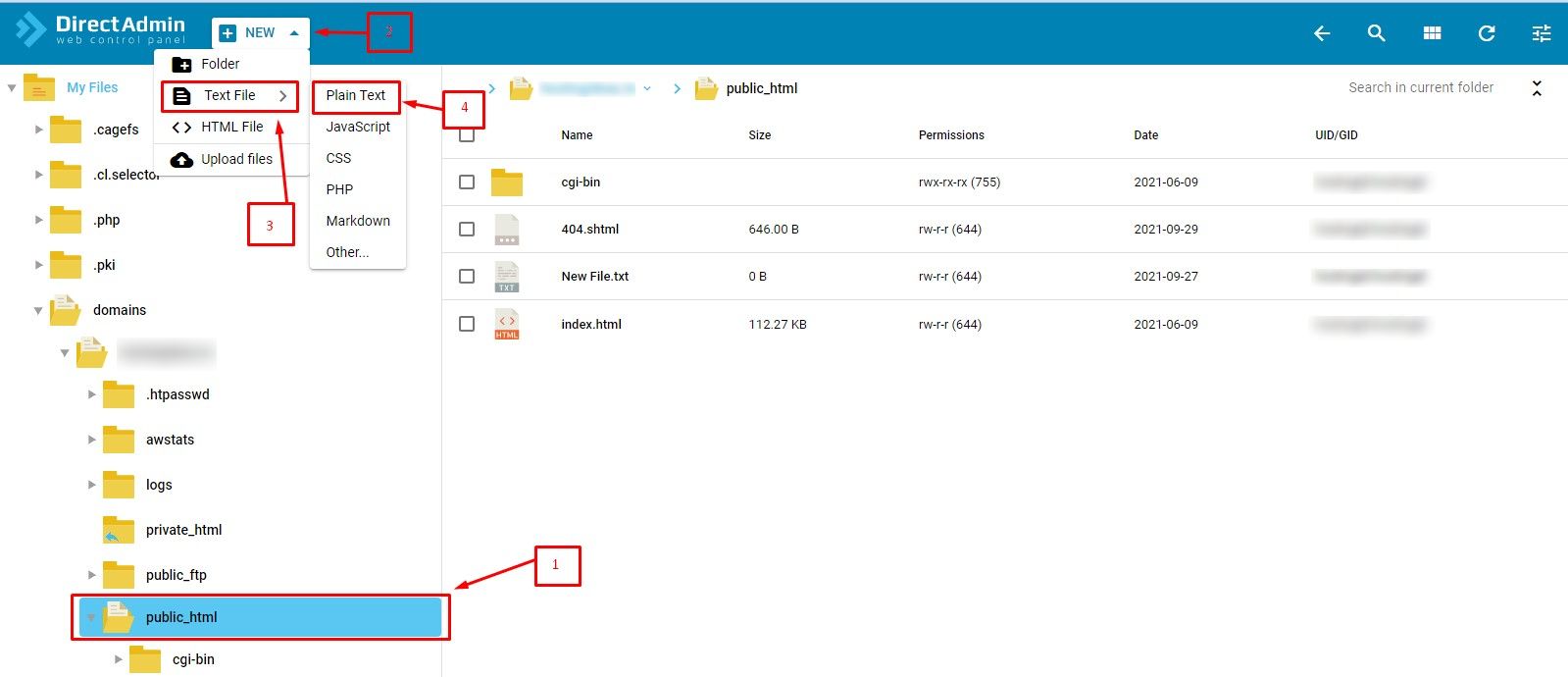
- Type
.htaccessas the name. Do not forget the dot at the start. - Click Create, then open the file.
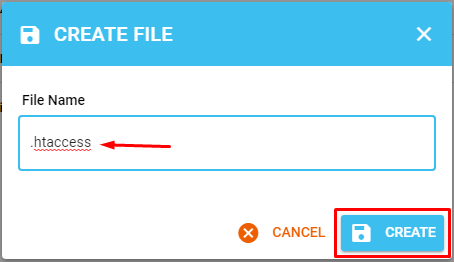
- Type your instructions and click Save.
A simple example
This sends all visitors to the secure HTTPS version of your site. Use it only after SSL is installed.
RewriteEngine On
RewriteCond %{HTTPS} off
RewriteRule ^(.*)$ https://%{HTTP_HOST}/$1 [L,R=301]
The first line turns on the rewrite feature. The next two lines say: if the visit is not secure, send it to the secure address.
If the site shows an error after your change
- Open the file again.
- Remove the lines you added, or paste back your saved copy.
- Save and reload your site.
Still stuck? Open a support ticket.
Quick recap
- .htaccess holds extra rules for your website.
- It lives in
public_htmland is hidden by default. - Edit it in File Manager and click Save.
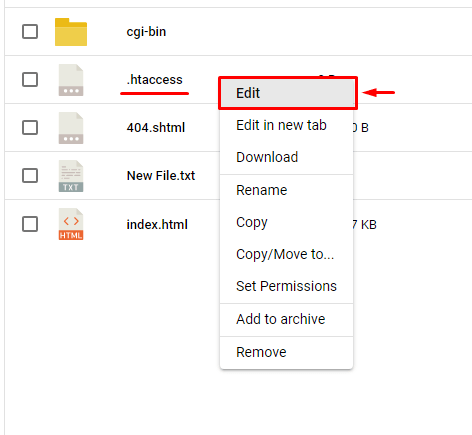
- Always keep a copy before editing.