

What is an account backup?
A backup is a safe copy of your data. It is like keeping a spare house key. If your site breaks, gets hacked or loses files, the backup lets you go back to an earlier day.
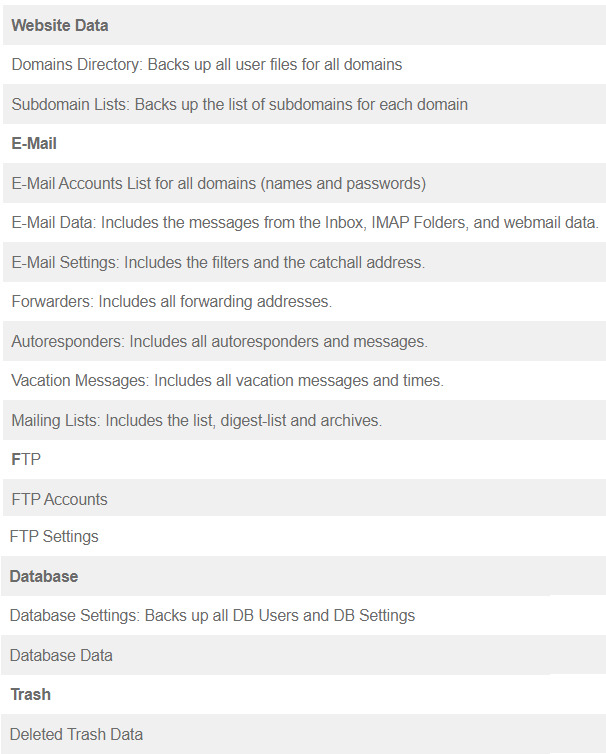
A full DirectAdmin backup can hold your website files, email accounts, databases and settings. A database is where a site stores its content, like blog posts.
Create a backup
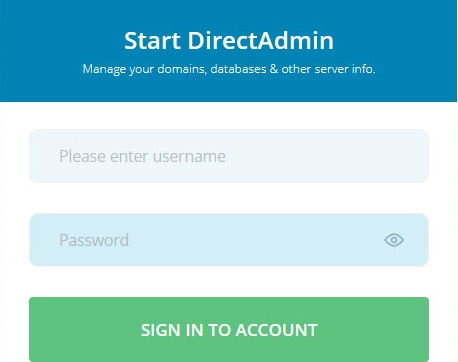
- Log in to DirectAdmin.
- Click Create/Restore Backups. It is under Account Manager or Advanced Features.

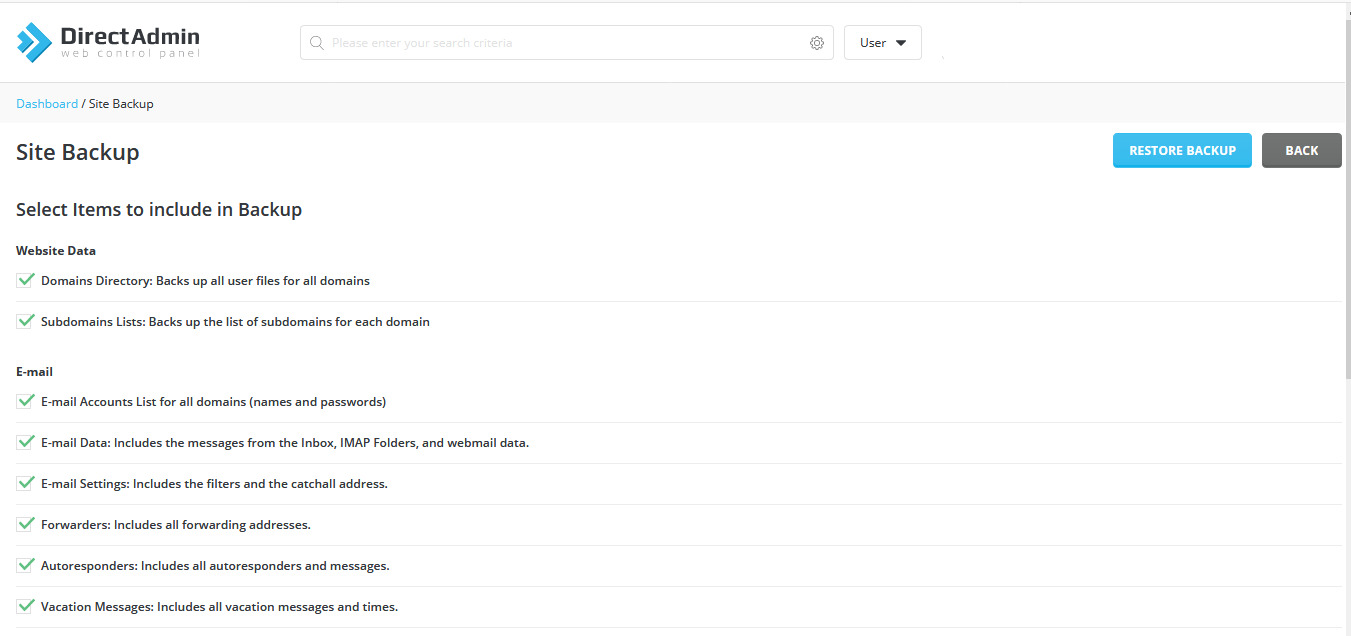
- Tick the domains you want to include.
- Tick the items to include, such as files, email and databases. To make a full copy, select everything.
- Click Create Backup.
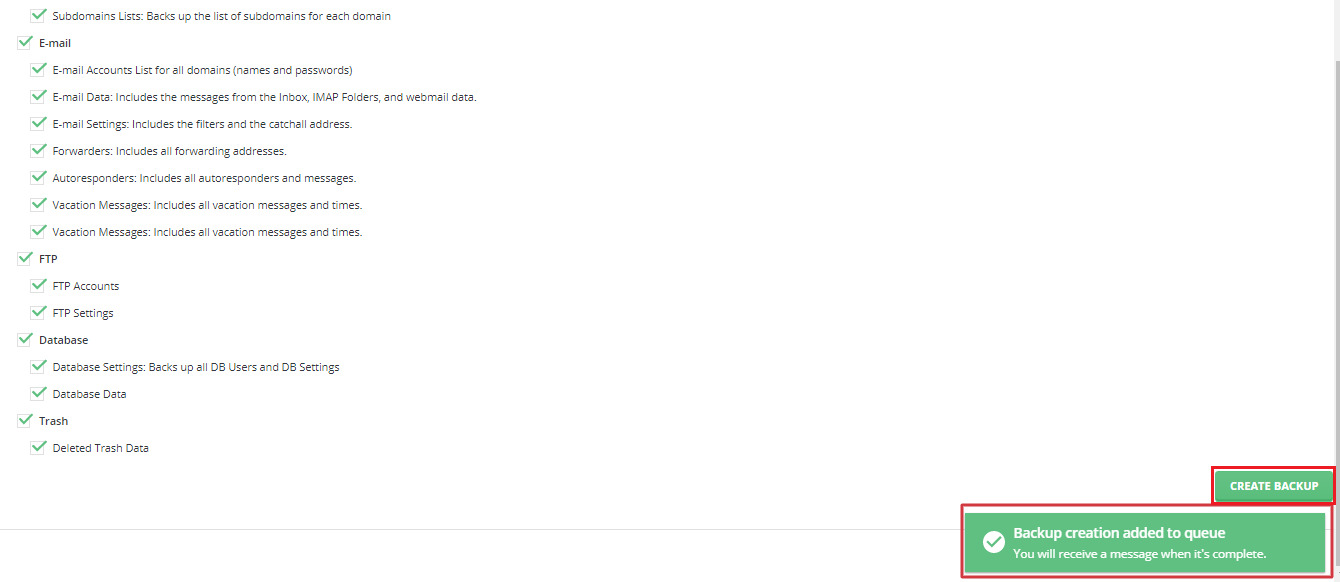
- Wait while DirectAdmin works. Large sites take longer. A message may appear when it finishes.
Download the backup
- Go back to the Create/Restore Backups page.
- Find your file in the list. The name contains a date.
- Click it to download.
- Store it in a safe place away from the server, such as your computer or cloud storage.
Restore a backup
Warning: Restoring replaces your current data with older data. Make a new backup first if you want to keep what you have now.
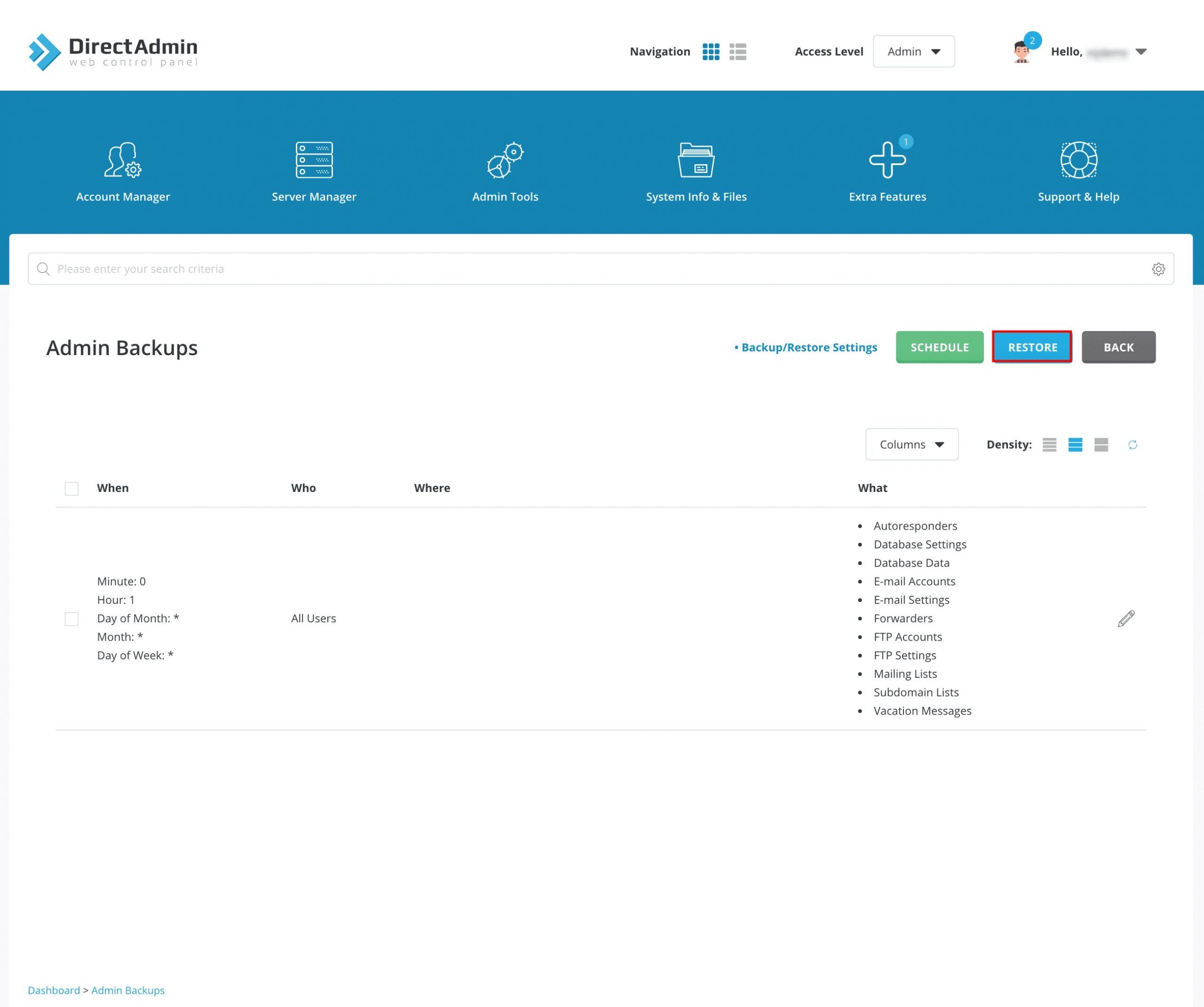
- Open Create/Restore Backups.
- Tick the backup file you want to use.
- If your backup is only on your computer, upload it if the page lets you. Otherwise ask support to place it for you.
- Choose the items to restore. You can pick only the parts you need.
- Click Restore Selected Items.
- Wait for the process to finish, then open your site and check it.
Good habits
- Back up before big changes, like updates or new plugins.
- Keep more than one backup.
- Test a restore from time to time.
- Ask Hostvento support if your plan has automatic backups.
Menu names can differ a little between DirectAdmin versions. Use the search box in DirectAdmin to find the page.
Quick recap
- Open Create/Restore Backups.
- Select items and click Create Backup.
- Download the file and keep it safe.
- To restore, select the file and click Restore Selected Items.
- Restoring overwrites current data, so be careful.